
 To Next Page
D
David FigueroaAug 17, 2025
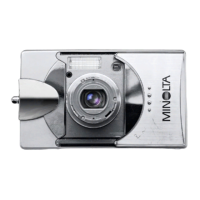
Why doesn’t my Minolta Dimage G500 flash?
- MMike HarrisonAug 17, 2025
If your Minolta Digital Camera doesn’t flash, it may be set to “Flash off” mode.

Why doesn’t my Minolta Dimage G500 flash?
If your Minolta Digital Camera doesn’t flash, it may be set to “Flash off” mode.
Why does my Minolta Dimage G500 image appear dark?
If your Minolta Digital Camera image appears dark, it could be due to several reasons. The flash might not be reaching the subject because the distance is too great, or there might not be enough light available. Alternatively, the exposure correction might not be adjusted properly.
What to do if my Minolta Digital Camera won’t play back images?
If your Minolta Digital Camera is not playing back images, ensure the PLAY button is ON. Also, verify that there is image data on the device and that all image data has not been erased.
Why is my Minolta Dimage G500 Digital Camera image too bright?
If your Minolta Digital Camera image is too bright, it could be because the flash was used when the subject was too close, or the exposure correction is not adjusted properly.
Why does my Minolta Dimage G500 turn off right after turning on?
If your Minolta Digital Camera turns off right after turning on, it could be due to a low battery level or low ambient temperature.
Why my Minolta Dimage G500 can’t focus?
If your Minolta Digital Camera can’t focus, it might be because the subject is not in the center, the subject is hard to focus on, the lens is dirty, or the distance from the subject is incorrect.
What to do if my Minolta Dimage G500 can’t take a picture?
If your Minolta Digital Camera can’t take a picture, ensure the power supply is on. Check if the SD Memory Card or Memory Stick is write-protected. If the maximum number of pictures has been reached, erase unwanted pictures. Also, check if the camera is set to the Self-Timer mode or if the flash is being charged.
Why is the LCD monitor display not clear on my Minolta Digital Camera?
If your Minolta Digital Camera LCD monitor display is not clear, the LCD brightness may be adjusted incorrectly, or there may be fingerprints or dirt on the monitor.
Why does my Minolta Dimage G500 Digital Camera image have no natural color?
If your Minolta Digital Camera image has no natural color, the white balance might be incorrect.
How to fix Minolta Dimage G500 Digital Camera that can’t transfer to your PC?
If you can’t transfer images to your PC from your Minolta Digital Camera, ensure that it is connected correctly to your PC. Also, verify that there is image data inserted in the camera.
Details on charging batteries and using AC adapters for camera operation.
Guidance on how to handle SD, MultiMedia, and Memory Stick cards.
Overview of various shooting modes like AUTO, Red-Eye, Fill-In, and flash options.
Accessing and configuring detailed shooting parameters like resolution and exposure.
Adjusting exposure, adapting to lighting, and changing auto-exposure modes.
Configuring camera preferences and accessing basic REC menu options.
Viewing still images, movies, voice memos, and using quick-view function.
Accessing options like index playback, copying, resizing, and protecting images.
Solutions for problems like power, shooting, focus, and display issues.
 General
| Brand | Minolta |
|---|---|
| Model | Dimage G500 |
| Category | Digital Camera |
| Language | English |