13
Mitel Networks
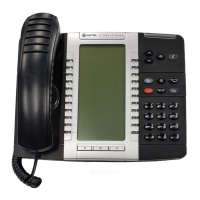
5330 IP Phone
Specify Call Notification Behavior
To specify that the Phone window automatically displays when you are making
or receiving calls:
1. Press Settings or .
2. Press Call Notification.
3. Press the appropriate options to identify when you want the Phone window
to display. For example, if you select the Made option, each time the
phone goes off hook to make a call, the Phone window is displayed.
4. Press Save.
Notes:
When To my prime line is selected, select Display Call Info to display Call
Information instead of the Phone window.
Press Cancel at any time to exit this application without making any
changes.
When the Conference Unit application is displayed, the Phone application
is not automatically displayed when making or receiving calls.
Adjust the Ringer
To adjust the Ringer Volume while the phone is idle:
1. Press Superkey (must be programmed to a key).
2. Press the No softkey until "Ringer Adjust?" appears.
3. Press “Ring Adjust”.
4. Press No.
5. Press “Ringer Vol”.
6. Press (UP) or (DOWN).
7. Press Superkey.
To adjust the Ringer Volume while the phone is ringing:
Press (UP) or (DOWN).
Notes:
If the phone is in talk state, this action adjusts the volume of the handset,
headset or speaker.
If the phone is idle, this action adjusts the contrast.
To adjust the Ringer Pitch while the phone is idle:
1. Press Superkey (must be programmed to a key).
2. Press the No softkey until "Ringer Adjust?" appears.
3. Press “Ring Adjust”.
4. Press “Ringer Pitch”.
5. Press (UP) or (DOWN).
6. Press Superkey.


 To Next Page