22
Mitel Networks
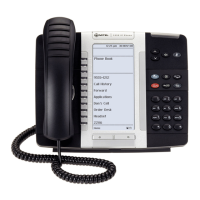
5330 IP Phone
To create a Call Forward profile:
1. Launch Applications.
2. Press Call Forwarding.
3. Press New Profile.
4. Press Edit Profile Name. An on-screen keyboard displays.
5. Press the appropriate keys in the on-screen keyboard to enter the profile
name and press Save. This profile name identifies where your phone calls
will be forwarded to.
6. Select the check boxes opposite Call Forward categories as follows:
Always: forwards all your phone calls
Busy Internal: forwards internal phone calls after several rings if your
line is busy
Busy External: forwards external phone calls after several rings if
your line is busy
No Answer Int: forwards internal phone calls redirects your calls after
several rings if you don't answer
No Answer Ext: forwards external phone calls redirects your calls
after several rings if you don't answer
Note: You can select one or more settings, however, the Always setting
takes priority over all other settings.
7. For each of the Call Forward categories:
Press Edit Number to display the on-screen keyboard.
In the on-screen keyboard, enter the appropriate number.
Press Save.
8. Press Save. The edit window closes. This profile is saved but it is not
activated. To activate this profile, see Activate Call Forward below.
Note: Press Cancel at any time to exit this application without making any
changes.
ACTIVATE CALL FORWARD
To turn Call Forward on once it has been programmed:
1. Press Applications.
2. Press Call Forwarding.
3. Press the appropriate Profile setting.
4. Press Activate.
CANCEL CALL FORWARD
To cancel Call Forward:
1. Press Applications.
2. Press Call Forwarding.
3. Press None setting.
4. Press Activate.


 To Next Page