Camera Software in the Browser
Access the camera's website in the browser
Access the camera's website in the browser
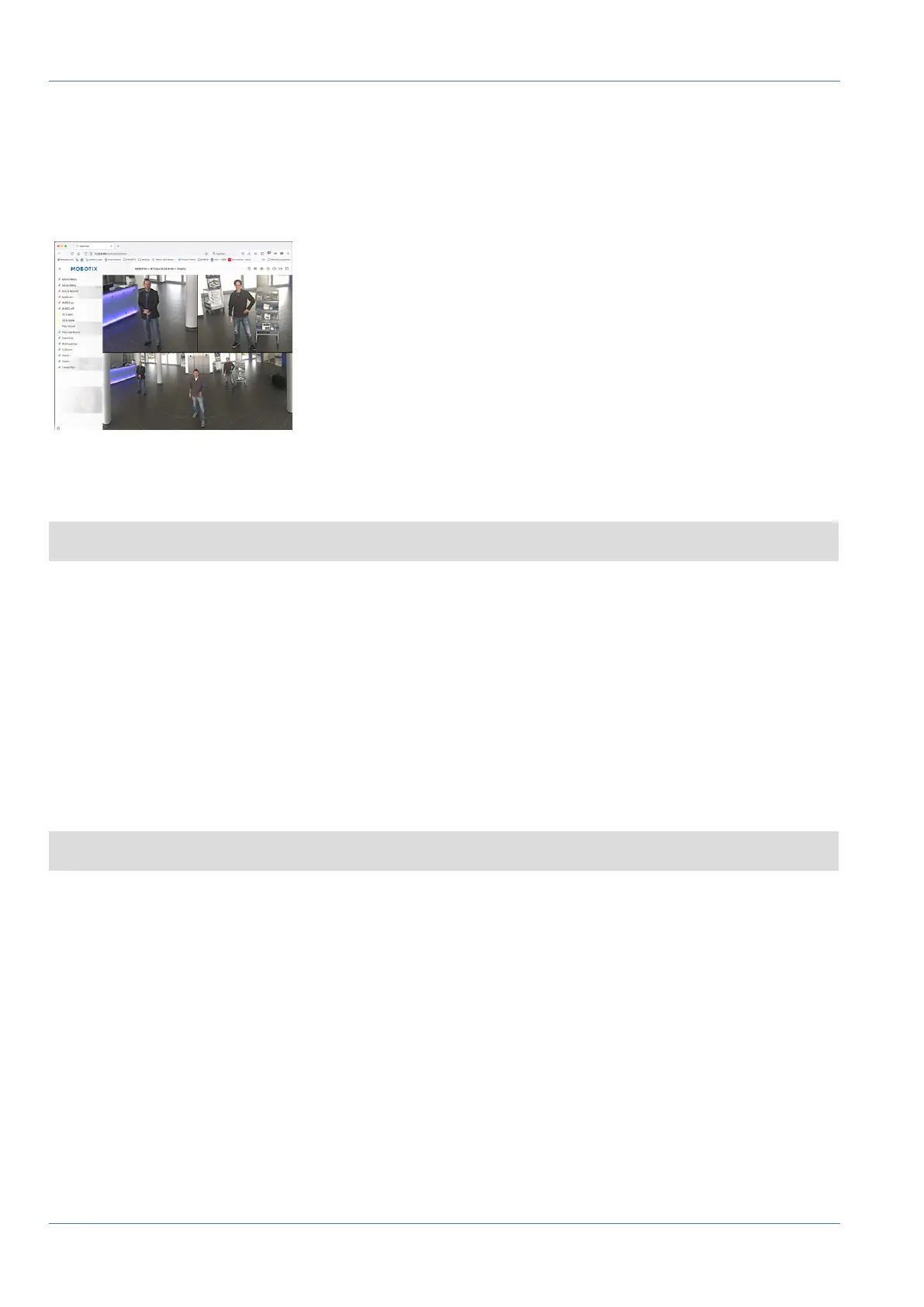
Once the power and network connection of the MOBOTIX have been established, you can open the interface
of the camera software in a web browser.
Fig. 88: The interface of the camera software
1. Enter the camera’s IP address in the address field of a web browser.
NOTE! Make sure to copy the IP address camera from the back of the camera housing or from the sticker.
Basic Settings
Password for the Administration Menu: Accessing the administration area of the camera (Admin Menu but-
ton) in the browser is only possible after entering a user name and password.
n
Default user name: admin
n
Default password: meinsm
NOTE! You must change the password when logging in for the first time.
Make sure that you store information on user names and passwords in a secure place. If you loose the admin-
istrator password and cannot access the Administration menu, the password can only be reset at the factory.
This service is subject to a service charge.
The Quick Installation wizard will appear automatically when accessing the Administration Menu for the first
time. It provides an easy method to adjust the basic camera settings to the current application scenario. For
security reasons, it is highly recommended to change the default administrator password after the camera
has been configured properly.
Enter the user name and password exactly as shown above. Note that all entries are case-sensitive.
Administering the camera: You can modify the camera configuration in the Administration Menu or the
Setup Menu:
101 / 110


 To Next Page