n
Admin Menu: This menu contains the basic configuration dialogs of the camera (e.g. passwords, inter-
faces, software update).
n
Setup Menu: This menu contains the dialogs for configuring the image, event and recording para-
meters. Some of these settings can be changed using the corresponding Quick Controls in the Live
screen.
NOTE!
For more information, consult the Reference Manual of the camera.
Configuring Sensor Modules
Using different combinations of sensor modules of the MOBOTIX M73 will have an influence on the display
modes and configuration variants that are available.
An MOBOTIX M73 will automatically check and verify the installed sensor modules upon its first start and at
every reboot thereafter (e.g., focal length, Day or Night variant). Please note the following:
n
If only one sensor module is attached, the camera will behave like a mono camera (i.e., there is no auto-
matic Day/Night switching).
n
If the modules are not exchanged within the first 12 operating hours, the camera will store the inform-
ation of new sensor modules in the camera configuration.
n
The camera will check the configuration on every reboot to see if the stored sensor modules are still
present. If changes of the sensor module configuration have been detected (e.g., if a sensor module
had to be replaced), the camera will show a corresponding message in the live image.
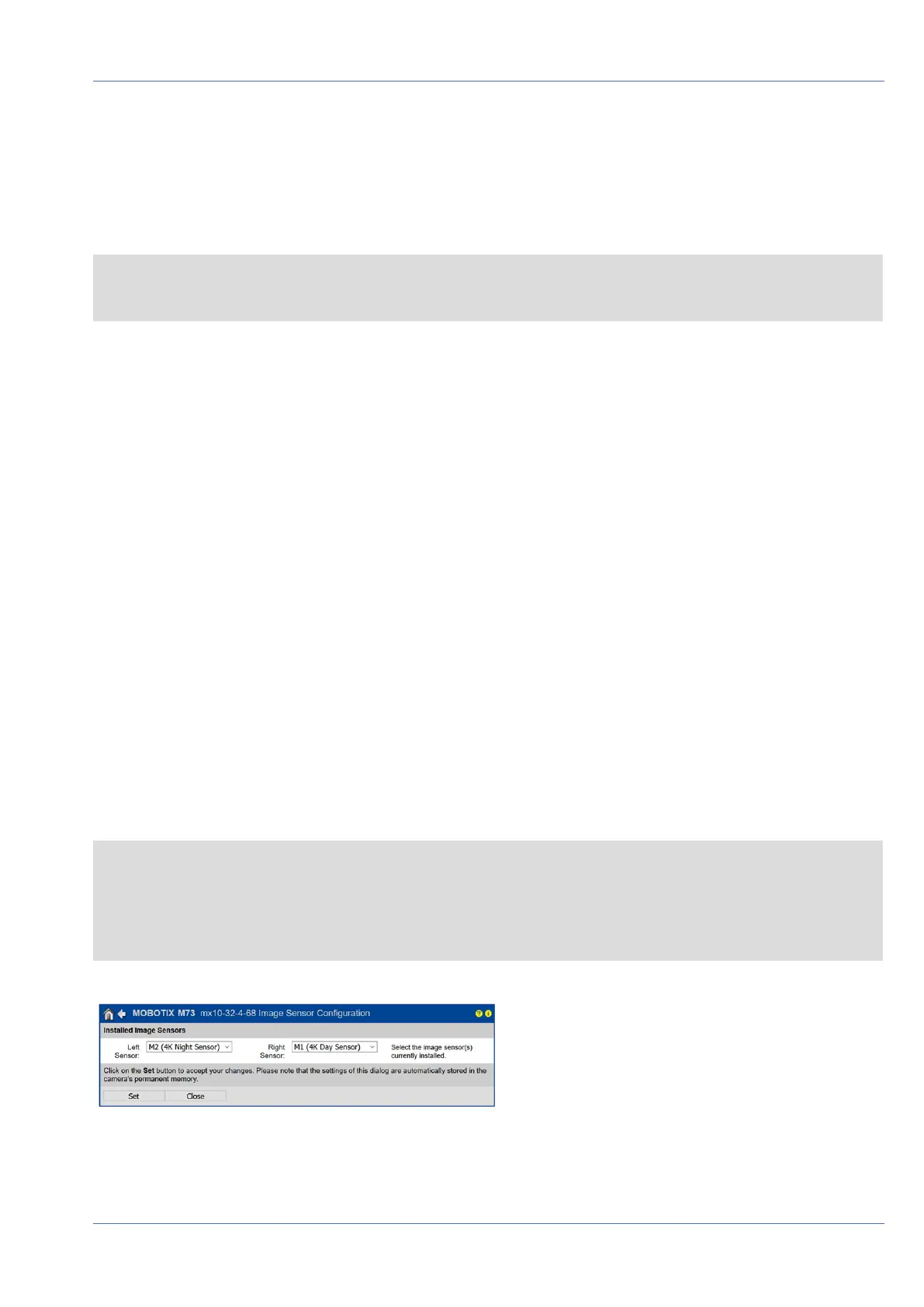
If required, the module configuration can be adjusted, e.g. you can define in which camera image (left or
right) the sensor module should be displayed in a double image display.
NOTE! Using a Thermal Module
If you have installed the Thermal Sensor Module (see Installing a Thermal Front Plate, p. 49), it ismandatory
to open the dialog below and to set one of the image sensors (left or right) to M3 (Thermal Sensor)! If you
do not see a thermal image on one of the sensors, you did not complete this step.
Open the Admin Menu> Image Sensor Configuration dialog:
Fig. 89: Configuring the Sensor Modules
Camera Software in the Browser
Configuring Sensor Modules
102 / 110


 To Next Page