67
First Images and the Most Important Settings
3.2.3 FirstImagesandNetworkParameterCongurationinMxMC
Installing and Starting MxManagementCenter
Download the current version of MxManagementCenter from the MOBOTIX website
(www.mobotix.com > Support > Download Center > Soware Downloads in the
MxManagementCenter area). Double-click the shortcut for the program or the program le.
Finding Cameras
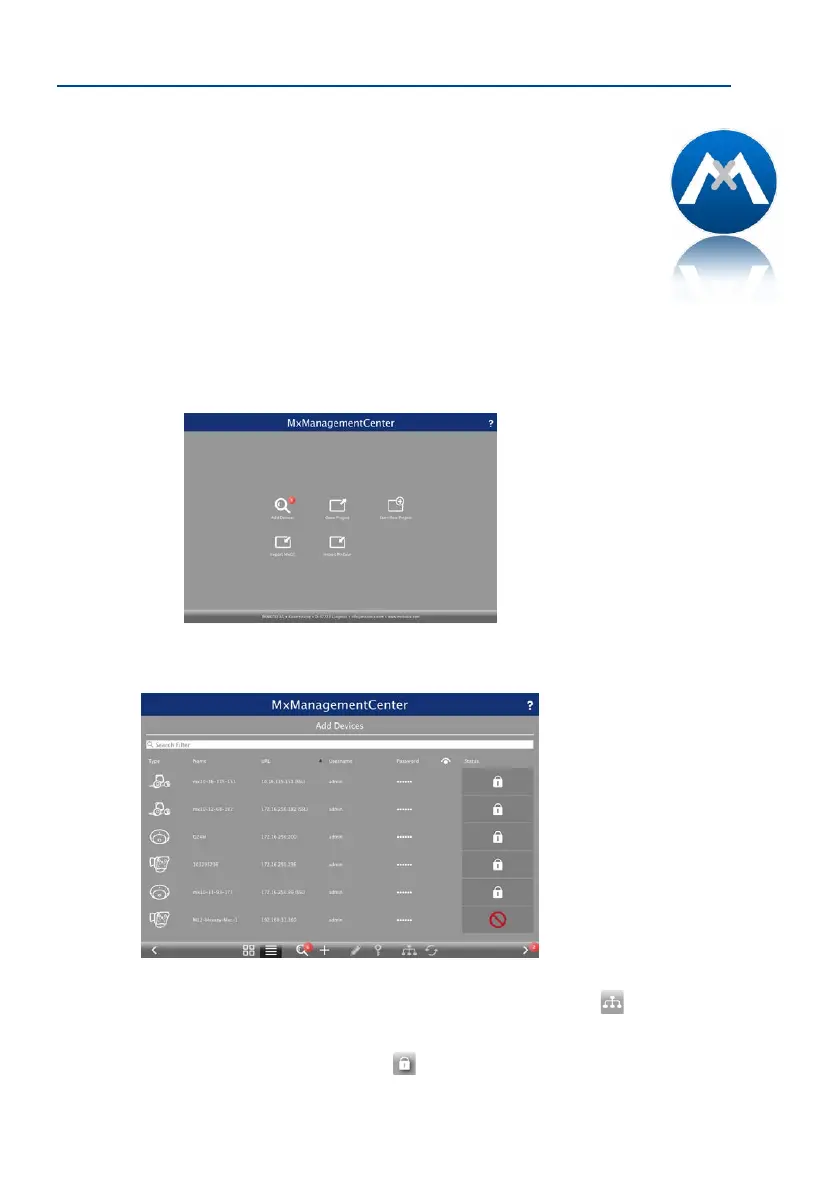
When starting MxManagementCenter for the rst time, the conguration wizard opens and
automatically starts searching for MOBOTIX cameras. The number of found cameras is shown
next to the Add button. This number is updated automatically if the number of MOBOTIX
cameras on the network has changed (i.e., by connecting new/disconnecting existing cam
-
eras)..
Click on Add Devices. The cameras are displayed either in a list or as tiles. Use the List and
Tile buttons to change the display mode.
MxManagementCenter automatically monitors and displays the operating status of all cam-
eras. Cameras that are not on the same subnet as the computer are indicated by the
Icon (Camera not in the same network as the computer). Likewise, the cameras that have an
unknown password or for which no user name/password combination has been specied in
MxManagementCenter will be displayed with the icon
(Camera is password-protected).
Download
MxManagementCenter
for free from
www.mobotix.com



 To Next Page