Page 37 of 110
Rev. G
7. Click the Store Changes button when done.
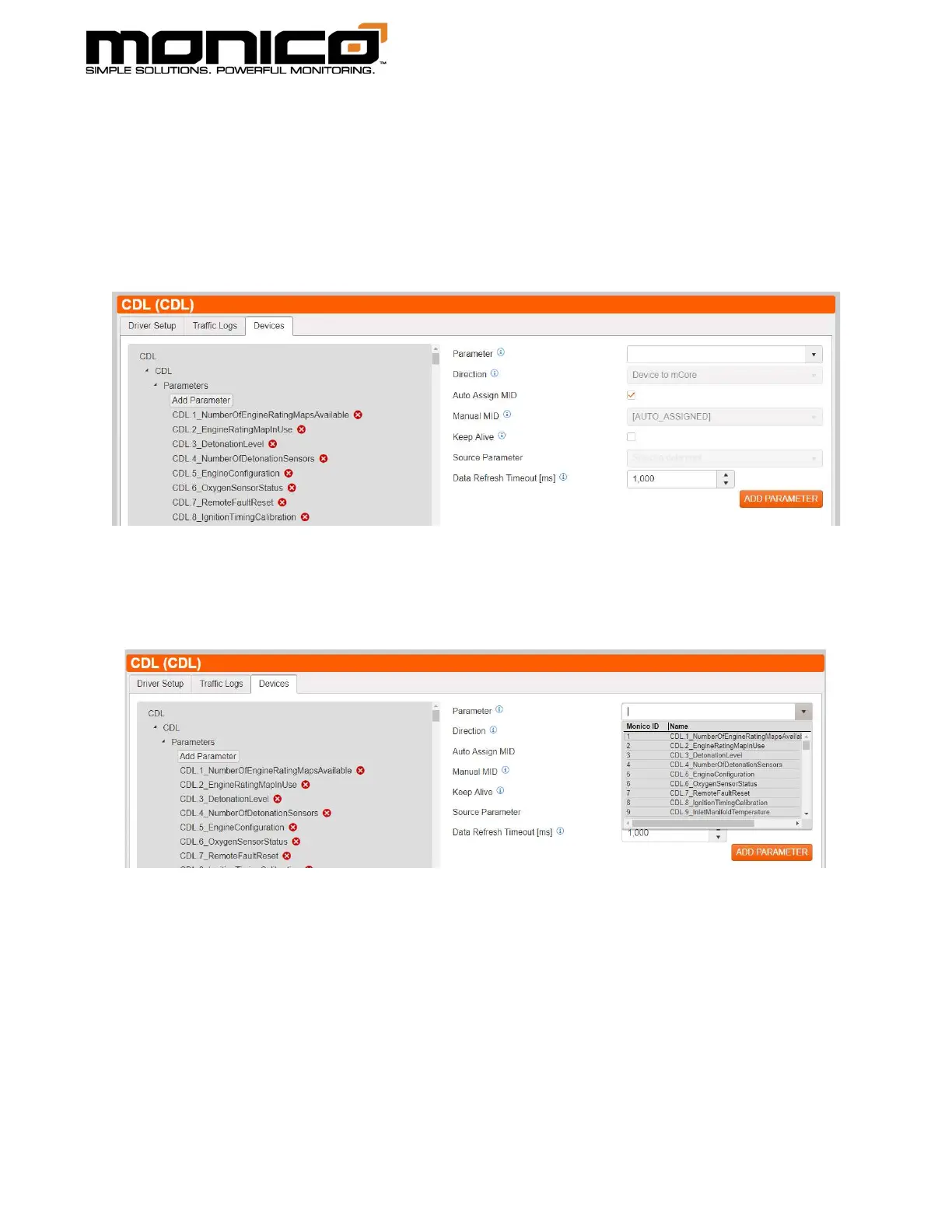
8. Click the Devices tab. The following screen will appear. To add a parameter to
an existing or blank CDL configuration, click the Add Parameter button located
in the center menu. A blank parameter screen will appear on the right side.
9. Click the top drown down box labeled Parameter. This will contain a search box as
well as a scrollable list containing all available CDL parameters in the driver.
10. Choose the desired parameter and click the Add Parameter button in the bottom
right.
11. Repeat Steps 1 through 3 until you’ve added all desired CDL parameters you wish
to monitor. Once done, you must click the Commit All Changes button in the left
menu towards the bottom for the changes to take effect.


 To Next Page