Connecting to a PC
18 19
Installing USB Driver manually
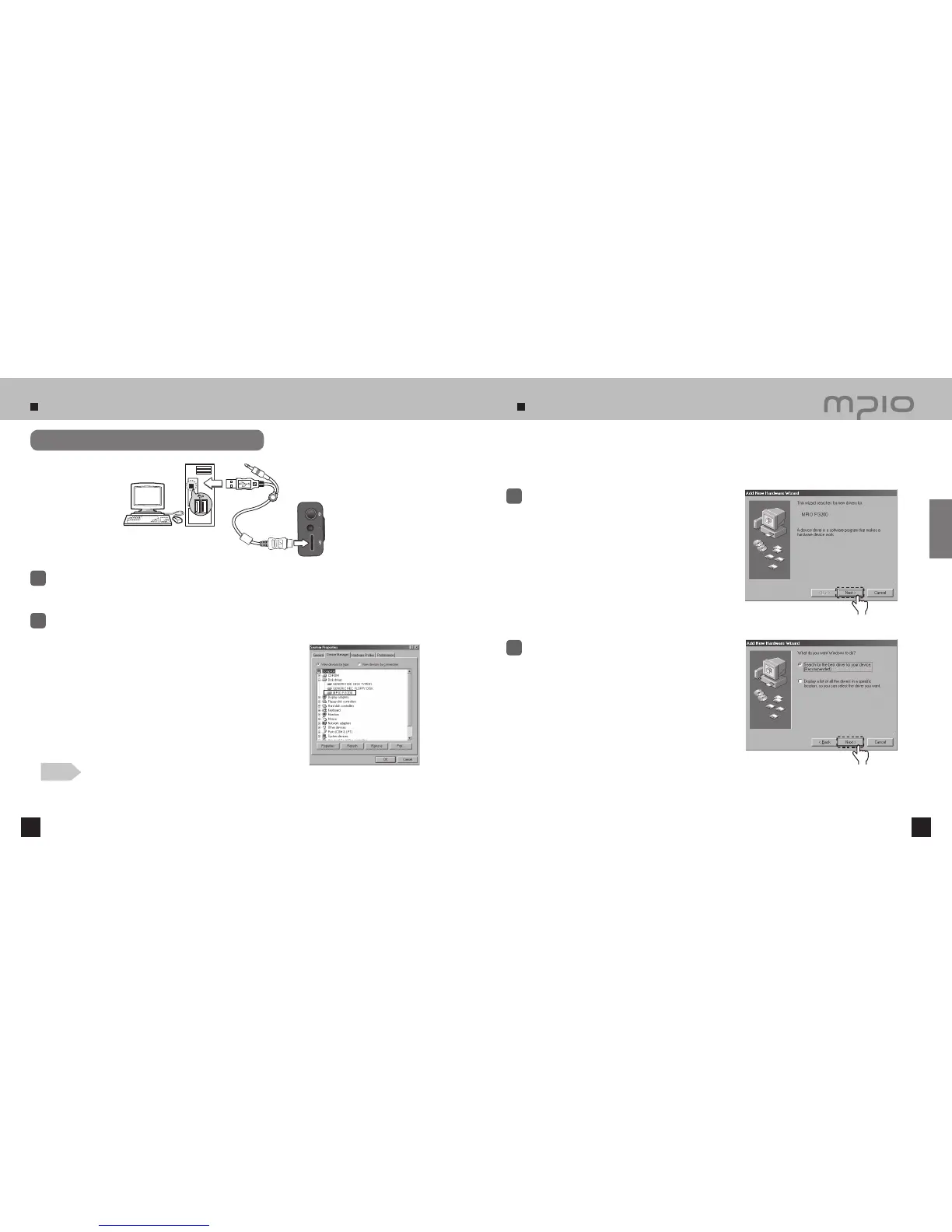
Connecting to a PC with a USB Cable
Connect FG200 to the PC with the USB cable as shown image.
●
If the USB cable is disconnected from the PC during the initial USB driver installation or in middle of a command,
it may malfunction.
1
The USB Driver will be installed with a message indicting “Looking for a New Device” The installation screen
may not appear. Check the Device Manager to confirm the installation.
2
Connect with a USB Cable
Note
●
If the system operating under Windows 98/98SE doesn’t connect with FG200 automatically, install the
USB Driver manually by referring to “Installing USB Driver manually (Page 19, 20)”.
.
●
Windows 98/ME:
[Control Panel] → [Systems] → [Device Manager] →
[Hard Disk Controller]→ MPIO FG200 USB Device
●
Windows 2000/XP:
[Control Panel] → [Systems] →[Hardware]→[Device Manager]
→[Disk Drive]→ MPIO FG200 USB Device
Confirming USB Installation
For Windows 98/98SE users, refer to the following procedure when the computer and
the device does not connect.
Connect FG200 with a computer with the USB
cable. When “Add New Hardware Wizard” window
appears on the screen as shown in right, click the
[Next] button.
1
Check “Search for the driver for your device”,
click the [Next] button.
2
Click
Click
Connection


 To Next Page