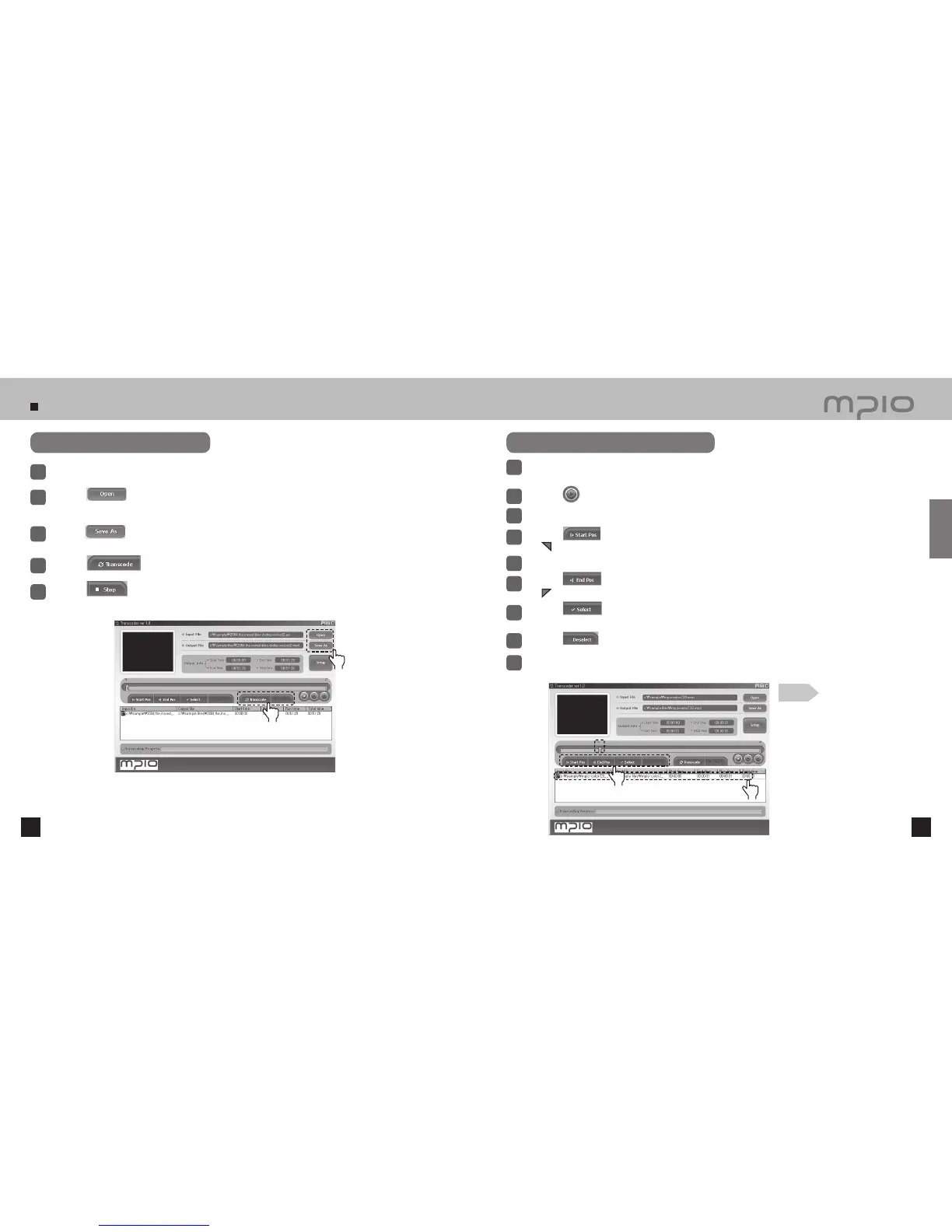
Using the Transcoder
26 27
Double-click the Transcoder icon.
1
Press the button to select the Input File.
●
The file name of the output file is as same as the input file besides the changed extension, MP4.
2
Press the button to save the output file as a different file name and then, select
the file name to be created.
3
Press the button to transcode the whole Input File.
4
Press the button to stop trans-coding. The “Transcoding Complete” will appear when
transcoding is finished.
5
Transcoding
Click
Click
Select 1 file from the list box.
●
Play the selected file.
1
Press the button to play back the selected file.
2
Move the seek bar to the intended starting position.
3
Press the button to set the end position.
The mark will appear at the end position like the start position marker.
6
Press the button to confirm the selected section.
The selected section will turn blue to indicate that it has been selected.
7
Transcoding certain parts
Click
Click
Press the button to cancel the selection.
8
Note
●
Depending on the format of the input file,
transcoding may not be supported.
Connection
Press the button to set the start position.
The mark will appear at the start position.
4
Move the seek bar to the intended ending position.
5
Press the Transcode button to start conversion, and the “Transcoding Complete” will appear
when transcoding is finished.
9
Seek Bar



 To Next Page