Upgrading Firmware
90 91
Refer to page 15 [Installing the software] for information on how to install MPIO Utility.
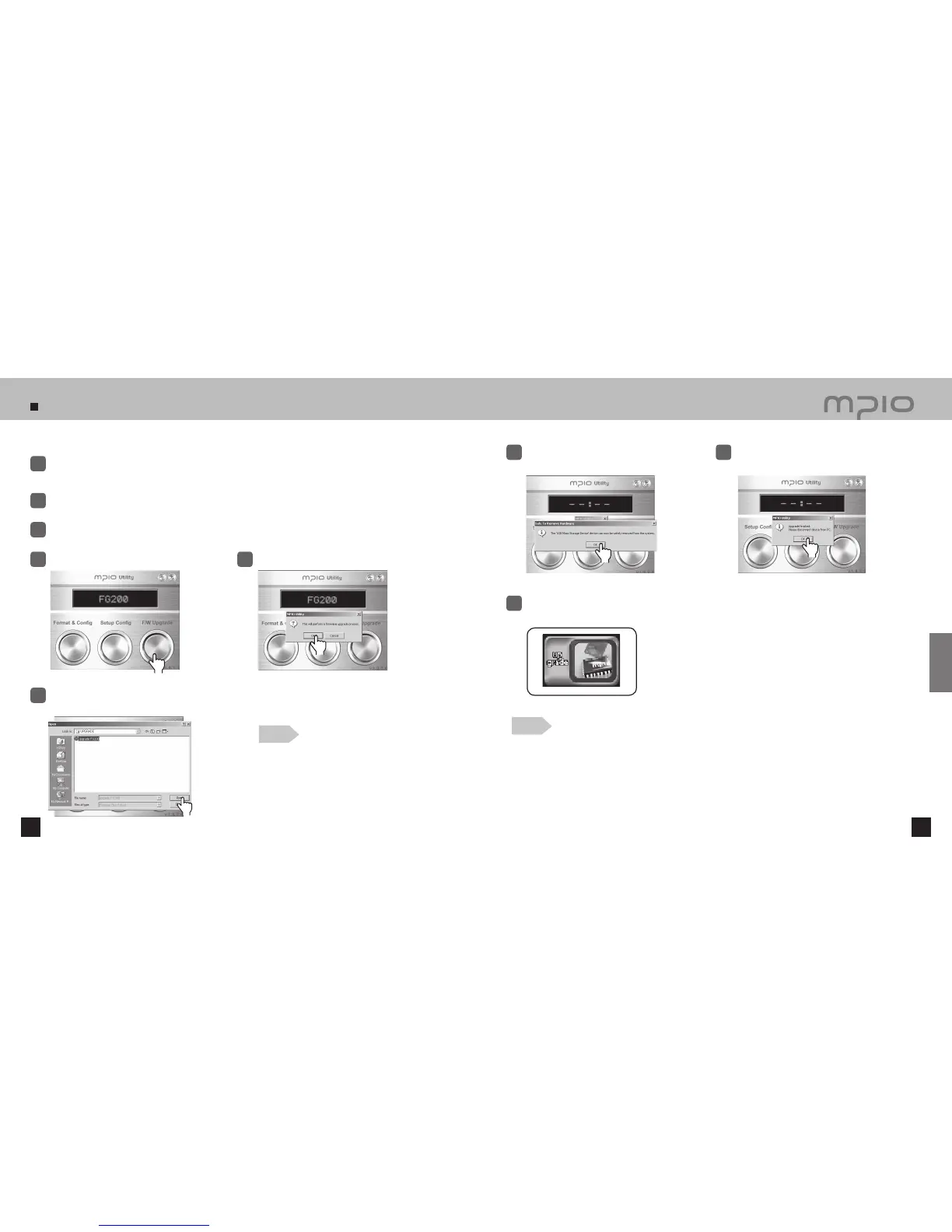
Download the firmware from MPIO web site and save it on the PC.
(www.mpio.co.kr)
1
Turn the player off, and connect to the PC using the USB cable.
2
Double-click MPIO Utility icon in your desktop.
3
Click the [F/W Upgrade] button.
4
Click the [ OK ] button.
5
Select the downloaded Upgrade.FG200.dwu file in the [ Browse ] window and then,
click the [ Open ] button.
6
Note
●
The firmware upgrade file that you can download
from the MPIO website is compressed as a Zip file.
“Upgrade_FG200.dwu” file will be created when
you uncompress the zip file.
When the firmware upgrade is complete,
FG200 will be turned OFF automatically.
Click the [ OK ] button after the Hardware Safely
Removed message appears as shown.
7
After clicking the [ OK ] button, the first part of
firmware upgrade
is complete.
8
Separate FG200 from the computer. When FG200 is turned ON, the firmware will be upgraded automatically.
(The upgrade status will be shown in the LCD screen as shown below.)
9
Caution
●
Causing outer impact on FG200 or lack of battery during firmware upgrade may cause a malfunction.
Click
Click
Click
Click
Customer Support
Click


 To Next Page