Setting My List
38 39
Setting my photo as screen saver
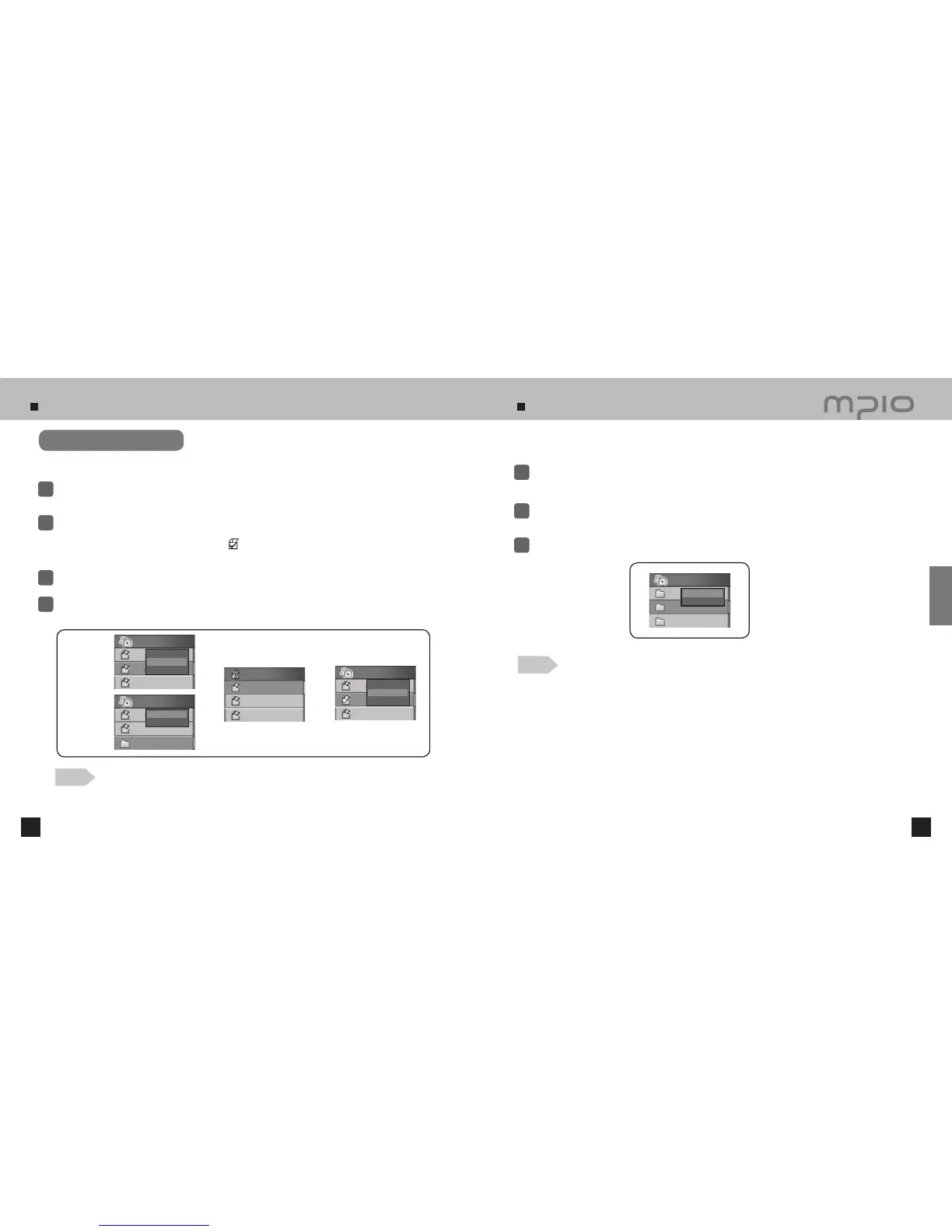
Press the FUNC button after move to folder or file you wish in Navigation Mode
●
A pop up menu will appear.
1
Push the lever in + /
-
directions to select Add to List, and press the lever to add the selected items to My List.
●
Choose Add to My List after selecting a folder will add all the playable files in the folder to My List.
●
The icon of the selected file will be changed to (
).
●
Check the files selected in My List using the Navigation Mode.
2
Setting My List
To deselect the files from My List, use the Navigation Mode to select the file to remove. Then, press
the FUNC button and select Off the List.
4
Note
●
Photos or movies cannot be added to MY LIST.
●
If a playable music file is stored in the Folder / Movie folder, it can be added to MY LIST.
Enter My List in Navigation Mode and play the selected files.
3
Select music files, voice recording files or encoded files in My List.
Go to the Photo folder in the Navigation mode, and press the FUNC button shortly.
●
The pop up Menu will appear.
1
Push the lever toward + /
-
directions to select Add screen, and press the lever.
2
The selected photo file is set as screen saver.
3
Select a photo for screen saver.
Note
●
If you select [ Display ]
[ Screen Saver ]
[ My Photo ] in the Menu, the selected photo file
will be shown when screen saver is activated. (Refer to page 70)
ROOT
Music 001.mp3
Music 002.mp3
Music 003.mp3
Play Now
Add to List
Erase
ROOT
Music 001.mp3
Music 002.mp3
RECORD
Add to List
Erase
MY LIST
Music 001.mp3
Love 001.mp3
MPIO 003.mp3
ROOT
Music 001.mp3
Music 002.mp3
Music 003.mp3
Play Now
Off the List
Erase
Adding files to
My List
Adding a folder to
My List
ROOT
RECORD
PHOTO
MOVIE
Add screen
Erase
Usage


 To Next Page