Installing USB Driver manually
20 21
Using Removable Disk Function
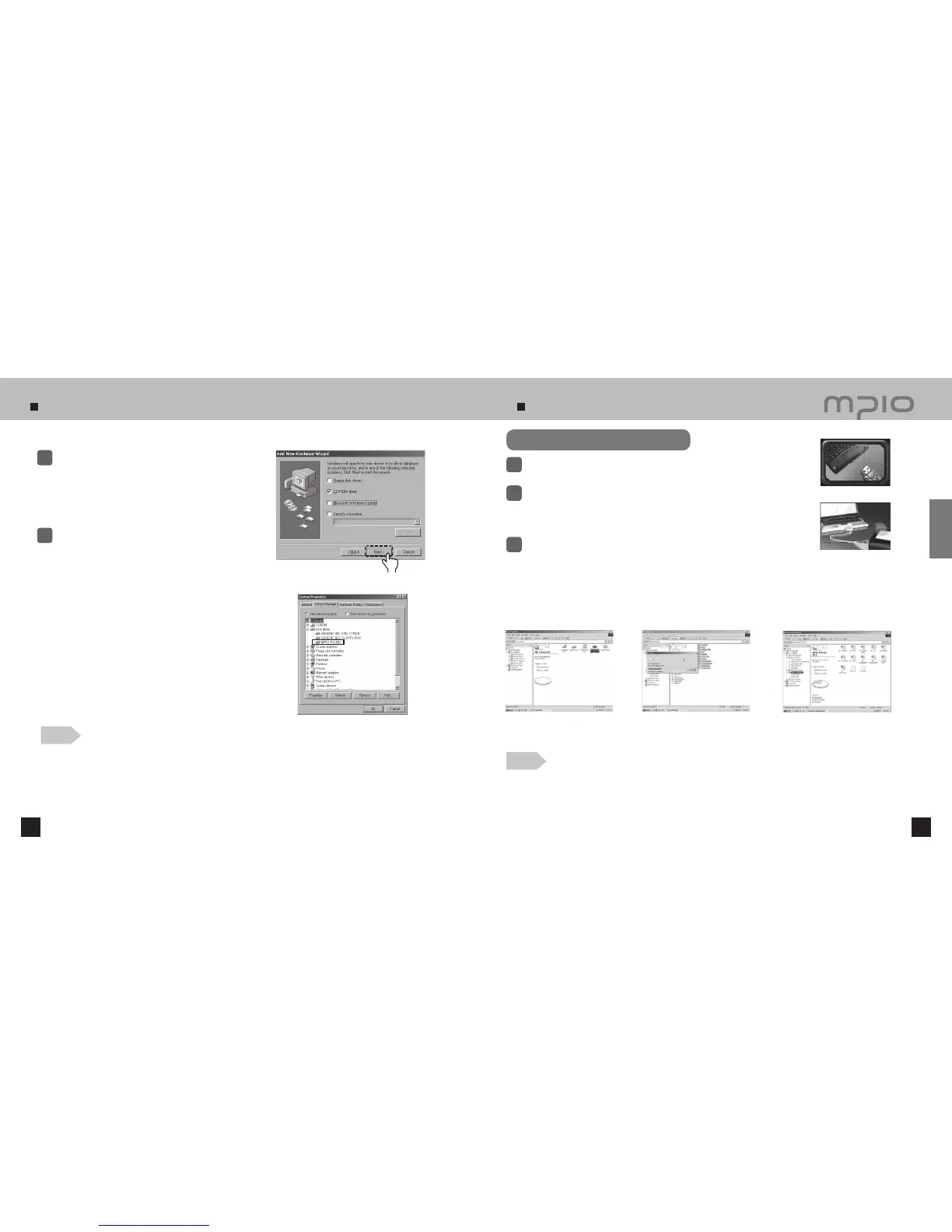
Insert the CD included in the package into the
CD-ROM, check “CD-ROM DRIVE” and click the
[Next] button.
3
When the driver installation is completed, an
“Installation complete” window will appear on the
screen. Then, click the
[Finish] button.
4
Note
●
In Windows 98 / 98SE, the program must be installed to use FG200 as a removable disk. Please install the
USB drivers before use.
Go to the following destination to confirm that the
installation was completed successfully.
●
Windows 98/ME:
[ Control Panel ] → [ Systems ] → [ Device Manager ] →
[ Hard Disk Controller ]→ MPIO FG200 USB Device
Uploading / Downloading File
Connect FG200 with a USB cable with the power turned OFF.
●
If connected, a connection icon will appear in the LCD screen.
1
Run Windows Explorer on the PC
●
A Removable Disk Drive Icon will be created in Windows Explorer.
●
Double-click the Removable Disk Icon, When double-clicked, the
connection icon on the LCD screen will change.
2
The user can store, delete data and create a folder in the same way as
a hard drive. Copy & paste, Drag & Drop commands can be used in the
same way to store data.
3
Caution
●
If the USB cable is disconnected while a file is being uploaded or downloaded, the device may malfunction.
●
Only JPG format picture files are supported. The optimal resolution is 96x64. If the picture is bigger, it is
automatically scaled to the screen resolution.
●
Only store movie files that have been converted using the Transcoder. The device will not play other files.
USB Cable Connection Screen
When Removable Disk Drive is selected,
or a file is being transferred
Click
Copy & Paste: Select the data to store, click on right mouse button. Select “Copy” and then “Paste” in the
Removable Disk drive.
Drag & Drop: Select the data store, click and hold down the left mouse button to drag the files into the Removable
Disk drive, and then release the left mouse button.
- Select the data to store, and drag it into the
Removable Disk drive. [Drag & Drop]
- Data Being Copied
Connection


 To Next Page