Setting AUDIO
48 49
Select AUDIO in the menu.
1
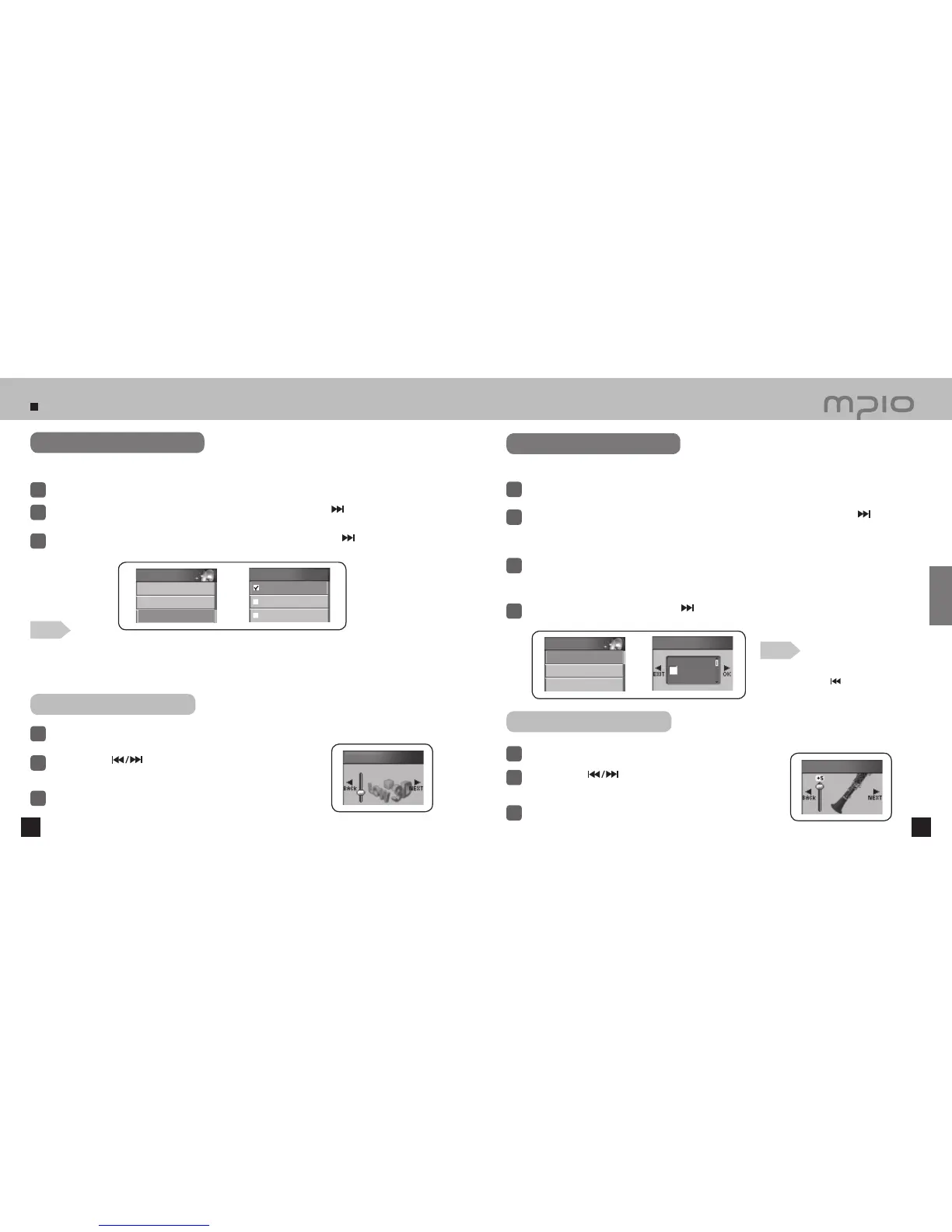
Setting 3D sound
Push the lever in + /
-
directions to select 3D Effect and then, push the lever in
direction or press it to
enter.
2
Push the lever in + /
-
directions to select the 3D effect and then, push the lever in
direction or press it to
save. After saving, the device will return to its previous menu.
3
Using the EQ Button
Press the EQ button while music is playing.
1
Note
●
3D Sound order
The 3D Sound setting will be changed in the following order:
Off (OFF) → Low (LOW) → Middle (MD) → High (HI)
●
Press the FUNC button to change directly in the Playback screen.
Push the lever in
direction to select the 3D Effect and then, push
the lever in + /
-
directions to select the 3D Effect effect.
2
3D sound effect will enhance your music experience.
Press the EQ button to save the setting and then, the device will
return to its previous menu.
3
Setting Bass/Treble
Adjusting bass and treble will provide more dynamic music playback.
Select AUDIO in the menu.
1
Push the lever in + /
-
directions to select Dynamic Bass / Treble and then, push the lever in
direction or press it enter.
●
A setting screen will appear.
2
Push the lever in + /
-
directions to select the Bass/Treble setting.
●
Bass/Treble levels may be adjusted from +1 to +5
.
●
Turn the setting OFF if you do not wish to use the setting.
3
After adjusting the setting, push the lever in
direction and move to the OK to save the setting.
Pressing the lever shortly will also save the setting.
4
Note
●
Canceling Bass/Treble Settings
Push the lever in
direction and move to
the EXIT to cancel the setting.
Using the EQ Button
Press the EQ button while music is playing.
1
Push the lever in
directions to select Dynamic Bass/Treble,
then adjust the setting Push the lever in + /
-
directions.
2
Press the EQ button to save the settings. After saving, the device
will return to its previous menu.
3
3D Effect
Off
Low
Middle
3D Effect
Dynamic Bass
+5
Treble
AUDIO
1. EQ
2. User EQ
3. 3D Effect
AUDIO
4. Dynamic Bass
5. Treble
6. Repeat
Usage



 To Next Page