37
12. Click OK to save the Option setting changes and leave the Options screen.
Congratulations, you have now completed the main JRMC DLNA setup for the MSB
Renderer.
Step 5. MSB Renderer Playback from Jriver Media Center (JRMC)
The next step is to have JRMC find the MSB Renderer. When you start JRMC it might take a
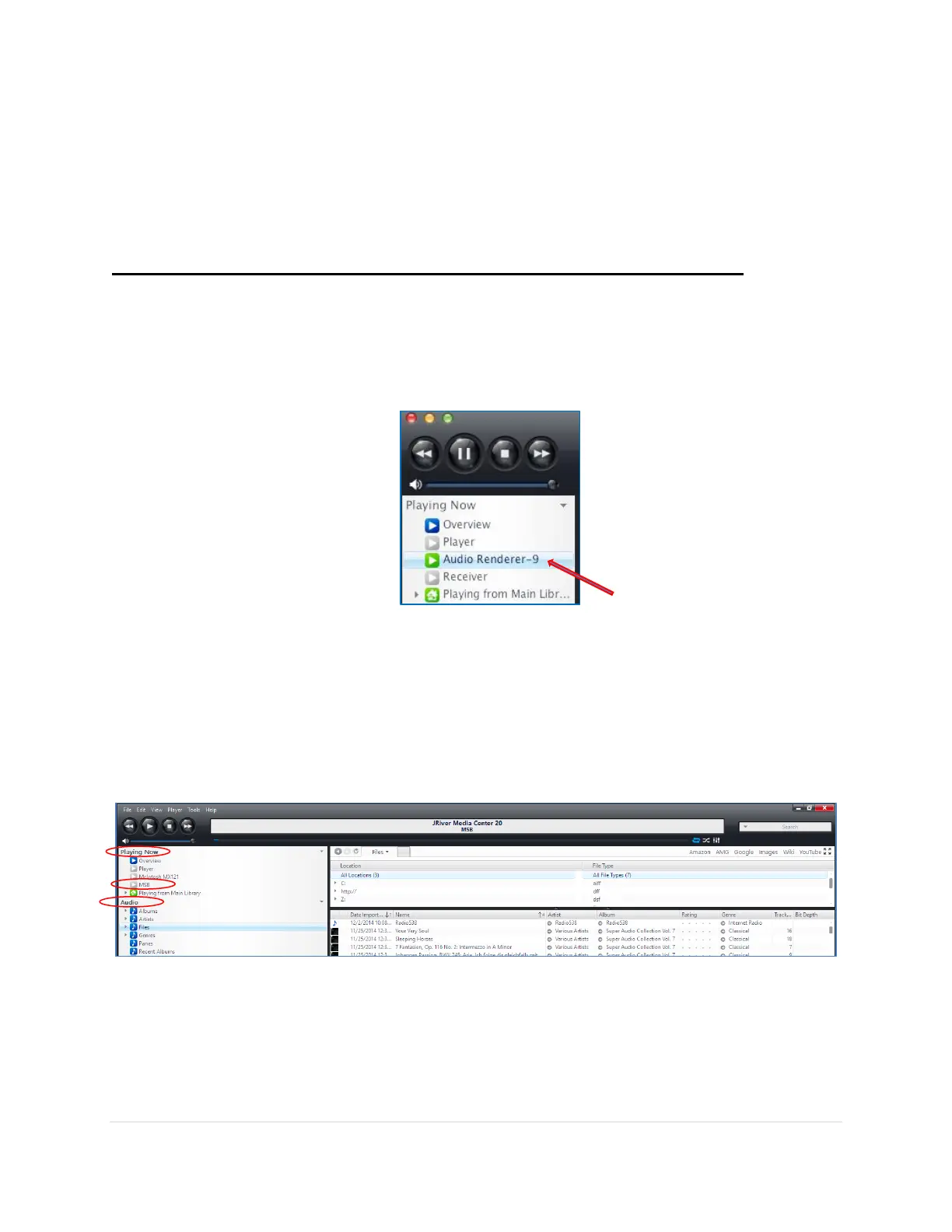
few moments for JRMC to see the MSB Renderer, but it should show up automatically in the list
of “Playing Now” devices as Audio Renderer-X or MSB Tech Renderer–X (Where X is the
last digit of the IP Address given to the MSB Renderer by your router).
1. Optionally, you can right-click on the default Renderer name and rename it if you like.
2. Select the MSB Renderer by clicking once on the name within the Playing Now section.
Now you can go to Audio section and select a song to play. It will automatically start playing
through the MSB renderer, and the arrow icon next to the Audio Renderer (or what you
renamed it to) will turn to green. You can see below that the Audio Renderer-9 was
renamed to MSB.
Note: For more details on Jriver Media Center DLNA you can go their help website:
http://wiki.jriver.com/index.php/DLNA


 To Next Page