-27-
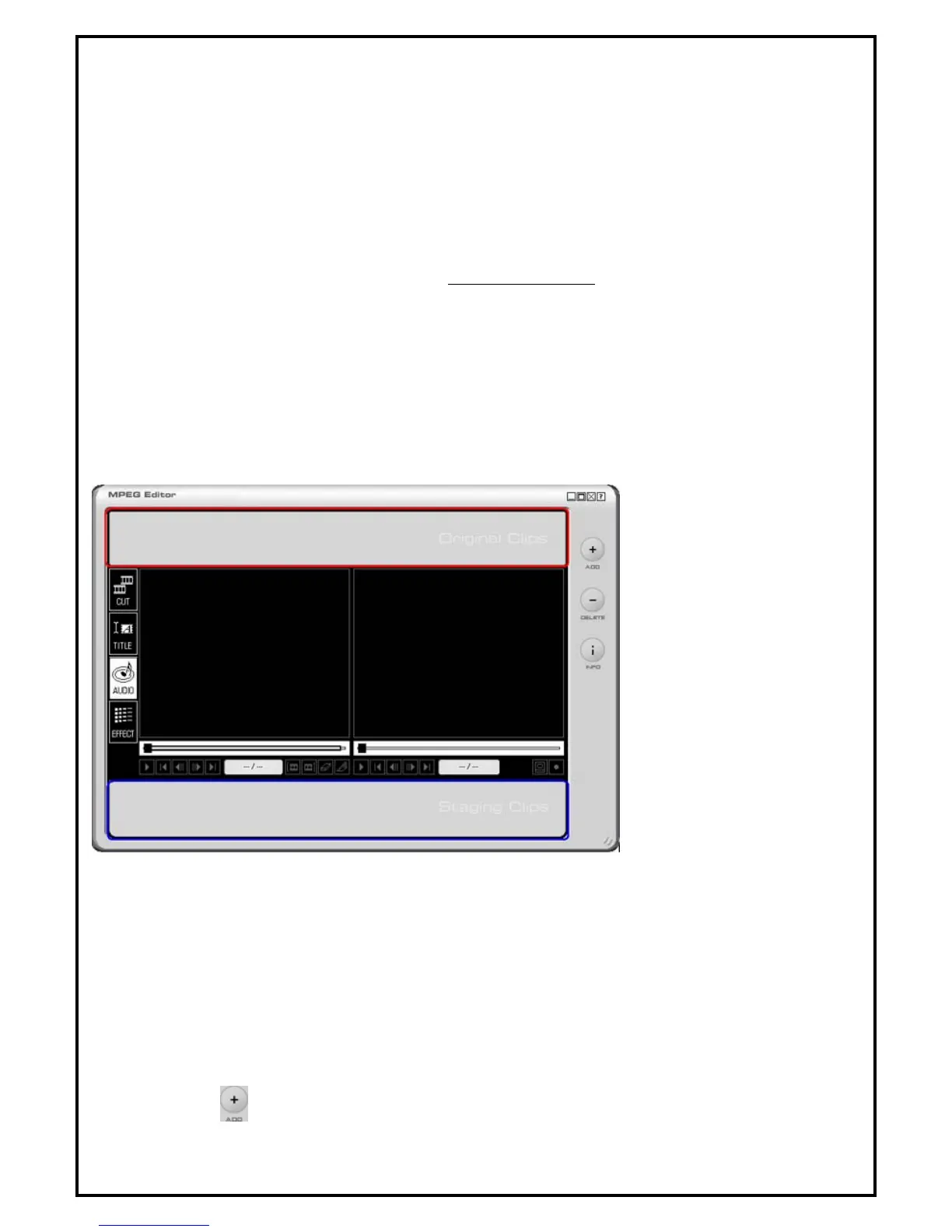
The very top of Fig. 7.2 displays the video files added to the play list. The four editing mode when the
“Effect” is selected in Fig. 7.2 is the mode to choose when adding special effects to the editing clips.
7.2.1 Original Clips Display Window
• Displays videos of Original Clips. (Double Click or Drag and Drop)
• Videos in Staging Clips cannot be displayed in this window.
• In Title editing mode, Title can be edited in this window.
• In Audio editing mode, it displays registered audio files.
• In Special Effect mode, it displays all available filters.
• Displays the progress information when final video is created.
7.2.2 Edited Clips Display Window
• Displays videos in Staging Clips. (Double Click or Drag and Drop)
• Videos in Original Clips can be displayed in this window.
• Preview function displays edited video in this window.
7.3 Original and Staging Clips
Fig. 7.3
The 4 editing mode where the “Audio” is selected in Fig. 7.3 is the mode to choose when editing the audio
of the editing clips.
7.3.1 Original Clips
This is the area where video clips that need to be edited are added and managed.
Video clips can be dragged and dropped into the Original Clips area.
The sequence of video clips added can also be rearranged easily by drag and drop.
i) How to add video clips
Use the
button in the “Menu” to browse and select video clips to add to the Original Clips



 To Next Page