-28-
area.
Drag and Drop video files to the Original Clips area.
ii) How to view and manage video clips in the Original Clips area:
To view a video clip in the Original Clips are, either double click on the video clip or drag and drop
the video clip from the Original Clips area on to the Original Video Display window.
Clicking on the right mouse button will bring up a Popup Menu. This menu performs the following
functions: copy, delete and show property information.
7.3.2 Staging Clips
• This is the area where video clips are added after frame ranges are specified.
• Video clips can be managed for further editing in this area.
• Editing, deletion and sequence arranging are done here.
• File properties for each video clip can be obtained by right mouse clicking on the clip.
• Video clips are acted upon and added to the Staging area using the four application buttons on the
left side of Video Editor. Those four buttons are "Cut", "Title", "Audio" and "Effect".
7.4 Frame Edit Mode
7.4.1.Frame Range Selection for Editing
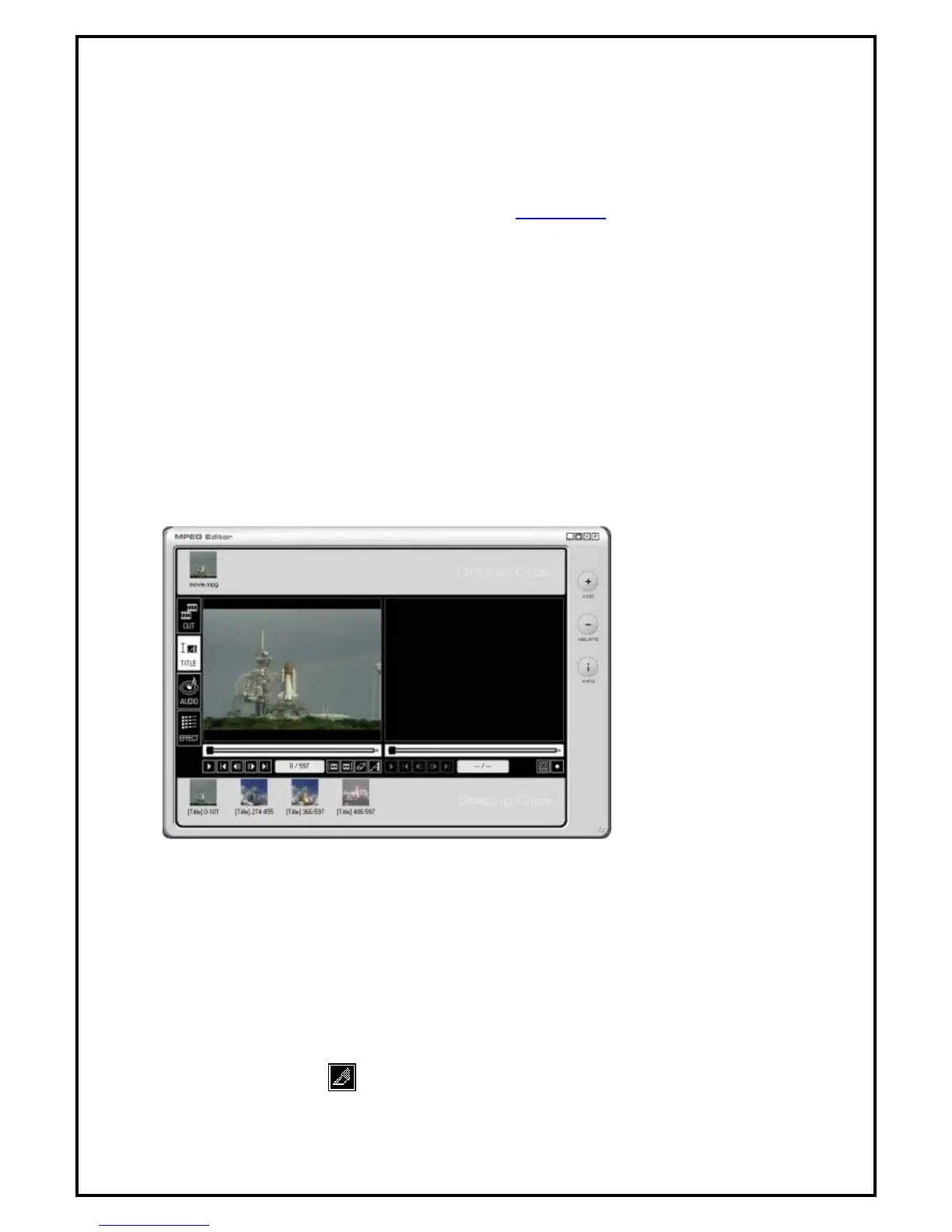
Fig. 7.4
The 4 editing mode where the “Title” is selected in Fig. 7.4 is the mode to choose when adding titles to
the editing clips.
• Specify frame range
• To add an entire video clip, drag the clip from the Original Clips area and drop it in the Staging Clips
area.
• To add portions of a video clip, drag the clip from the Original Clips area and drop it in the left
preview window. Then using the Mark-in/Mark-out button, cut the portion of the video clip to be
edited and then click the
button to transfer the clip to the Staging Clips area.
• Users can repeat the above steps to add multiple video frames.



 To Next Page