-29-
Fig. 7.5
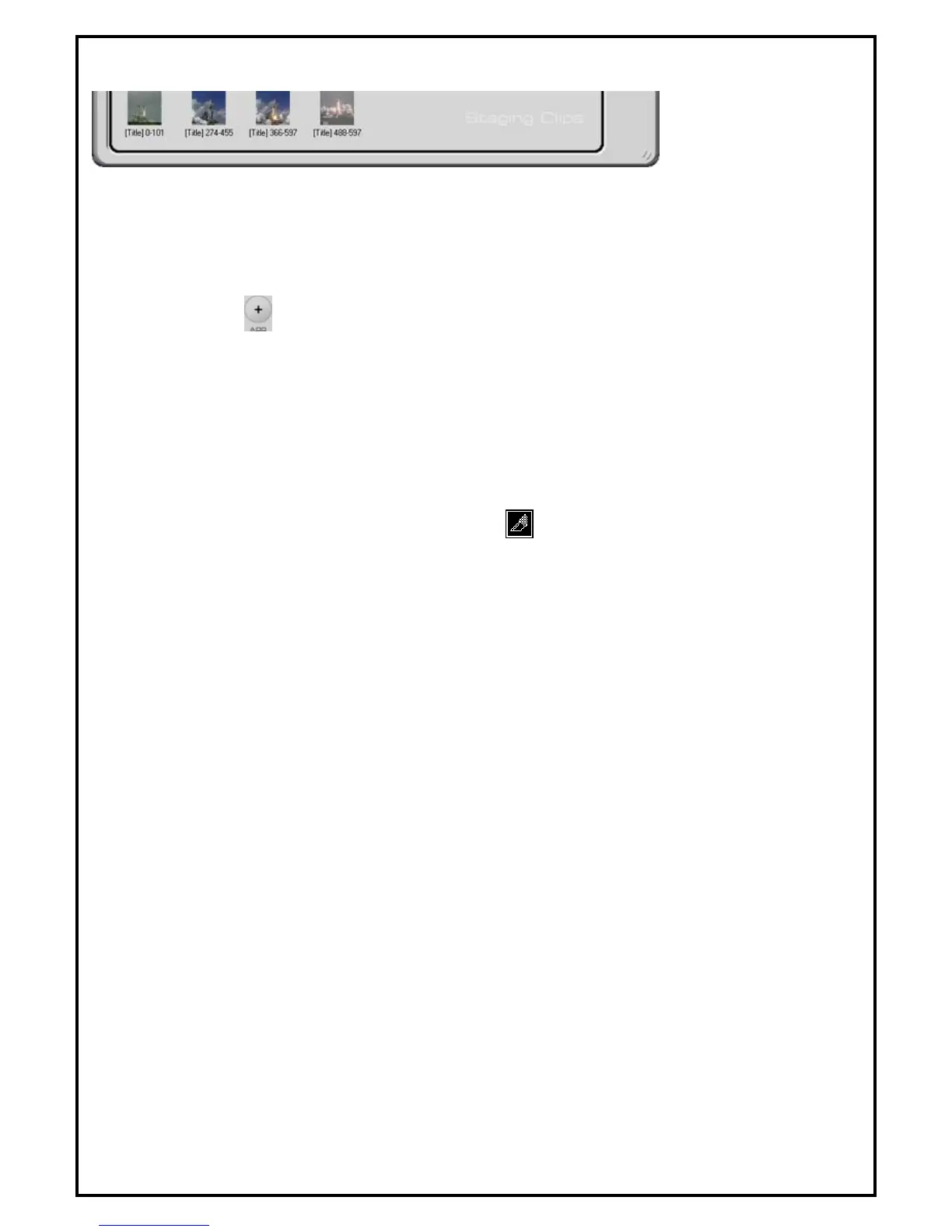
Fig. 7.5 displays the list of the files chosen to be used for editing.
7.4.2. Video Frames Editing and Saving
7.4.2.1 Adding Video Clip
• Click to browse and select video clips to add to the original clips area.
• Drag and drop video files to the original clips area.
• Double click on added video clips in original clips area or drag and drop them to original
video
• Display Window to view and select frames for further editing.
7.4.2.2 Selecting frame ranges for video editing click “Mark-in” to specify the beginning of a clip and
mark-out to set the end of the clip. Next, click on the button to move the clips from the auto edit
window to the Staging Clips area.
7.4.2.3 Editing video frames
• Select video frames in “Staging Clips” List.
• Rearrange the sequence of videos.
• Repeat the same scene by putting the same video frames multiple times.
• Delete sections of video they do not want.
• Confirm the video before final saving using preview function.
• Save the final video when editing is completed.



 To Next Page