-13-
5.3 Schedule Recording
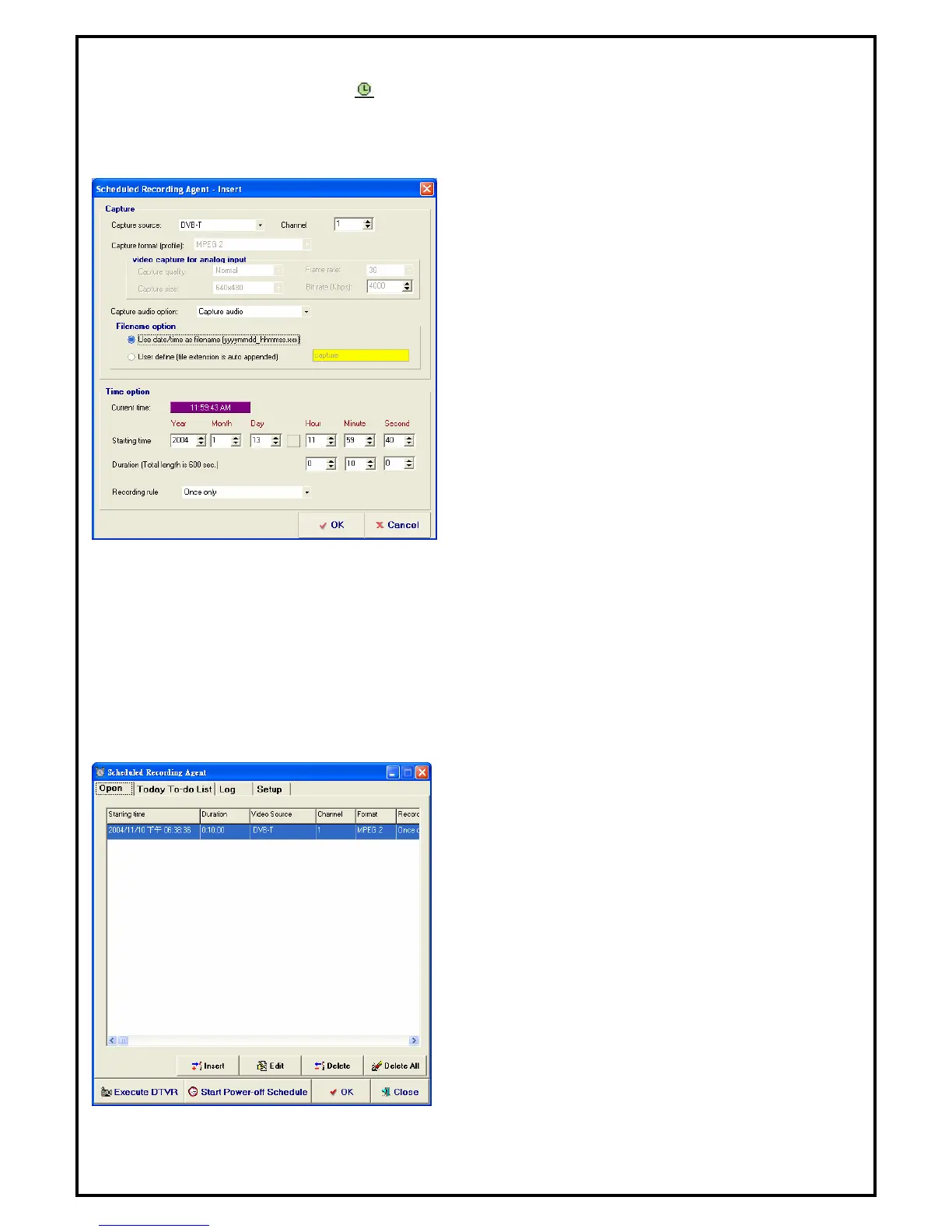
To setup a schedule recording, click from the control panel to enter the “Schedule Recording Agent”
properties window.
5.3.1 Capture
Capture Source: Choose the input source where you
want to capture from.
Channel: Select the channel to record from.
Capture format (profile): Choose the desired file format
for saving the recorded file.
Capture size: Choose the frame size of the recording file.
Bit rate (Kbps): Choose the recording bit rate.
Capture quality: Choose the capture quality.
Frame rate: Choose the number of frames per second for
the recording schedule.
Capture audio option: Four options to choose from,
"Capture audio", "Capture audio only, No video" or "No
audio".
File name option: Use the “date/time” as the default file
name for recorded video files or define a different name.
5.3.2 Time option
Current time: Shows the current time.
Starting time: Date and time of the set schedule recording event.
Duration: Time length of the set schedule recording event.
Recording rule: Enter the recording rule for the schedule recording. The default value is "Once only"
When a recording schedule is entered, the entered
recording schedule will be shown in the table like the one
on the left.
Insert: Inserts a new recording schedule record.
Edit: Edit a recording schedule record.
Delete: Delete a recording schedule records.
Delete All: Delete the entire recording schedule from the
list.
Start Power-off Schedule : This function allows users to
turn off the system immediately and it will turn your PC
back on automatically few minutes prior to the schedule
recording.



 To Next Page