Nasuni Edge Appliance Initial Configuration Guide 8.3 65
Accessing Volumes Web Access
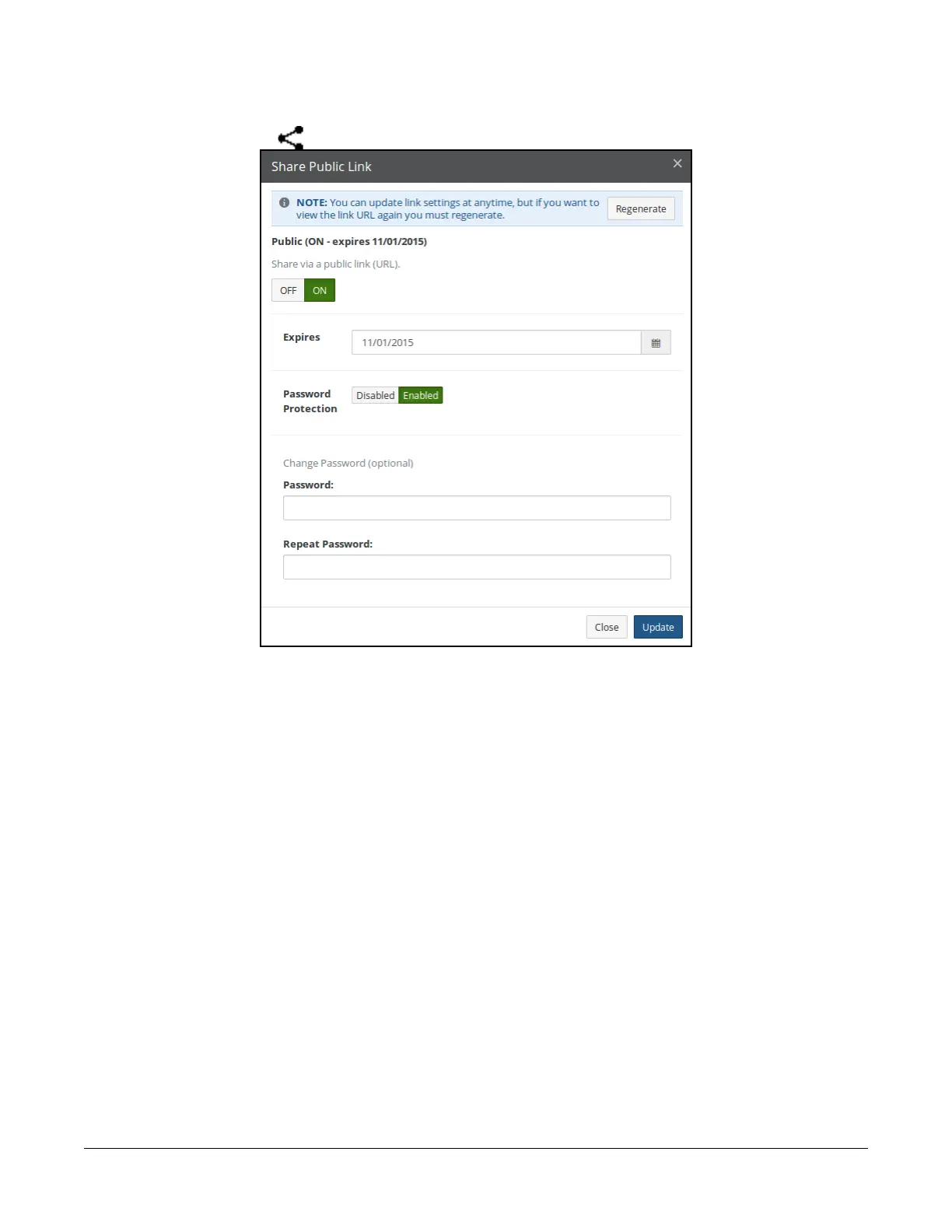
You can change the shared link for an item by selecting the item with the shared link and clicking the
Share public link button
above the list on the right. The Share Public Link dialog box appears.
Figure 2-15: Share Public Link dialog box.
Note: The Regenerate button is only available if Shared Link Global User is not enabled.
If Shared Link Global User is not enabled, to view the shared link URL again, click Regenerate.
You can toggle the shared link On or Off.
You can select an expiration date and the type of access.
If a password is required, you can enter the password for this item.
Click Update. The Share Public Link dialog box appears, displaying the shared link URL.
Tip: After a recovery, if any of the original source Nasuni Edge Appliance’s CIFS shares had
Shared Links defined, and Shared Link Global User is not enabled, these links must be
regenerated. Use Web Access to view links that must be regenerated, and regenerate them.
Opening or previewing file
To access a file, click the file name. If the file is of a format that the browser can handle, a preview of the
file opens in the browser. Supported file types include images, PDFs, documents (including text,
Microsoft Word, Open Office, rich text format), presentations (including Microsoft PowerPoint and
Open Office), spreadsheets (including Microsoft Excel, Open Office, and .csv), video (including .mp4
and .mov), and audio (including .mp3 and .wav).



 To Next Page