Nasuni Edge Appliance Initial Configuration Guide 8.3 80
Accessing Volumes Nasuni Mobile Access
Caution: The length of a path, including the file name, must be less than 4,000 bytes. Since the
Unicode representation of a character can occupy several bytes, the maximum
number of characters that a file path might contain can vary.
Sharing a file as an attachment
To share the file as an attachment, such as an attachment to an email, tap the drop-down icon
beside its name. The drop-down pane appears showing available actions, including Share, Favorite,
Details, Versions, Open with, and Delete.
Figure 2-38: Drop-down pane.
Tap Share, then tap Attachment.
Tip: For iOS, tap the share icon at the top right. Then tap “Email File” or “Email Link”.
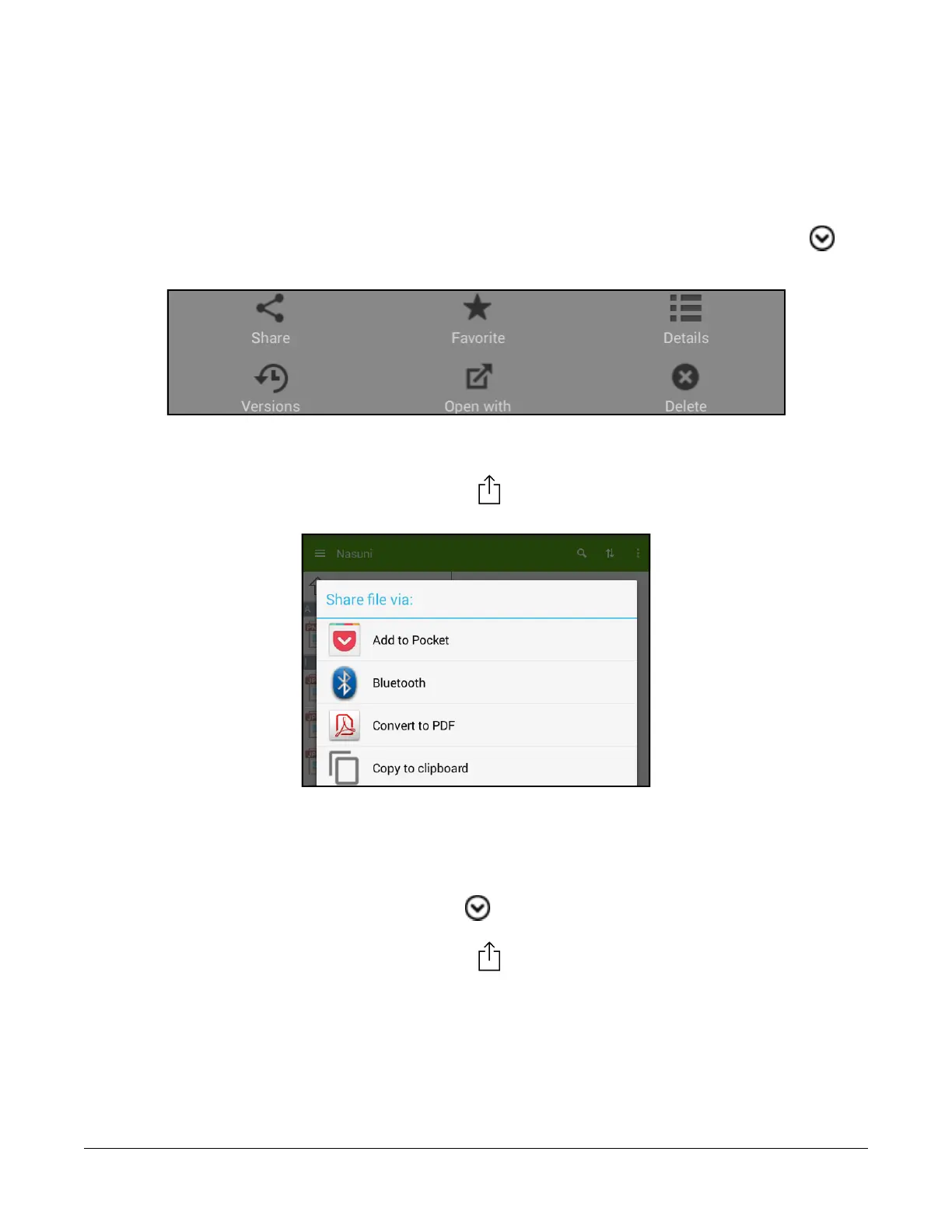
A window appears with a list of available apps that can share this file as an attachment.
Figure 2-39: Apps that can share file as attachment.
Select the app from the list, then follow instructions for that app.
Sharing a file as a link
To share a link to the file, tap the drop-down icon beside its name, then tap Share, then tap
Internal Link.
Tip: For iOS, tap the share icon at the top right. Then tap “Email Link” or “Copy Link”.
Tip: You cannot create an internal link to folders created by using the "%U" wildcard in the CIFS
share name.
A window appears with a list of available apps that can share a link to this file. Select the app from the
list, then follow instructions for that app.
Tip: Users should use a Web browser to open shared links.



 To Next Page