BTS User Manual
Neware Technology Ltd.
http://www.newarebattery.com
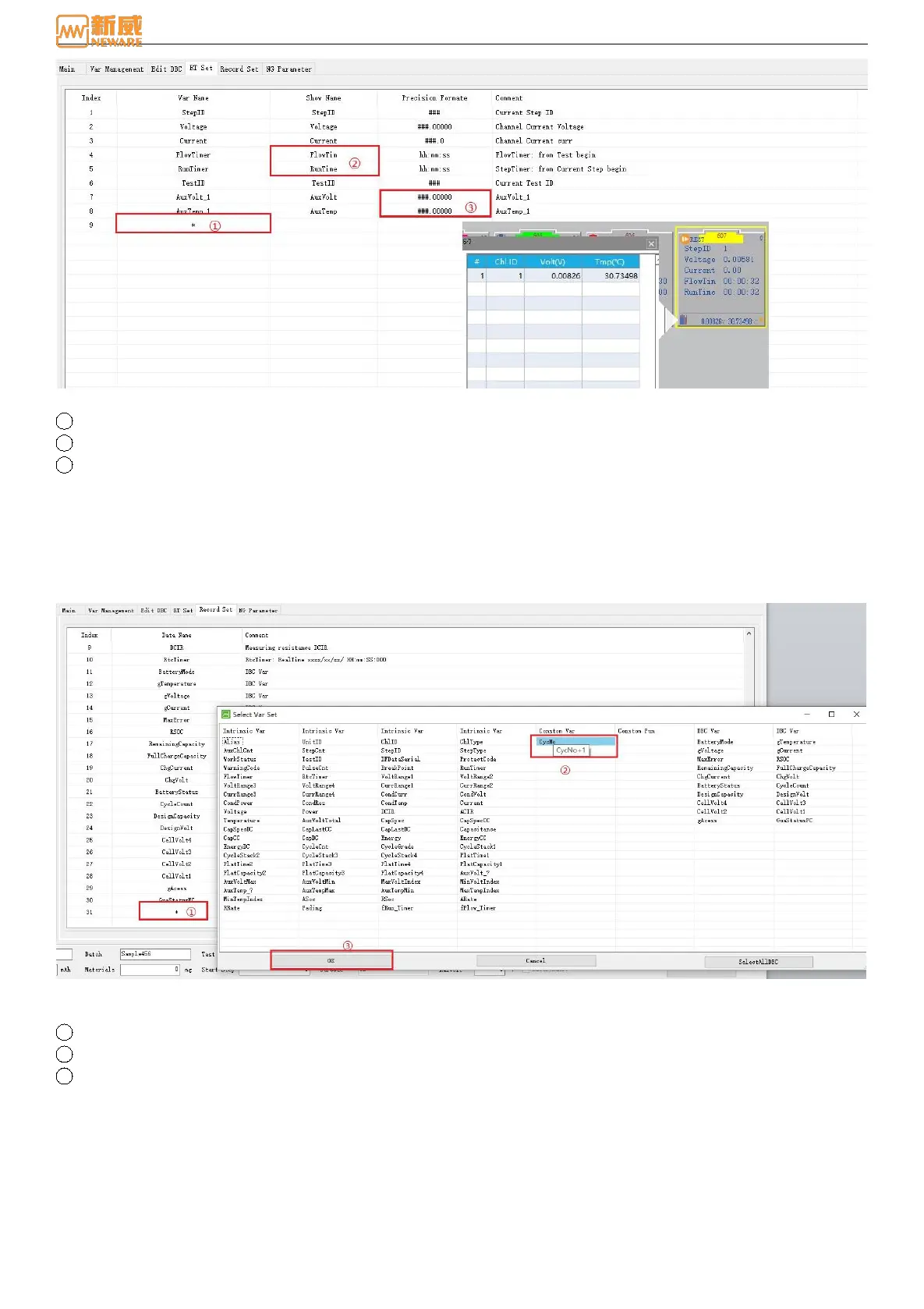
Figure 8-12 Display Setting
1 Double-click to add display variables, double-click or select in the Select variables interface and confirm.
2 The name displayed on the software channel icon
3 The precision format is the data format to be displayed on the client interface. That is, the number of decimal points.
The Aux data must be bound to the Aux machine first, meanwhile, the Aux data must be added to the display setting page.
The Aux data can be seen above the channel. If multiple Aux machines are bound, the Aux data can be displayed, as shown
in Figure 8-12.
8.5. Record Setting
Record Settings are the Log data which is required in test-flow, including built-in variables, customize variables, DBC
variables (mandatory included all loaded DBC variables).
Figure 8-13 Display setting
Figure 8-13 displayed:
1 Double click, add the variable that needs to be record.
2 The Select Variables interface will lists all variables that can be selected.
3 Double click or click OK.
As shown in Figure 8-14, self-defining functions have no storage space and cannot be Log. Therefore, it will displayed the
gray color.



 To Next Page