BTS User Manual
Neware Technology Ltd.
http://www.newarebattery.com
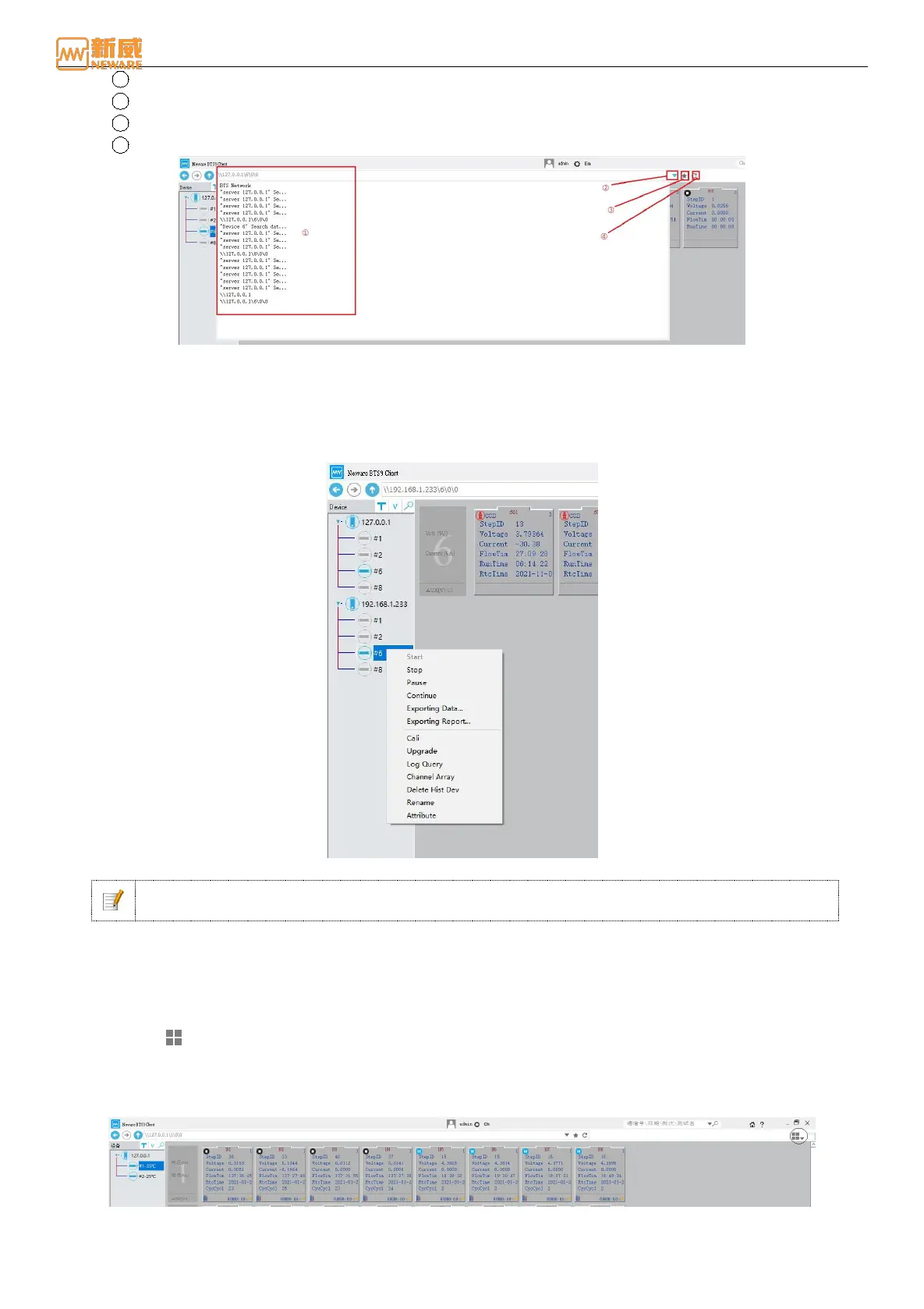
2 History draw down button
3 Collection
4 Refresh
Figure 4-7 Historical address display
2. Device list display area: It is located on the left of the lower part of the toolbar. After the server is successfully
connected, the searched devices are automatically displayed in this area to display all devices under the current server
and their status (online and offline). The first level is the server's IP address (127.0.0.1 and 192.168.1.233), and the
second level is the device number (8). Right-click the device number to calibrate, upgrade, export reports, query logs,
and other operations, as shown in the following figure:
Figure 4-8 Device list display
Notice: The deletion operation does not delete the test data of the device, but the offline device ID
is no longer displayed in the device list.
3. The data display area, located below the toolbar and to the right of the device list, displays device information,
channel information, and test data for the current device. Test data is displayed differently in different display modes.
4.3. Channel Display mode
There are three client channel display modes: large icon, small icon, and list. You can switch between display modes by
clicking the icon or clicking the drop-down menu next to the icon.
Large Icon
The large icon interface is composed of a simulated big battery icon shape and corresponding channel data, as shown
below:
Figure 4-9 Large icon display
1. Equipment information display: the leftmost part of the channel data display area is the equipment information display



 To Next Page