BTS User Manual
Neware Technology Ltd.
http://www.newarebattery.com
Chapter 5 BTS Software Configuration
Click the setting button on the title bar, in the pop-up dialog box, users can operate "BTS Client", "barcode input",
"Calibration", "Log", "Default step protection parameters", "Download Data", "Press bed parameters", "Server channel
Calibration", "Server Log", "Small Icon Display configuration", and "Unit" as required by "Setting" and other related
parameters.
5.1. BTS Client
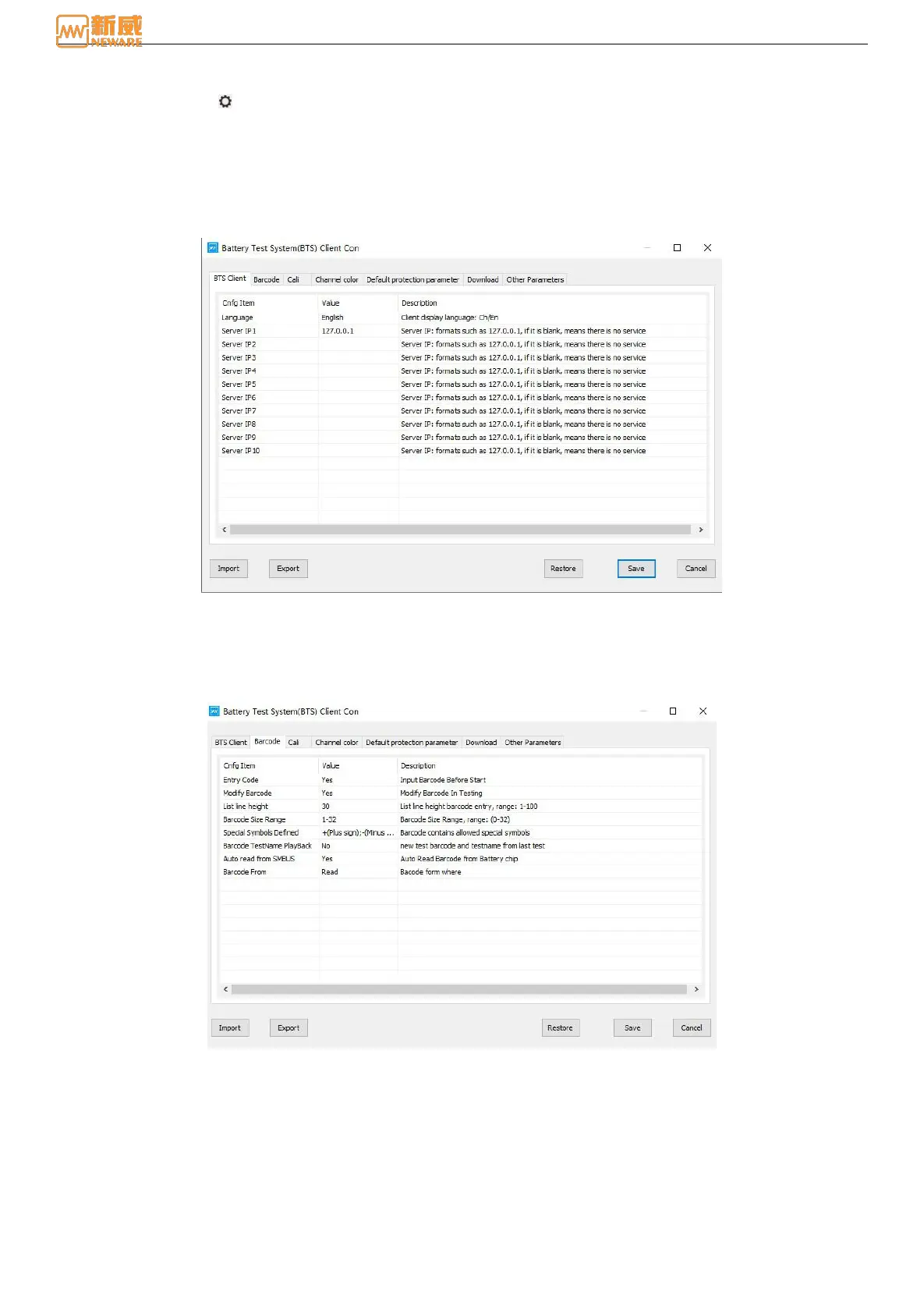
You can switch between Chinese and English and add server IP addresses, as shown in Figure 5-1. By adding a server IP
address, you can view and operate the device under the same IP address in the software.
Figure 5-1 BTS client configuration
5.2. Barcode Entering
Click the "Barcode Entry" option. In the setting interface, users can set such permissions as line height, barcode length
range, definition of special symbols, whether to enter barcode and modify barcode according to your needs, as shown in
Figure 5-2:
Figure 5-2 Barcode entering configuration
5.3. Calibration
Click the setting button in the title bar, and in the "Battery Test System (BTS) Client Configuration" dialog box that pops
up, you can set the corresponding parameters of calibration, such as the maximum and minimum values of calibration point
percentage (value range: 5-95) and the file format (PDF/EXCEL/TXT/ATL) of the calibration report. Set the validity
period (max. 365 days) of the calibration/test report. To modify the configuration, click the value column corresponding to
the configuration item to modify it, as shown below:



 To Next Page