BTS User Manual
Neware Technology Ltd.
http://www.newarebattery.com
If the user has installed the elder version of BTS9 operation software, this software can be upgraded directly when
compatible with the new version without uninstalling the current software. If they are incompatible, uninstall them first and
then install the new version.
The upgrade process as follow:
1. See Step 1 in the software installation process.
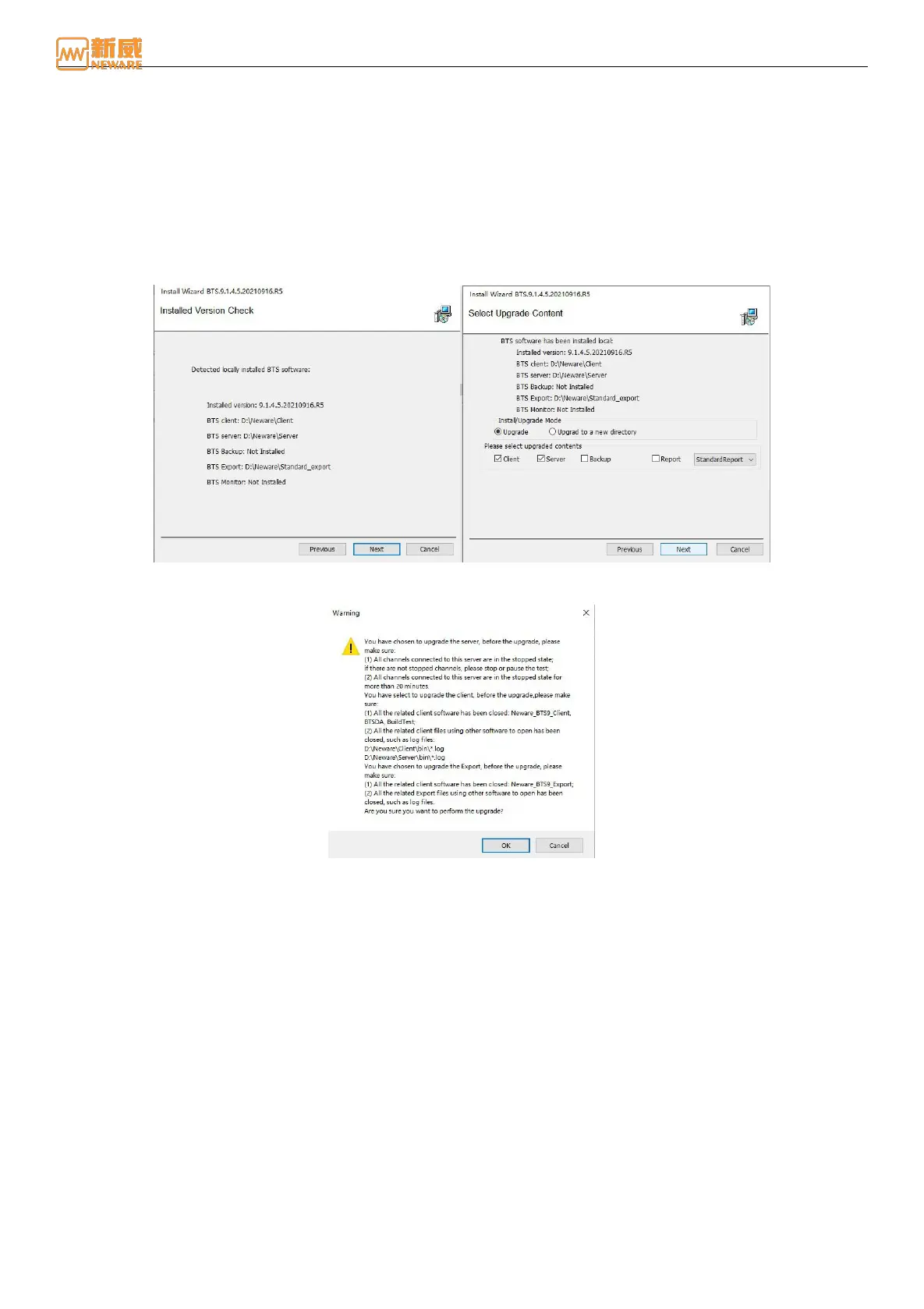
2. Select an installation language and click Next. The Installed Version Check interface will displayed. Information about
the installed software version and installation directory is displayed on the interface. See Figure 3-9:
3. Click Next. On the Select Upgrade Content page, you can select the upgrade mode and upgrade content as required.
Upgrade mode By default, the client and server are upgraded in the original directory, as shown in Figure 3-10. Click
Next to confirm the warning content and enter the software upgrade interface.
Figure 3-9 Version check Figure 3-10 Selection of upgrade content
Figure 3-11 Notice of Upgrade
Confirm information:
Before you upgrade the server, please confirm:
All channels connected to this server have been stopped. If there are any channel are operating, stop or pause
the test first.
Equipment has been stopped for more than 20 minutes.
Before you upgrade the server, please confirm:
All client-related software has been closed: BTSDA, BuildTest, and Neware_BTS9_Client.
Client files, such as log files, that are opened by other software have been closed.
Before you upgrade the server, please confirm:
All back-up software has been closed: Neware_BTS9_Backup.
Backup files, such as log files, that are opened by other software have been closed.
4. Click OK to exit the installation guide, and the software will be successfully upgraded.
3.2. Hardware Maintenance
If you need to add other hardware devices or have a device connection problem, you can use the hardware maintenance
method described in this section to find and resolve this problem.



 To Next Page