Copyright © 2014 NEXCOM International Co., Ltd. All rights reserved
36
VMC 1100 User Manual
Chapter 5: Touchscreen Driver Installation
Plot
Calibration
Data
Check this function to have touch panel linearity
comparison graph appear when you finish Advanced
Calibration. The black lines reflect the ideal linearity
assumed by PenMount’s application program while the
blue lines show the approximate linearity calculated by
PenMount’s application program as the result of user’s
execution of Advance Calibration.
Turn off
EEPROM
storage
This function disables the write-in of calibration data in
Controller. This function is enabled by default.
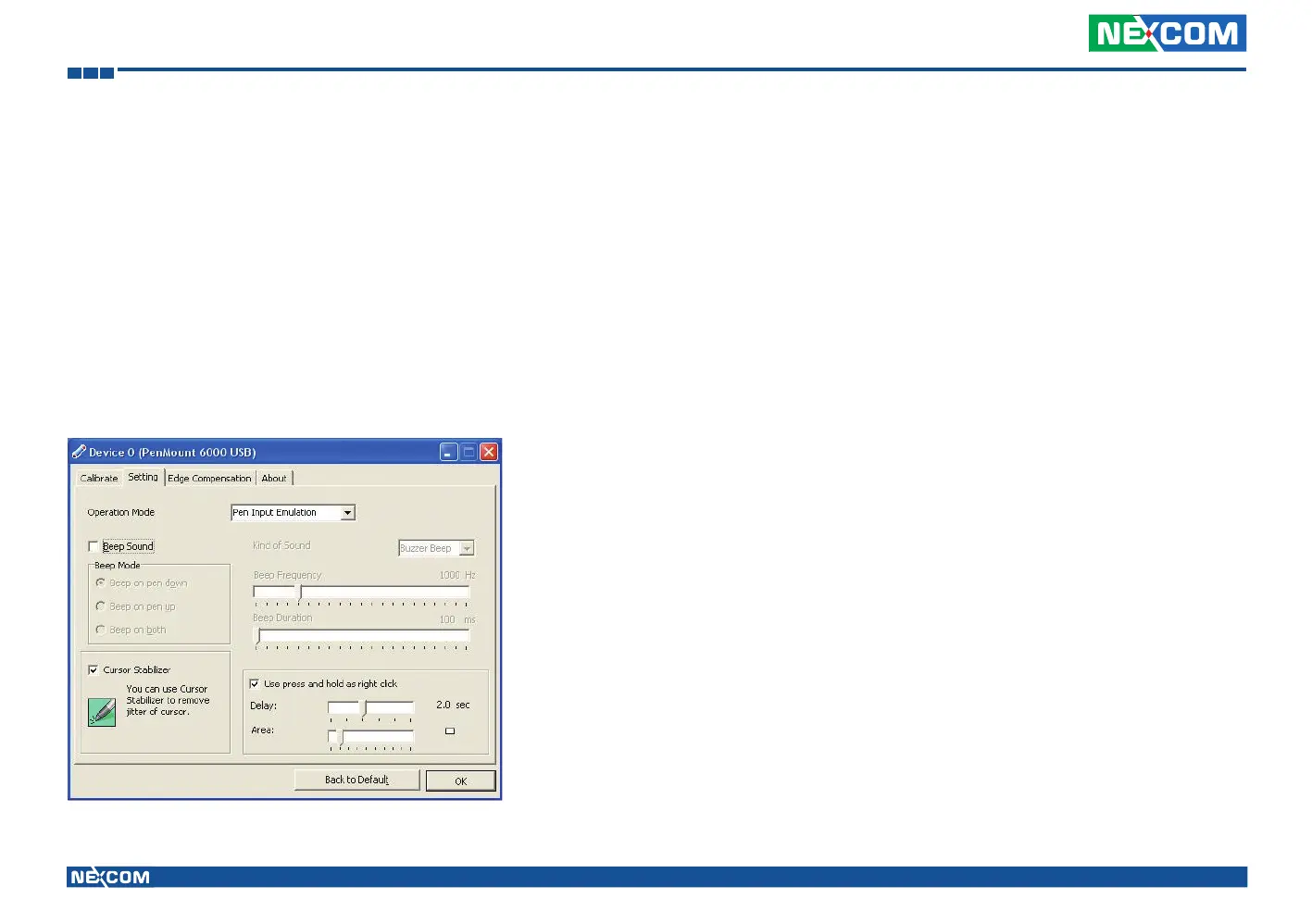
Setting
Operation
Mode
This mode enables and disables mouse’s ability of
dragging on-screen icons—useful for configuring POS
terminals.
Pen Input
Emulation
Select this mode and mouse
will emulate Windows Vista
pen input device operation,
by which no mouse event
will be sent until the touch
is dragged out of range or
released from the screen.
Mouse
Emulation
Select this mode and mouse
functions as normal and
allows dragging of icons.
Click on
Touch
Select this mode and mouse
only provides a click function,
and dragging is disabled.
Click on
Release
Select this mode and mouse
only provides a click function
when the touch is released.
Beep Sound Enable Beep Sound turns beep function on and
off.
Beep on Pen Down beep occurs when pen comes
down.
Beep on Pen Up beep occurs when pen is lifted
up.
Beep on both beep occurs when comes
down and is lifted up.
Beep Frequency modifies sound frequency.
Beep Duration modifies sound duration.


 To Next Page