GPS troubleshooting
GPS settings for Phoenix
GPS control
Context
Use the following to test GPS using Phoenix.
Steps
1. Start Phoenix service software.
2. From the File menu, select Scan Product and check that the correct product version is displayed.
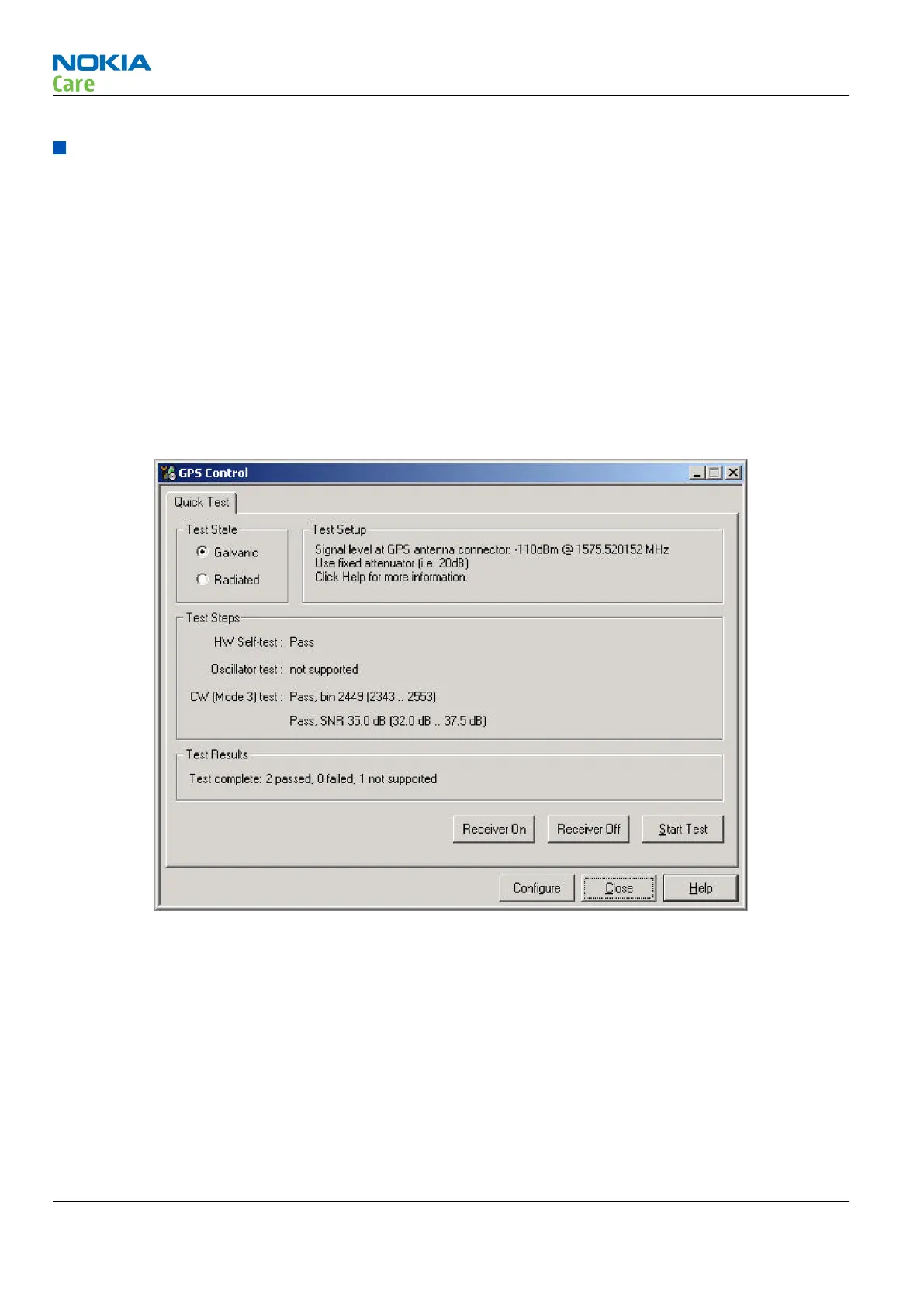
3. From the Testing menu, select GPS Control. This opens up
GPS Control
dialogue box, as shown in the
figure below, and enables the GPS.
Figure 11 GPS Control dialog box
Select Receiver On to confirm the GPS is enabled and is in idle mode; at this point all clocks should be
present, GPS_En_Reset & SleepX should be high, and Vdd_Dig, Vcc_TCXO & Vcc_PLL/VCO will be present.
Receiver On turns on all RF sections of the ASIC and so all LDOs will be on. These checks are part of GPS
basic checks troubleshooting (page 3– 0 ) .
GPS Quick Test window
The
GPS Quick Test
window has all the necessary functionality for GPS troubleshooting. Ensure the test setup
is correct and click Start Test. (Select Help for further information).
RM-632; RM-634; RM-699
BB Troubleshooting and Manual Tuning Guide
Page 3 – 34 COMPANY CONFIDENTIAL Issue 3
Copyright © 2010 Nokia. All rights reserved.



 To Next Page