User Interfaces
User Interfaces
34 35
4.3 Editing the Modulation of a Parameter
Focus on Modulation Aspects
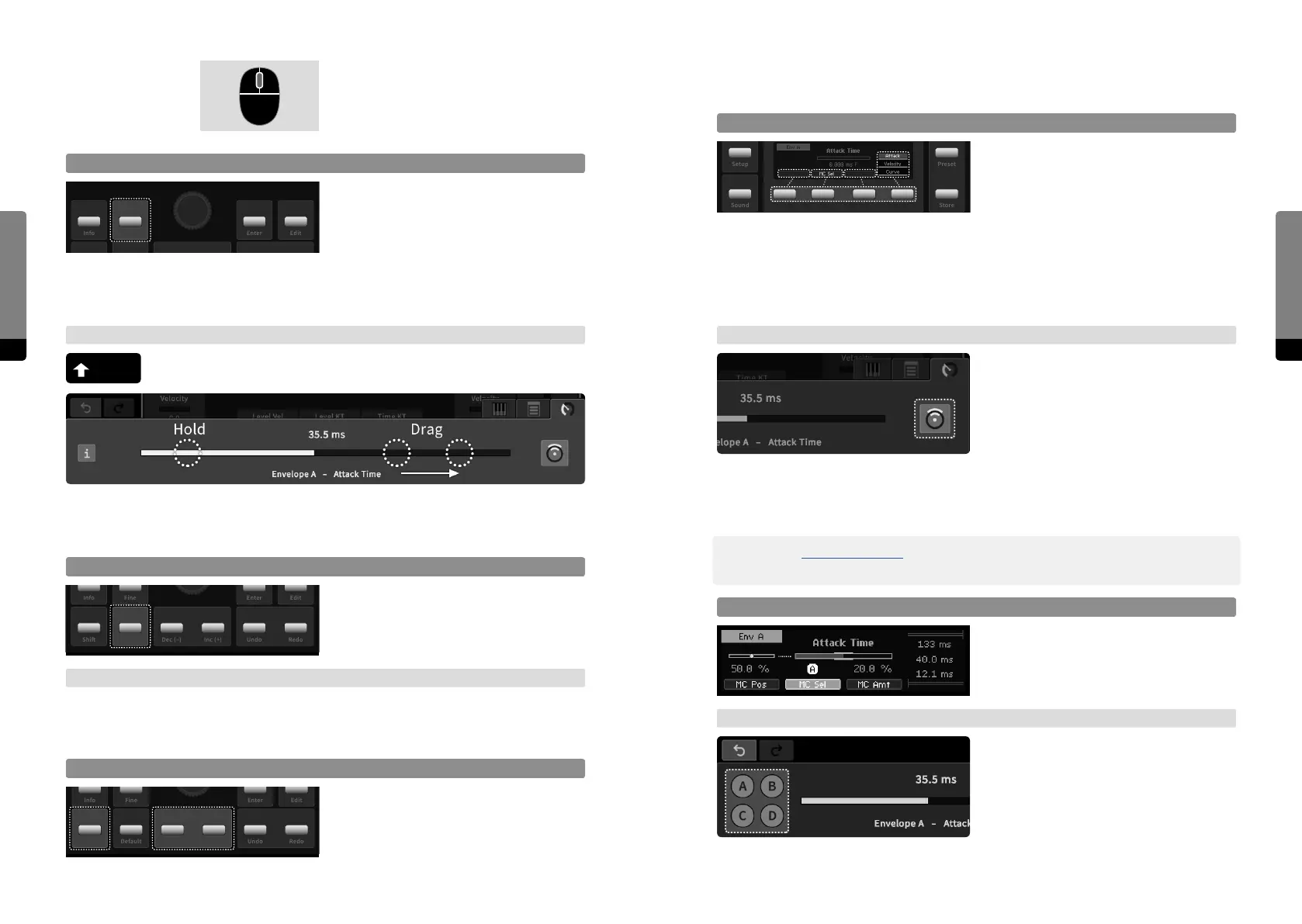
By default, the parameter’s control position
is in focus and So Button 4 can be used
to cycle through the stack if there is one.
So Button 2 can be used to make a
Macro Control assignment to the parameter. If a Macro Control is assigned, So Buttons
1 and 3 are also available. When focussing on a modulation aspect, So Button 4 is also
available in order to access every modulation aspect. Furthermore, the Panel Unit Display
now shows all modulation aspects. Pressing So Button 1, 2 or 3 twice will set the focus
back to the parameter’s control position.
→ Graphical UI
In the Parameter tab, the modulation icon
can be clicked in order to toggle the focus
on modulation aspects (if a Macro Control
is assigned, all aspects are available). The
horizontal slider represents the aspect in
focus (or the control position by default).
Elements in the main area and the selected
parameter shown in the Parameter tab
indicate their modulation aspects.
߰ In chapter 4.4 Macro Controls, the Fast Mapping method is explained. It provides a quick
way of assigning target parameters to a Macro Control.
MC Selector
Press So Button 2 in order to focus on MC
selector and change the assignment like
adjusting a parameter. Either none (-) or
Macro Control (A, B, C, D) can be assigned.
→ Graphical UI
Change the current MC assignment by
pressing any of the four provided assign-
ment icons (A, B, C, D). Clicking twice on an
icon will clear the assignment. This aspect
will not be in focus on the slider.
Setup
Sound
Preset
Store
If the external device features a mouse,
the mouse wheel can also be used for
adjustments when hovering over the slider
in the Parameter tab.
Adjust Control Position, fine
The Fine button toggles high resolution
mode for adjustments. An “F” indicator will
appear in the Parameter screen. Usually,
the Fine mode will be deactivated when
focussing on another parameter. However, the Fine mode can be toggled permanently
as well by holding the Shi button while pressing the Fine button. Now, the Fine mode
remains activated until the Fine button is pressed again.
→ Graphical UI
While holding down the Shi key, parameter adjustments will be made in
high resolution mode.
On the slider in the Parameter tab, a pinch gesture (holding one finger while dragging
another) will allow for adjustments in high resolution.
Reset Control Position
Press the Default button to recall the
parameter’s default value.
→ Graphical UI
Double click on the element in the main area (if GUI settings allow for it) or the slider in
the Parameter tab in order to recall the currently selected parameter’s default value.
Control Position Edges
Hold the Shi button and press the Dec
button for minimal, the Inc button for
maximal value.
Info
Fine
Enter
Edit
RedoDec (–) Inc (+)
Setup
Sound
Preset
Store
Info
Shi
Fine
Default
Enter
Undo
Edit
RedoDec (–) Inc (+)
Info
Shi
Fine
Default
Enter
Undo
Edit
RedoDec (–) Inc (+)


 To Next Page