User Interfaces
User Interfaces
52 53
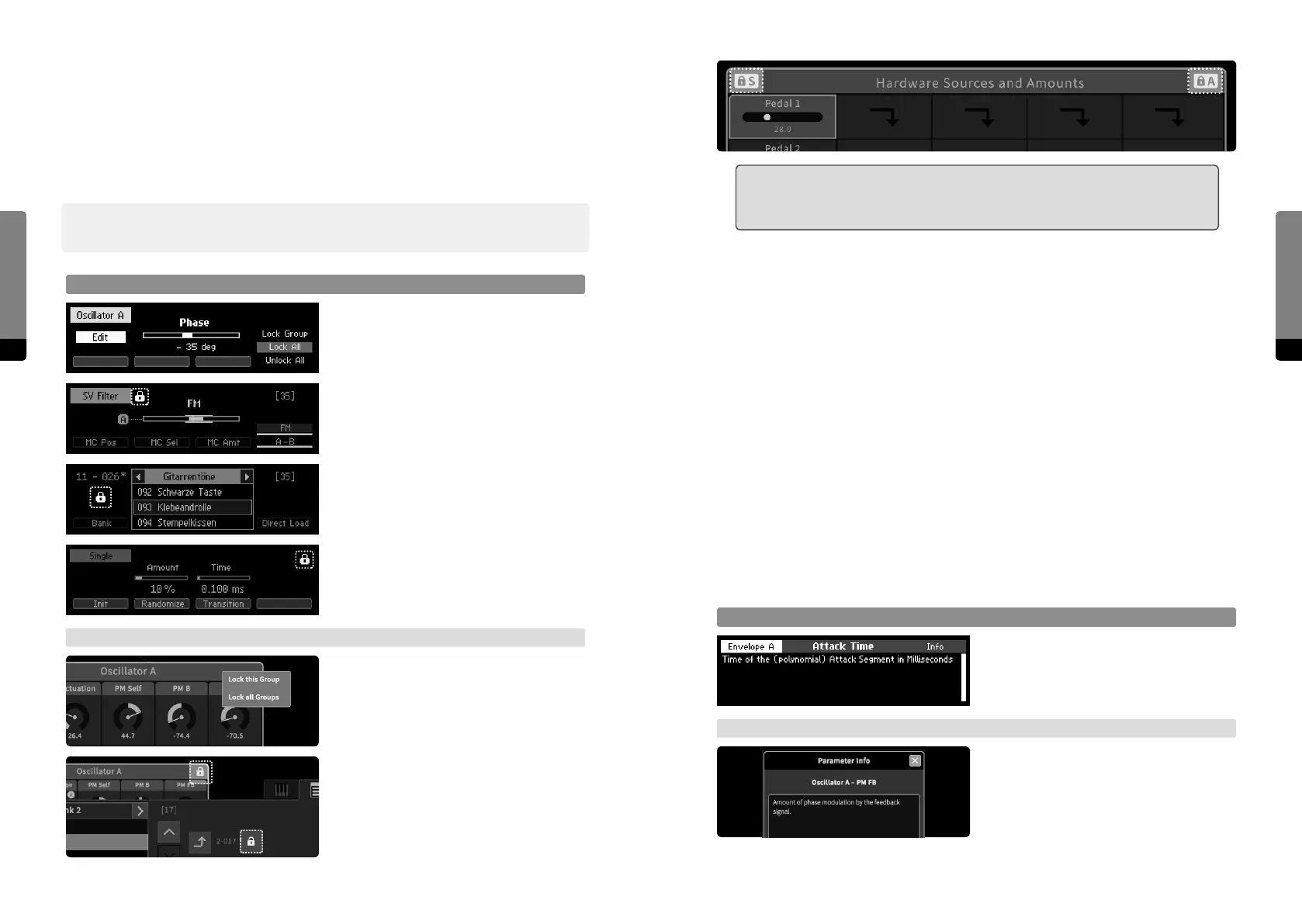
߱ Note that Hardware Sources and Hardware Amounts are two separate lockable
groups. In the Graphical User Interface, the header of the “Hardware Sources
and Amounts” group shows two separate lock symbols.
Locking – a practical example
Let’s consider a situation where the user wants to use certain groups of preset A as a
template for other presets (B, C, …), which shall have those group settings as well.
Useful scenarios may be the Hardware Sources and their Amounts on Macro Controls, or
the whole eect chain. In a few steps, the particular groups of preset A can be copied to
the other presets:
1. Load preset A (the template preset)
2. Activate lock on the corresponding groups (that shall be transferred to the other
presets)
3. Load preset B (the locked groups still remain as defined by preset A)
4. Save preset B (making the template transfer persistent)
5. Load and then save preset C (repeating the process, the locked groups still remain as
defined by preset A), et cetera
4.7 Contextual Info
Parameter Info
When a parameter is selected, the Info
button invokes the Info screen, showing the
current parameter’s description.
→ Graphical UI
In the Parameter tab, an Info icon is
provided, toggling an Info window showing
the description of the currently selected
parameter. The window will update when
selecting another parameter.
4.6.5 Locking
In some situations, it may be useful to load only specific parts of a preset while leaving
other parts as they are. This can be achieved by using the Lock mechanism, which can
lock particular parameter groups and prevent the contained parameters from being
overwritten by a preset recall or sound manipulations. Parameters of locked groups can
still be edited, though.
߰ Currently, only whole groups can be locked, but a parameter-specific Lock mechanism is
intended for the future.
Locking a Parameter Group
In the Parameter screen showing the
currently selected parameter, the Edit
button provides the lock menu. Individual
lock options can be selected by pressing
So Button 4 and applied by pressing the
Enter button.
Depending on the lock status of the
associated group, the lock options provide
locking the specific group/all groups, or
unlocking the specific group/all groups.
When one or more groups are locked, the
lock symbol is also shown in the Preset and
Sound screens.
→ Graphical UI
A right click or long touch gesture on a
particular group header invokes the lock
menu. Depending on the lock status of the
associated group, the lock options provide
locking the specific group/all groups, or
unlocking the specific group/all groups.
When one or more groups are locked, the
lock symbol is also shown in the Preset and
Sound tabs.


 To Next Page