User Interfaces
User Interfaces
62 63
The Rename Screen
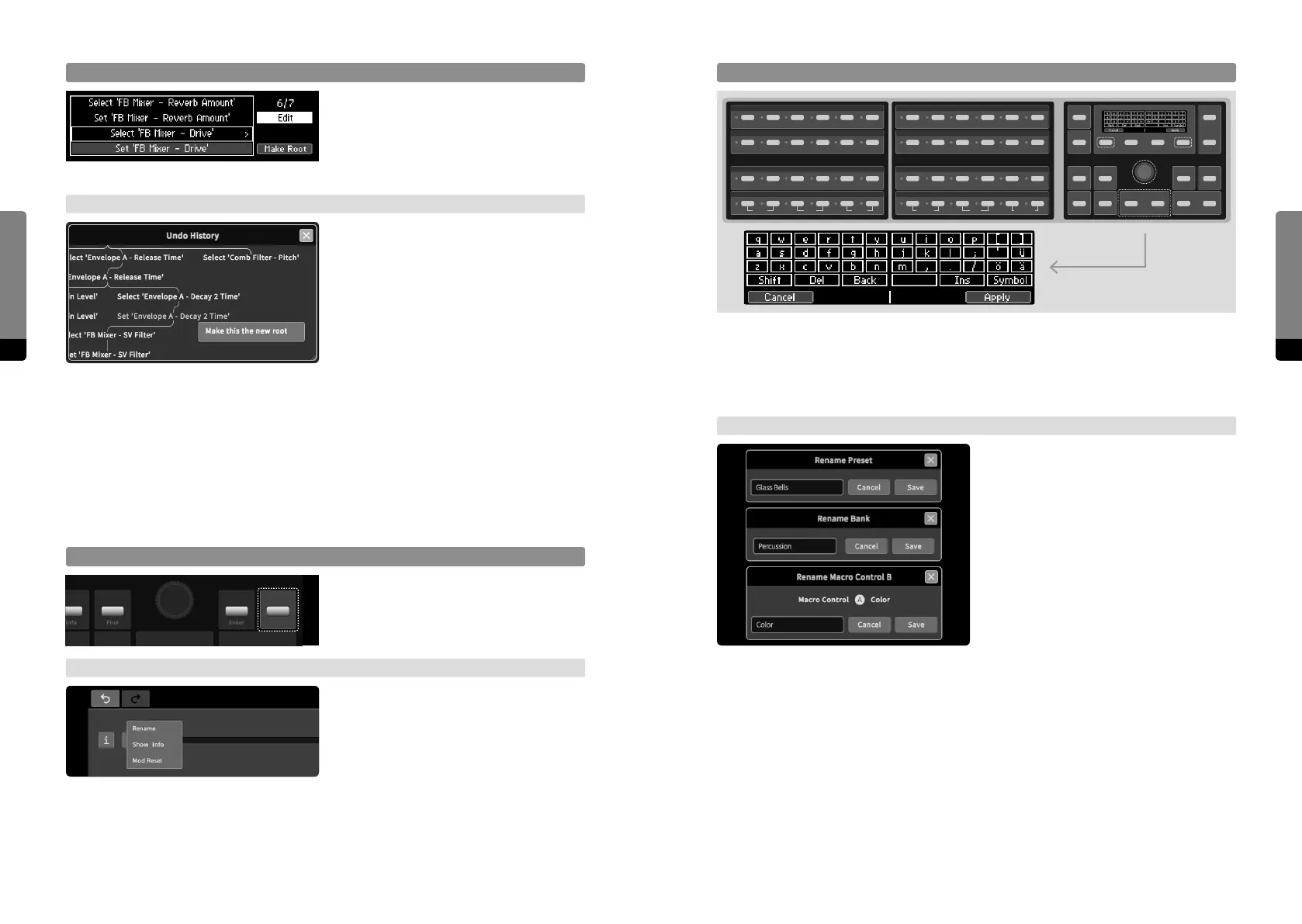
When the Rename screen is shown, the two Parameter Selection Panels on the le or
on the right side of the display can be used as a keyboard, as indicated by the keyboard
layout in the screen. The cursor can be moved by using the Encoder, or the Inc, Dec
buttons. So Button 1 will cancel the process, So Button 4 will apply the process.
→ Graphical UI
When a rename option was called, a dialog
window will appear, containing an entry or
textbox element. Mouse and keyboard on
the external device can be used to rename
the corresponding item. Dialogs provide OK
and Cancel buttons in order to finish the
process accordingly.
Q W E R T Y
A S D F G H
Z X C V B N
Shift Del Back
U I O P [ ]
J K L ; ‘ Ü
M , . / Ö Ä
Space Ins Symbol
Dec (–) Inc (+)
Make Element the new Root
When navigating the current, active
branch, press the Edit button in order to
get the „Make Root“ option. All entries and
branches prior to the current position will
be deleted by pressing So Button 4.
→ Graphical UI
When the selected element is on the cur-
rent, active branch, the „make this the new
root“ option will be provided. Confirming
this option will delete all elements and
branches prior to the selected element.
4.10 The Rename Mechanism
Aected Items
Items that can be renamed are the labels and info texts of Macro Controls, as well as
names and comment texts of presets and banks.
Get Rename Option
As previously described, renaming options
will be provided when pressing the Edit
button in the corresponding context.
→ Graphical UI
As previously described, renaming options
will be provided when invoking a context
menu for corresponding items.
Fine
Enter
Edit


 To Next Page