User Interfaces
User Interfaces
60 61
Navigate Branches
If a branch splits at the current position,
pointy brackets are visible on the entry. Use
So Buttons 1 and 3 to switch between
branches. Recalling an entry of an inactive
branch will make it active.
→ Graphical UI
The Undo History window can be scrolled
by drag gestures on the background or the
scrollbar, or by using the mouse wheel. A
simple click on an element will recall the
corresponding state. As all branches of the
tree are visible in this window, the branch
navigation is fully integrated. A right-click
(or long touch gesture) on an element pro-
vides a context menu for further options.
The „hide“ option will hide the selected
branch, the other options follow below.
Delete (inactive) Branch
When navigating an inactive branch, press
the Edit button in order to get the delete
option. Pressing So Button 4 will delete
the whole branch.
→ Graphical UI
When the selected element is on an inac-
tive branch, the „delete from here“ option
will be provided. Confirming this option will
delete the whole branch.
→ Graphical UI
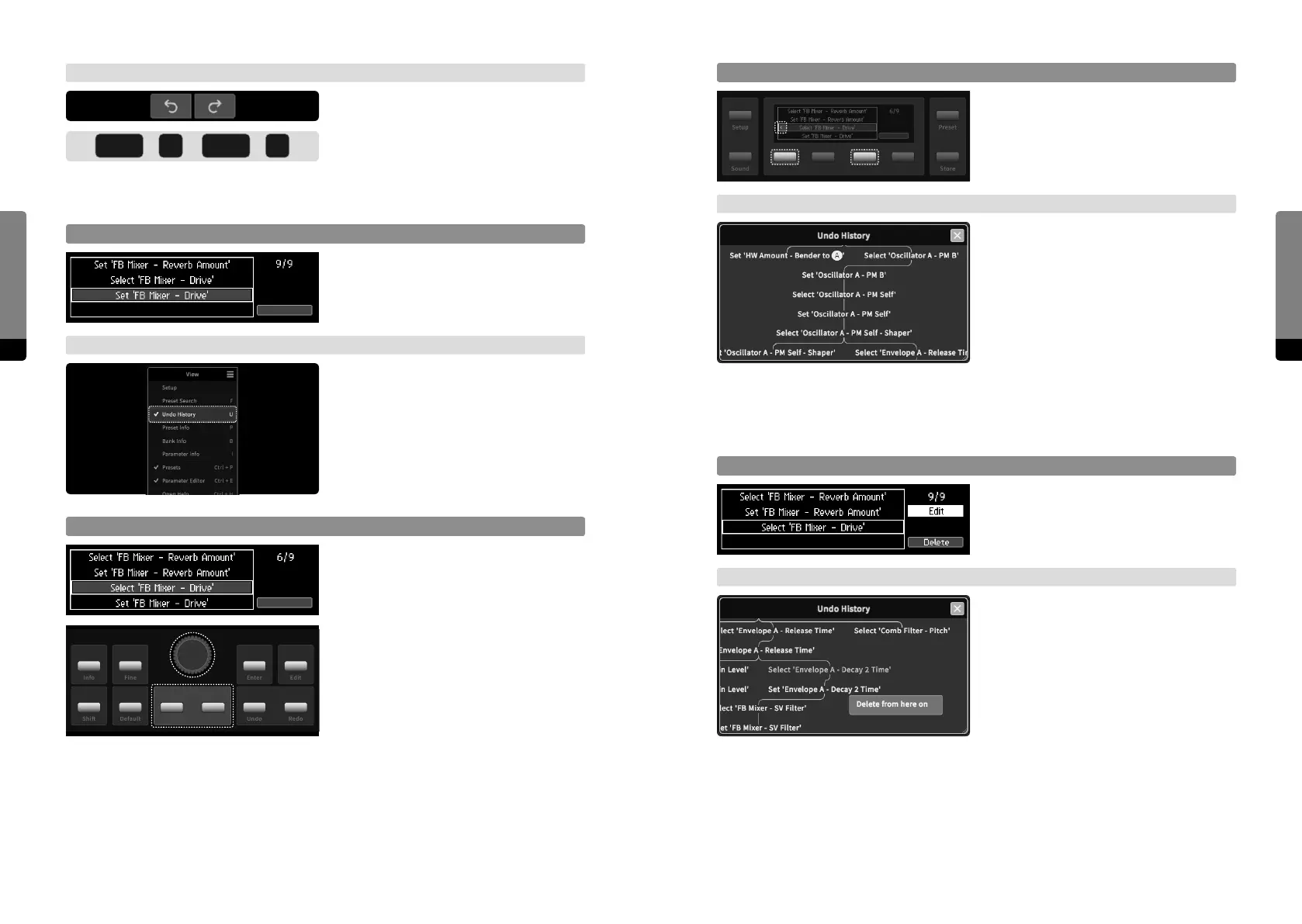
The current, active branch can be navi-
gated by using the Undo and Redo icons
above the tab area, recalling the corre-
sponding state immediately. The icons
indicate which Undo options are available, as shown by their color. Alternatively, the
usual keyboard shortcuts for undo and redo can be used.
Focus on Undo History
Pressing both Undo and Redo buttons at
once will invoke the Undo screen, providing
full navigation of the undo history.
→ Graphical UI
In the View menu, the Undo History win-
dow can be shown or hidden. It provides
full access on undo-related aspects.
Navigate current Branch
The Undo screen can only show one
branch of the undo tree. It can be scrolled
by using the Encoder or Inc, Dec buttons.
The current position will be indicated by a
rectangle and can be recalled by pressing
the Enter button.
ctrl
ctrl
+ +
Info
Shi
Fine
Default
Enter
Undo
Edit
RedoDec (–) Inc (+)



 To Next Page