User Interfaces
User Interfaces
58 59
Scale Overview
In order to quickly notice if any keys have an individual tuning (as controlled by the Scale
Group Oset parameters), the Scale Group provides an Overview, showing if active (non-
zero) oset parameters are present.
→ Panel Unit
The active state is indicated by a high-
lighted bar for the Scale Group in the
selection stack, and when the Scale Group
is selected, a “Reset” option is provided
by So Button 1, which will set all active
Oset parameters to zero.
→ Graphical UI
The active state is indicated by an exclama-
tion mark in the Scale Group header, and
a “Reset” option is provided by the header
context menu, which will set all active
Oset parameters to zero.
4.9 The Undo Mechanism
Simple Undo/Redo
The current, active branch can be navi-
gated by using the Undo and Redo buttons
in the Edit Panel, recalling the correspond-
ing state immediately.
When the Undo button was pressed, an
Undo indicator will appear in the Preset
screen, showing that the Redo option is
available. The Parameter screen also shows
the Undo indicator, as long as no other
parameter is selected.
Info
Shi
Fine
Default
Enter
Undo
Edit
RedoDec (–) Inc (+)
Signal Flow Overview (Panel Unit only)
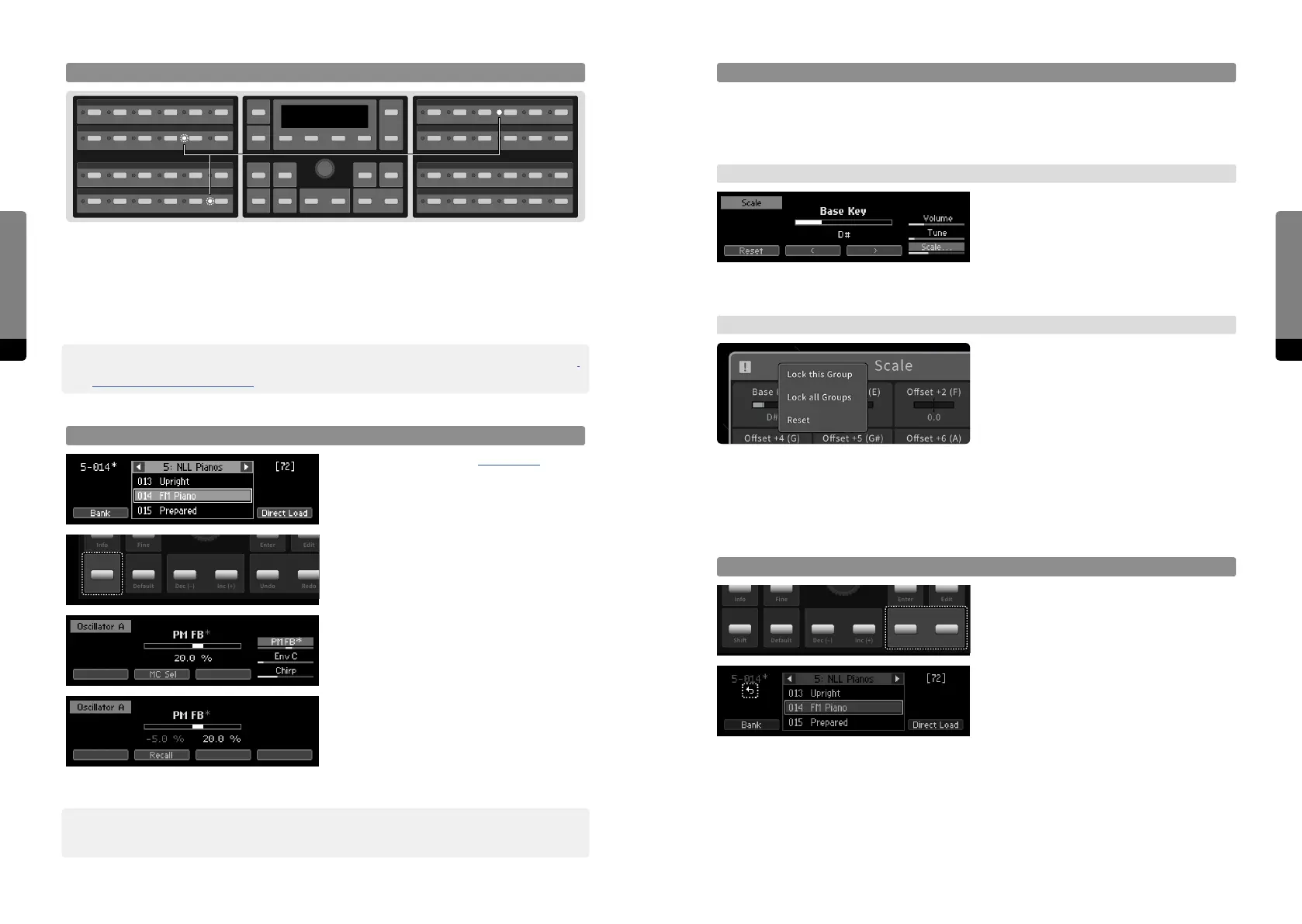
When selecting a parameter of a particular group, blinking LEDs on the Panel Unit show
where the output signal of this group is applied further in the signal chain. (If, for example,
a parameter of the Feedback Mixer is selected, the PM FB and FB Mix parameters of the
Oscillators and Shapers will have blinking LEDs, if they are unequal to zero - indicating
that the output signal of the Feedback Mixer is applied in these particular sections.
߰ The Signal Flow indicator is optional and can be disabled in the Setup Menu (see chapter
6.Setup (C15 System Settings) for more details).
Change Overview (Panel Unit only)
As mentioned in chapter 3.5 Presets, the
Preset screen will indicate changes (user
edits) to a loaded preset by showing an
asterisk behind the unique number.
When changes occured to a loaded preset,
holding the Shi button while in the Preset
screen will show the Change Overview on
the Panel Unit, as changed parameters will
now have blinking LEDs.
When a changed parameter is selected and
visible in the Parameter screen, an asterisk
behind its label will be shown as well.
Holding the Shi button now will redirect
to the Compare screen, showing the loaded
(initial) and changed (edited) positions
simultaneaously. Both can be recalled by
using So Buttons 2 and 3.
߰ For now, the Change Overview and Compare screen are only available for parameter
positions. Modulation amounts and MC selectors are planned to be integrated as well.
Info
Shi
Fine
Default
Enter
Undo
Edit
RedoDec (–) Inc (+)


 To Next Page