User Interfaces
User Interfaces
70 71
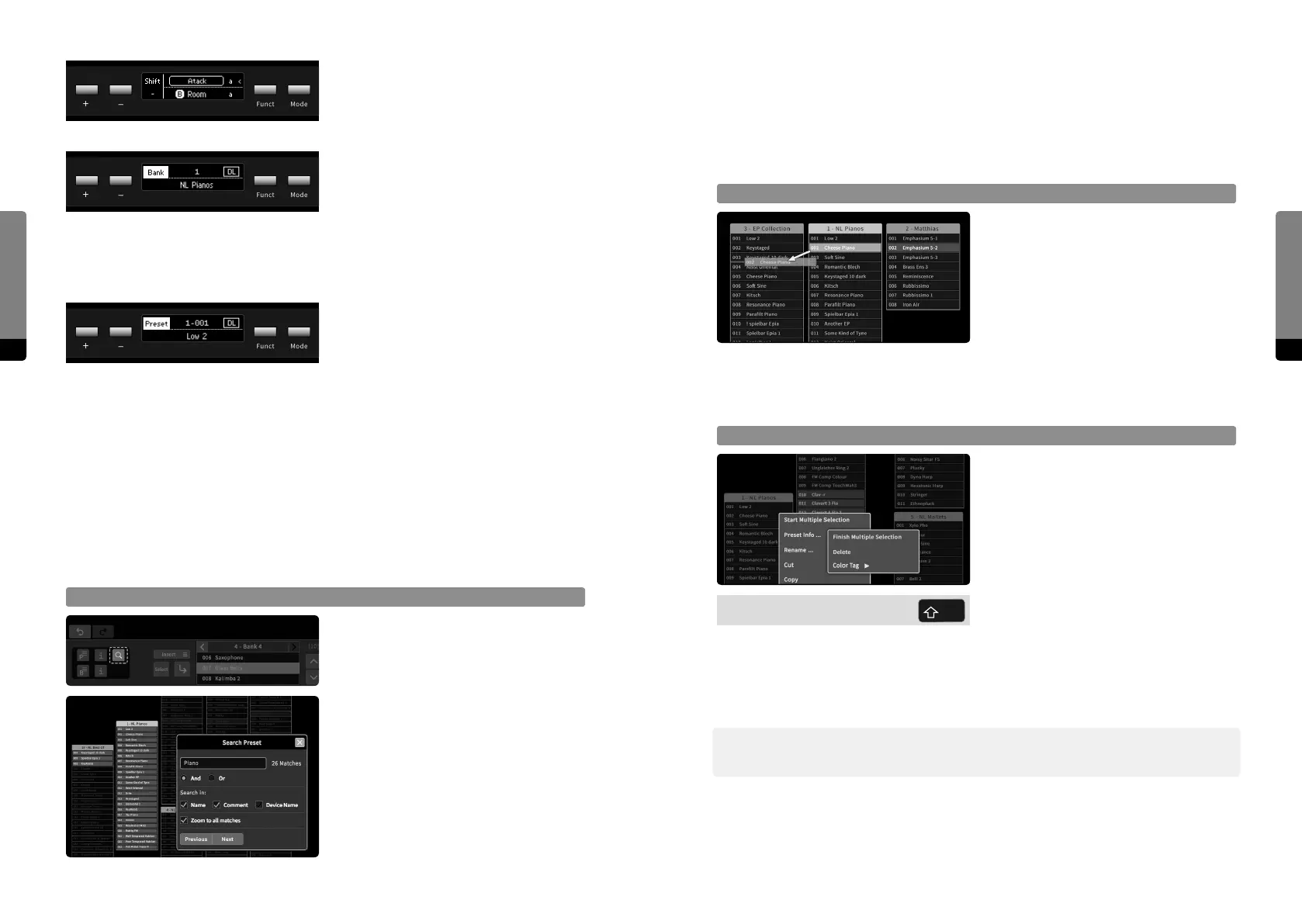
will set the zoom level of the main area, so that every match is instantly visible. The
success of a search strongly depends on the level of documentation (meaningful preset
names and descriptive comments). Bank information (comments) are not included in
the search. Using hashtags for specific keywords can be a sophisticated method of preset
search and documentation.
Preset Drag and Drop
A selected preset can be dragged on other
positions in a bank, into other banks or
on the background. When it is dropped, it
will move to the new position (if the bank
remains the same), or it will be copied to
the new position (creating a new bank if it
was dropped on the background).
If a preset is dropped directly on another preset (as indicated by a red background), the
other preset will be replaced. In a similar manner, banks can be dragged as well in order
to change their position in the main area, or to copy their contents into other banks.
Multiple Preset Selection
Bank context menus (invoked by a right
click or long touch gesture on a bank in
the main area) provide an option to start
and finish the selection of multiple presets.
Alternatively, the Shi key can be used to
hold the Multiple Selection mode. During
multiple selection, presets of any bank can
be added or removed from the selection
(but they will not be loaded). All selected
presets can then be deleted or copied (see context menu), or dragged into any bank at
any position or on the background, creating a new bank containing copies of the selected
presets. The selection of multiple presets can be finished in the context menu or by a click
on the background.
߰ Note that Preset Drag and Drop and Multiple Preset Selection are only available, if the GUI
Settings (explained in the following) allow for context menus and drag and drop.
In Edit mode, Ribbon 1 will operate as an
additional parameter editor for the current
parameter focus. The remaining functional-
ity remains as described for the Play mode.
In Bank mode, both Ribbons remain oper-
able as Hardware Sources. The +/- buttons
can be used to navigate banks.
The Funct button will serve as a direct load
switch (when held for a second). The last
selected preset of the corresponding bank
will be loaded.
In Preset mode, both Ribbons remain oper-
able as Hardware Sources. The +/- buttons
can be used to navigate presets.
The Funct button will serve as a Load
button (when pressed) or as a direct load
switch (when held for a second).
4.15 Graphical UI Functionality
There are some more features of the Graphical User Interface, which are not available on
both Base and Panel Unit. Other features are available on both User Interfaces, but are
organized in dierent ways.
Preset Search
All available presets can be searched for
keywords, the search results will be high-
lighted until the search is canceled. Search
keywords can be logically combined by
setting the logical operator (AND: every
keyword has to match, OR: any keyword
that matches). The search algorithm can
further be specified to include preset
names, preset comments and the device
names where presets originated from (as
the selectable options show in the Search
window). The “Zoom to all matches” option


 To Next Page