User Interfaces
User Interfaces
72 73
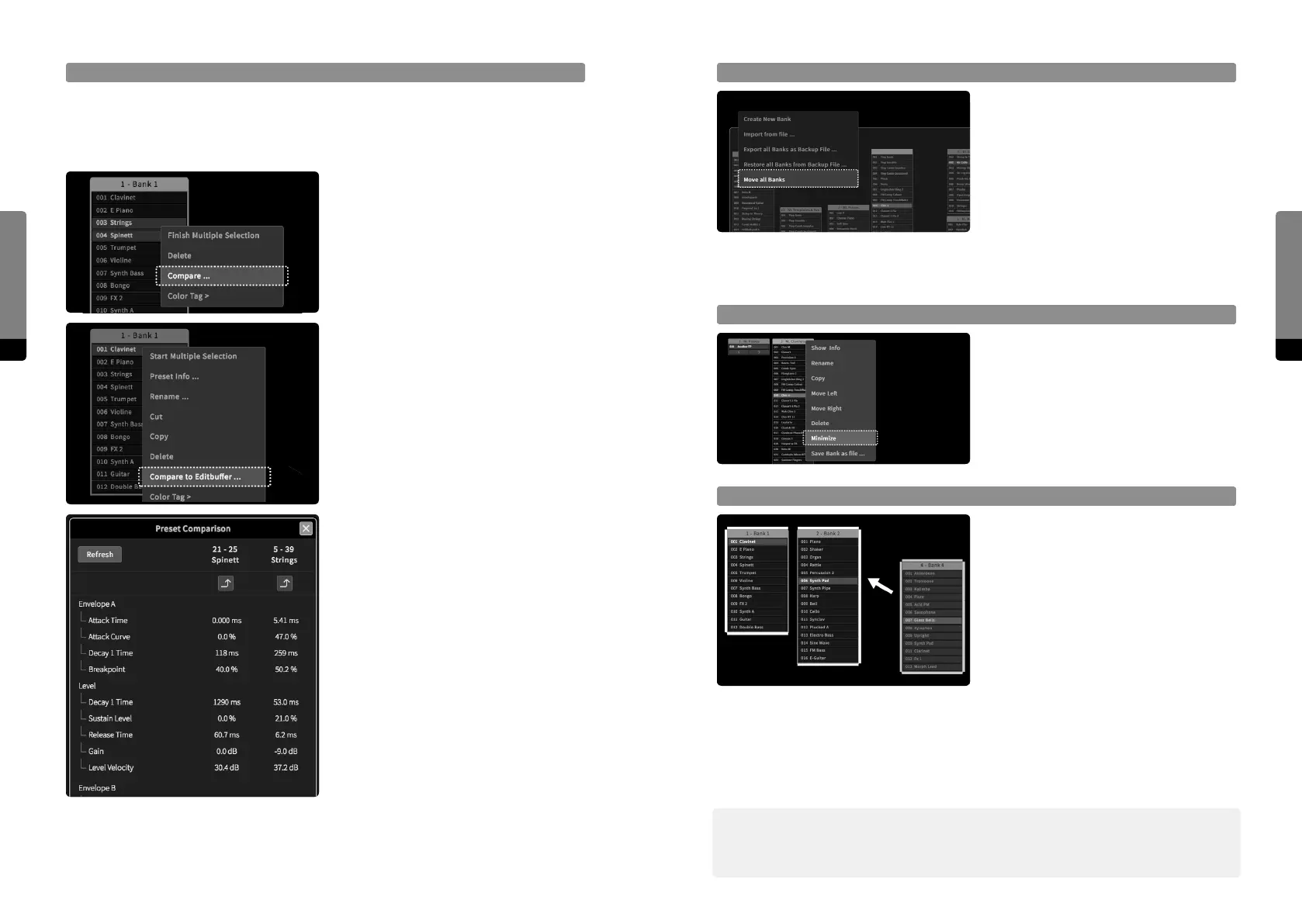
Move all Banks
There is a shortcut to move all banks at
the same time, provided by the global
context menu (invokedby a right-click or
long touch gesture on the background). If
the „Move all Banks“ option is selected, a
white rectangle will appear, surrounding all
banks. Drag gestures now allow for moving
all banks to another place in the main area.
To stop, re-select the option or click on the
background.
Minimize Banks
The local bank context menu provides an
option to minimize a bank. A double click
on a bank header has the same eect.
When a bank is minimized, it will consume
only a small space, but still provides access
to all contained presets (the access is only
sequential, though).
Docking Banks
When dragging banks manually to certain
positions in the main area, they might not
align very well. In order to create an align-
ment, a bank can be docked to another
by dragging it close to other banks. The
bank outlines change, indicating possible
docking targets (top, right, bottom, le) for
the dragged bank. When banks are docked
together, they also behave as a group that
can be dragged as a whole or docked to larger bank clusters. The top- or lemost bank of
a cluster behaves as the master and will move the whole cluster when dragging it, while
the other banks can be dragged away from the cluster in order to split the group back
into individual parts. Furthermore, when dragging a single bank between two banks of a
cluster, it can be inserted as well.
߰ Banks can be docked ontop of each other as a vertical cluster. When minimizing or
maximizing an individual bank, the cluster will maintain the alignment and shi the other
banks accordingly.
Preset Compare
Two presets can be compared against each other, examining their individual dierences.
This may be useful for distinguishing several versions of a preset that are only slightly
dierent. Two compare methods are available, as shown in the following:
By using the multiple preset selection
mechanism and selecting two presets, a
context menu entry “Compare ...” will be
available when right-clicking on the selec-
tion. The two presets will be compared
against each other.
A right-click on any preset will provide a
“Compare to Editbuer ...” option. The
preset will be compared to a copy of the
Editbuer (the current parameter settings).
When starting the compare mechanism by
either method, the Compare window will
appear, showing every parameter or aspect
that diers between the two presets. Equal
parameters or aspects are not visible. Any
of the two presets can be loaded, as pro-
vided by a Load icon in the header section
of the window (so, both Presets can be
tested and played without closing the Com-
pare window). When comparing a preset
to the Editbuer, subsequent adjustments
to parameters that change the Editbuer
will not be recognized by the Compare
window automatically. The Refresh button
can be used in order to get a new copy of
the current Editbuer, ensuring that the
comparison is up-to-date.


 To Next Page