User Interfaces
User Interfaces
74 75
Bank Info
Similarly, banks also contain metadata which will be provided by the Bank Info window.
Parameter Info
In addition, specific parameter information will be provided by the Parameter Info
window.
Presets
All the floating banks in the main area can also be shown or hidden, shiing the focus to
the parameters. Nevertheless, all banks still are available in the Preset tab.
Parameter Editor
All parameters in the main area can also be shown or hidden, shiing the focus to presets
and banks. The Parameter tab still provides the opportunity to edit a selected parameter.
However, parameters cannot be selected anymore (the Hardware User Interface still
provides complete access).
Open Help
The C15 User Manual is also available as a separate HTML document, which will open in a
new browser tab.
Context Menus
There are several context menus available providing dierent functionalities (according to
the context). They all can be closed by pressing the Escape key.
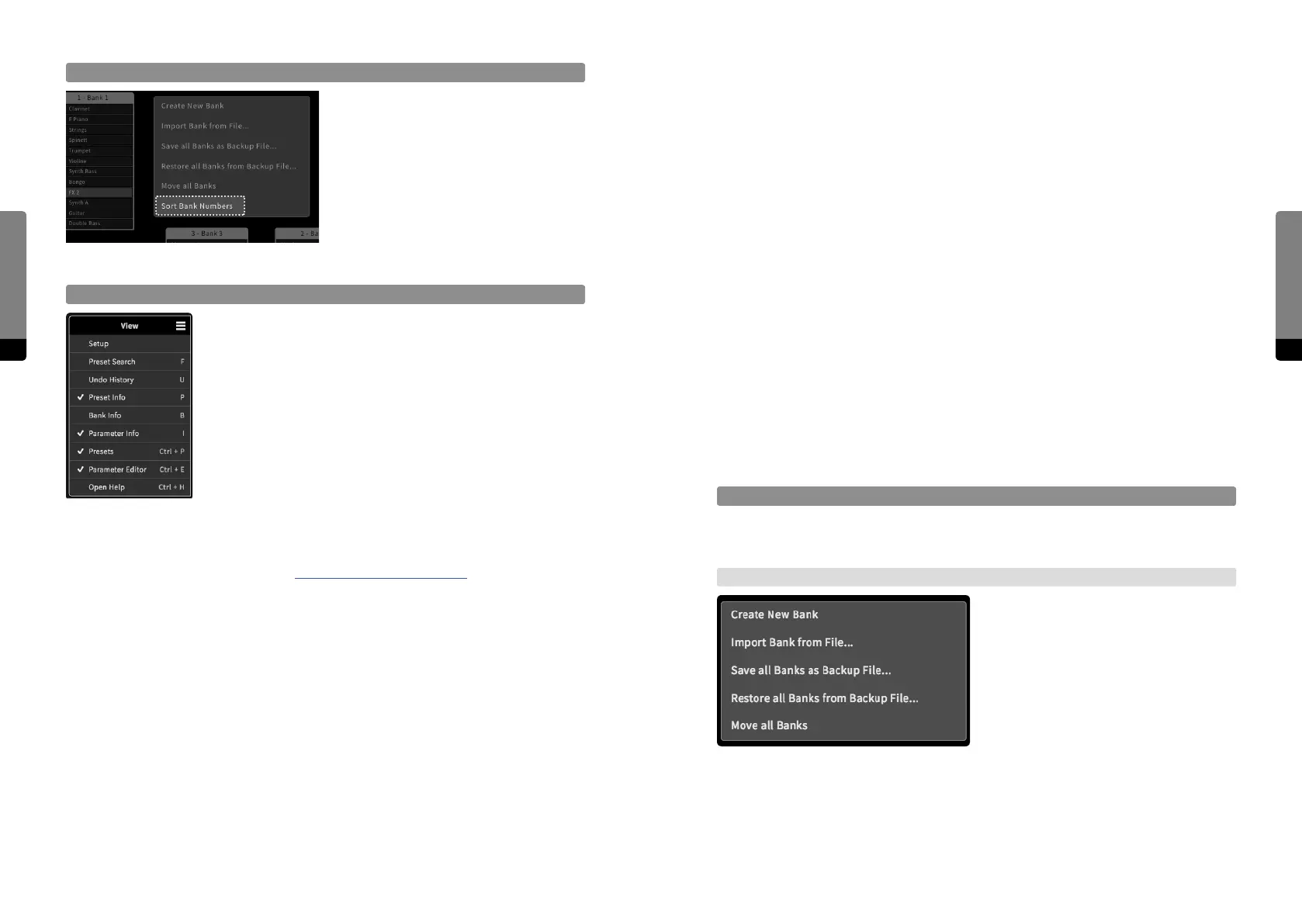
Background Context Menu
The Background context menu appears
when right-clicking on the background.
Alternatively, a long touch gesture can be
used to invoke the menu. The menu pro-
vides global functionality such as creating
a new bank, importing a bank (from the
external device), saving or restoring back-
ups and moving all banks at once.
Sort Bank Numbers
The background context menu provides
an option to sort the bank numbers. This
will re-evaluate their order in the bank list,
which is available by sequential access in
the Preset screen or tab. The new order
will be aected by clusters (which will be
evaluated first), and the bank positions
on the main area or within a cluster (from
upper le to lower right).
The View Menu
The View menu (available in the top-right corner, indicated by a
menu icon) provides quick access to crucial components of the
Graphical User Interface. The following components can be made
visible or invisible (GUI shortcuts to the components are shown
as well).
Setup
When clicking this option, the Setup menu opens in a new window. For more information
about the Setup menu, refer to chapter 6 Setup (C15 System Settings).
Preset Search
As described, presets can be searched for keywords. Click on this option to start a search
task, opening the Search window.
Undo History
All user actions are tracked and can be undone, as provided by Undo and Redo icons
above the tab area. In order to have a complete overview or browse through the history,
the Undo History window can be used, showing all tracked actions in a tree-like structure.
Preset Info
Every preset contains metadata, such as a comment text or the creation date, for exam-
ple. All the preset-relevant information is provided by the Preset Info window.


 To Next Page