User Interfaces
User Interfaces
44 45
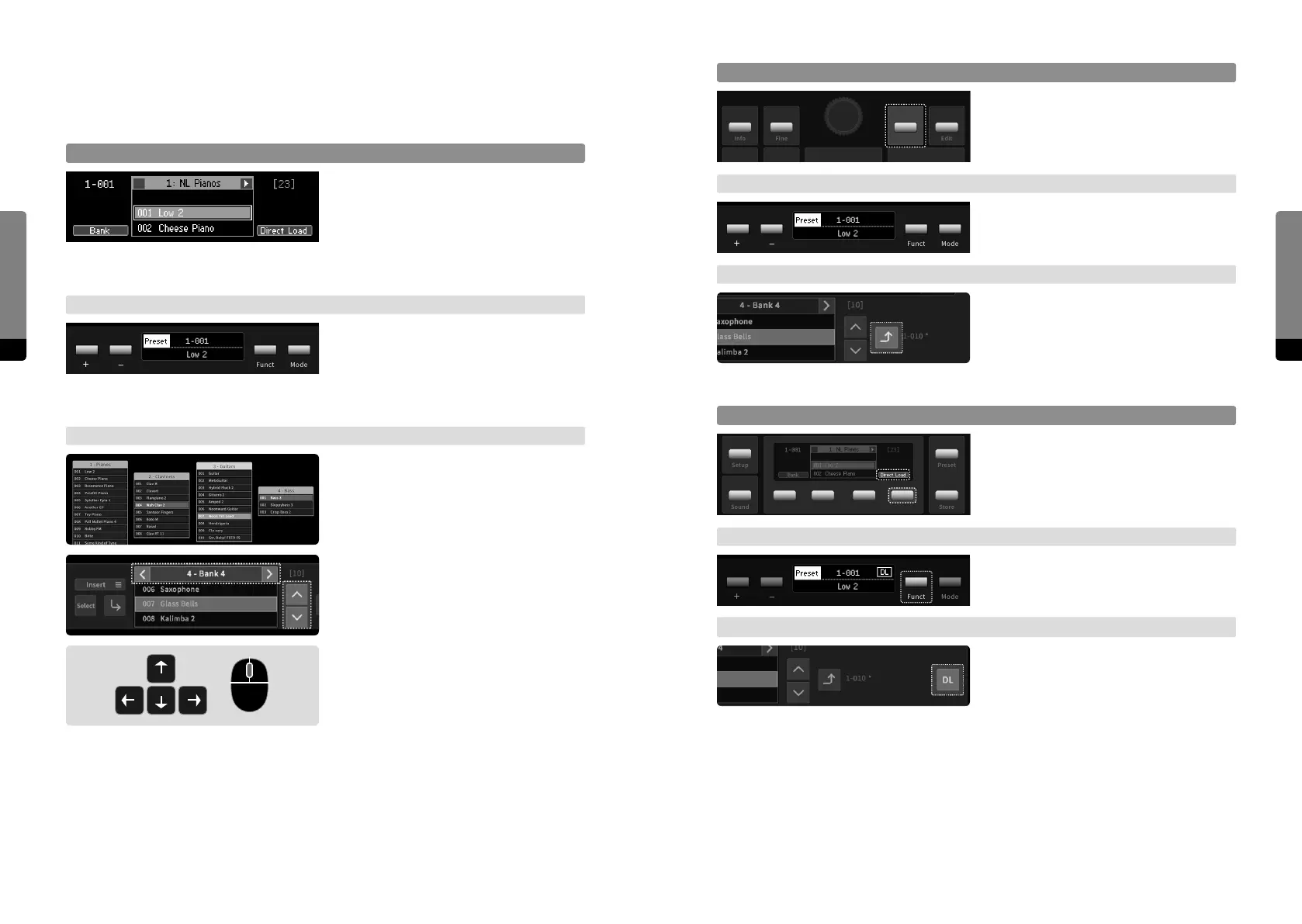
Loading a Preset
On the Panel Unit press the Enter button in
order to load the selected preset.
→ Base Unit
On the Base Unit press the Funct button in
order to load the selected preset.
→ Graphical UI
On the Graphical UI the Preset tab provides
a Load icon in order to load the currently
selected preset. Or click on a bank element
twice.
Direct Load
On the Panel Unit press the So Button 4
in order to toggle the Direct Load option.
→ Base Unit
On the Base Unit hold the Funct button for
a second to toggle the Direct Load option.
→ Graphical UI
On the Graphical UI press the Direct Load
icon in the Preset tab in order to toggle the
Direct Load option.
Info
Fine
Enter
Edit
RedoDec (–) Inc (+)
Setup
Sound
Preset
Store
Setup
Sound
Preset
Store
4.6 Presets
4.6.1 Loading a Preset
Preset Navigation
Press the Preset button in order to focus
on the Preset screen. The Encoder as well
as the Inc and Dec buttons will navigate
through the current Bank. So Buttons
2 and 3 navigate banks. The selection is
indicated by a rectangle.
→ Base Unit
The Base Unit Control Panel can be set in
Preset mode by the Mode button. Using
+ and – buttons will navigate through the
current bank. Both Ribbons will remain in
Play mode.
→ Graphical UI
In the main area, every bank is available
and can be dragged on any position. If
expanded, presets can be selected by
clicking.
In the Preset tab, the currently selected
bank can be navigated by clicking on the
corresponding navigation icons.
The arrow keys can be used to navigate
presets (up, down) and banks (le, right).
If the external device features a mouse, the
mouse wheel can also be used for navi-
gating the currently selected bank in the
Preset tab when hovering it.


 To Next Page