User Interfaces
User Interfaces
46 47
→ Graphical UI
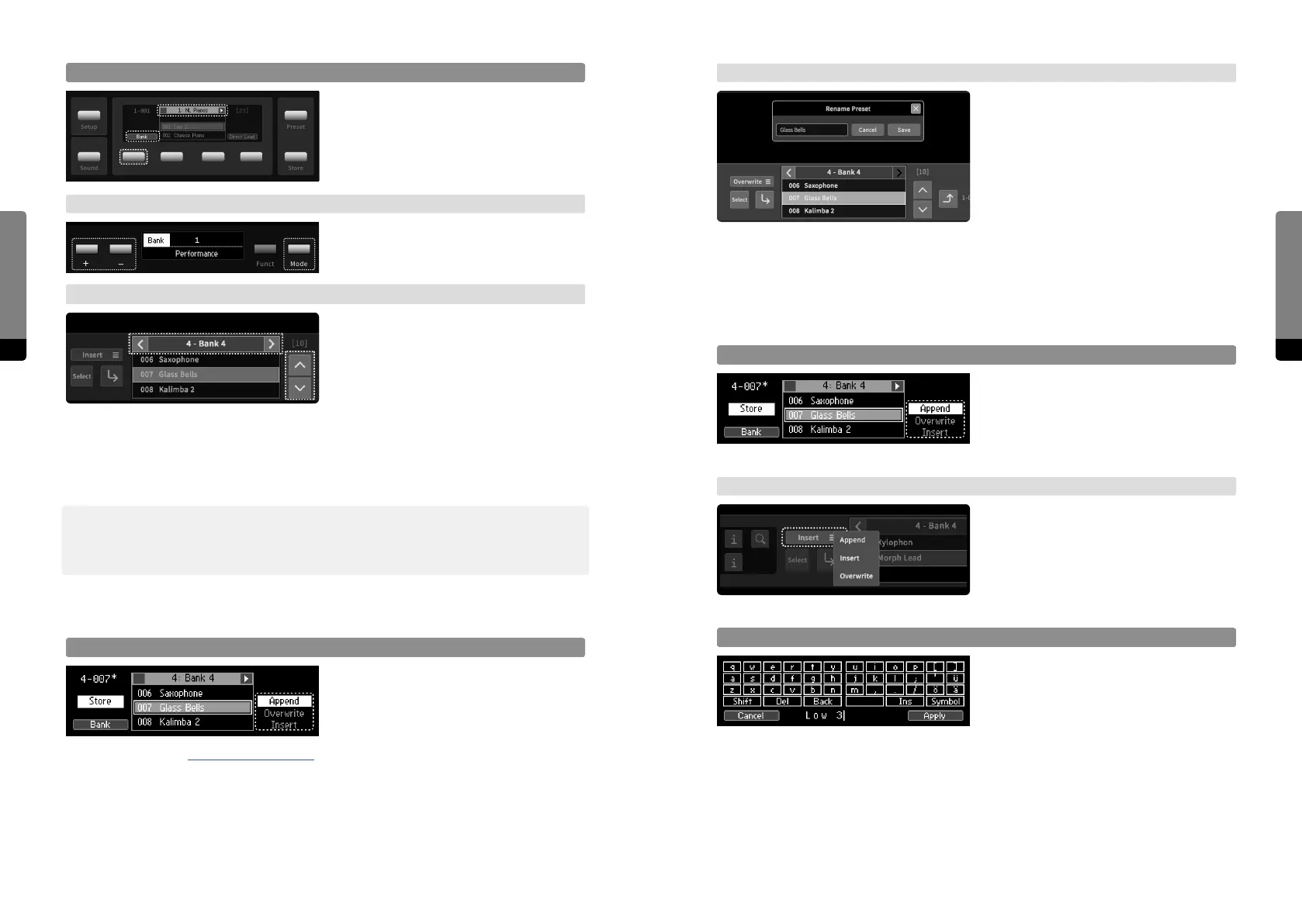
The Preset tab provides a Store icon. Click-
ing on or touching it will store the preset in
the currently selected bank at the current
position, according to the Store method
(see below). The additional Select button
will start the Store Select mode and a bank
and position can be chosen (without load-
ing any preset), then the preset can be stored at the desired location (disabling the Store
Select mode), according to the Store method (see below). Another way of storing a preset
in a particular bank or position is simply dragging and dropping the Store icon to the
desired location (the Store Select mode and Store method can be ignored in this case).
Store Method
So Button 4 provides three available
Store methods in the rightmost stack and
cycles it. Pressing the Enter button applies
the process, pressing the Store button
again dismisses it.
→ Graphical UI
The Store method can be selected in the
Preset tab, above the store icon.
Preset Naming
If the preset is considered “new”, the
Rename screen (window) will appear,
requesting a name for the preset.
Bank Navigation
On the Panel Unit press So Button 1 in
order to focus on banks and navigate them
instead. So Buttons 2 and 3 will navigate
presets now.
→ Base Unit
On the Base Unit Switch to Bank mode by
the Mode button. Using + and – buttons
will navigate banks.
→ Graphical UI
In the main area of the Graphical UI the
bank selection updates when loading a
preset. In the Preset tab, banks can be
navigated by the corresponding navigation
icons. (The arrow keys can be used as well,
as described.) In the main area the bank selection updates when clicking/touching on a
preset of a floating bank, loading the preset and its parent bank will be selected. A click
or touch gesture on a floating bank header selects the bank as well and the last selected
preset of this bank will be loaded.
߰ The Direct Load option will be indicated on each interface and loads a selected preset
directly. The Panel Unit Display and the Graphical User Interface also show the preset
count of a selected bank (in brackets) and the current bank-preset-number.
4.6.2 Storing a Preset
Store Select
Press the Store button in order to focus on
the Store screen and start the Store Select
mode. The store position and bank can be
adjusted by preset and bank navigation (as
described in chapter 4.6.1 Loading a Preset). The process can be canceled by pressing the
Store button again, pressing the Enter button on the other hand will complete the Store
process, storing the preset at the desired location according to the Store method (see
below).
Setup
Sound
Preset
Store


 To Next Page