User Interfaces
User Interfaces
48 49
→ Graphical UI
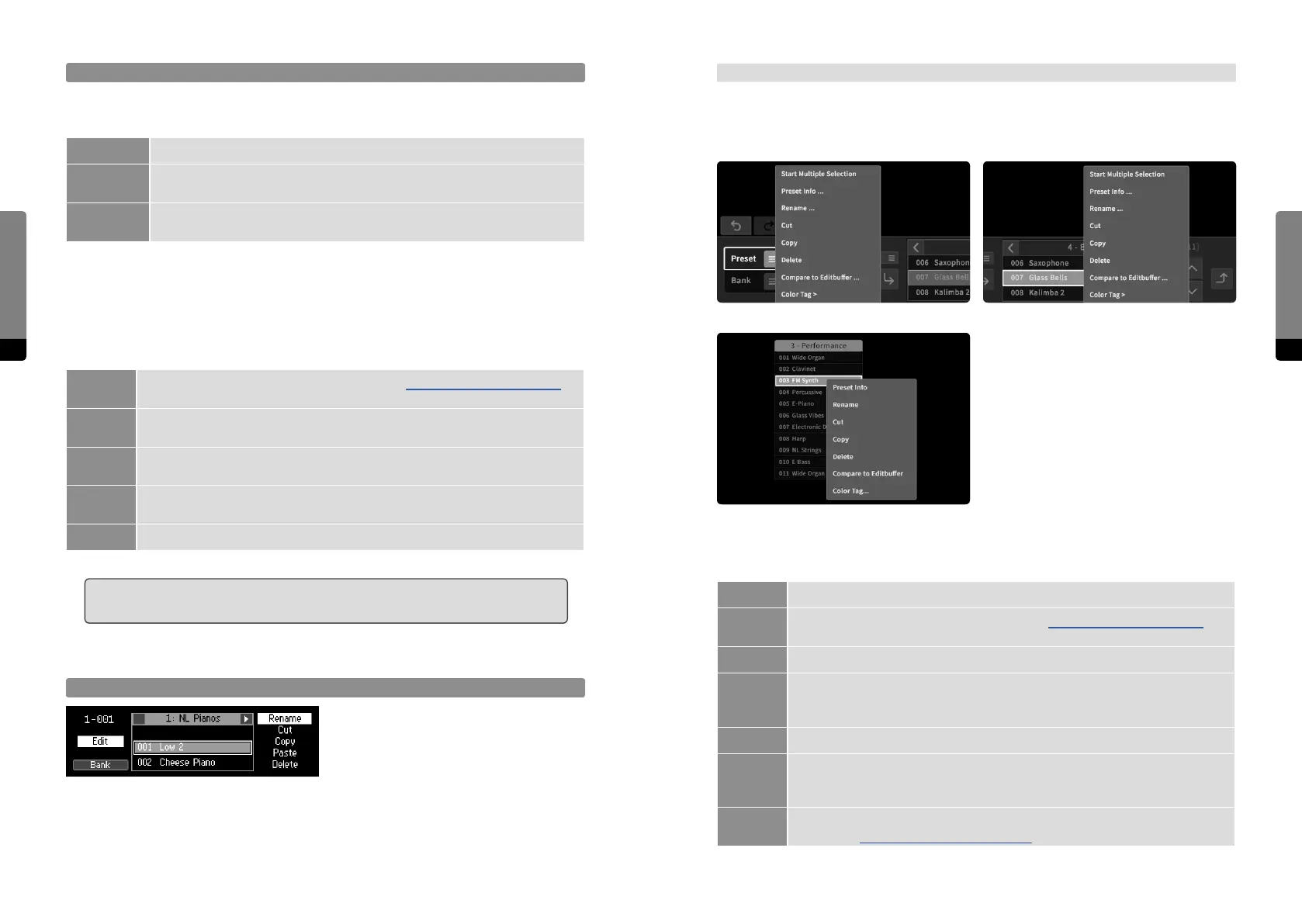
In the Preset tab, a Preset menu button is provided. Clicking on this button or right-click-
ing (long touch gesture) on a preset element in a (floating) bank invokes the context
menu, providing access to all aspects.
Common Bank editing actions are listed in the table below:
New A new bank will be created.
Rename
The selected bank can be renamed (see chapter 4.10 The Rename Mechanism for
details).
Copy The selected bank will be copied into a temporary buer, ready to be pasted.
Paste
Once a bank was copied into the clipboard, this option will become available.
߱
The copied bank will be appended as a new bank. This mechanism is not fully
developed yet. For more information, refer to the separate “Known Issues” document.
Delete The selected bank will be deleted.
Move
le/right
The bank number (position in the bank list, visible in the Preset screen and Preset
tab) can be altered by moving it le (decreasing the position) or right (increasing
the position).
Import/
Export
Single Banks can be transferred from and to external devices.
(see chapter 4.6.4 Importing/Exporting Banks for more details) .
Preset Menu 3: floating bank > preset entry
Preset Menu 1: Preset tab > Preset button Preset Menu 2: Preset tab > preset list
Store Methods
The store position will be finally influenced by the chosen store method, which can be
one of the following three:
Append The preset will be stored at the end of the currently selected bank.
Overwrite
The preset will be stored at the current position in the currently selected bank,
overwriting the existing preset.
Insert
The preset will be stored behind the current position in the currently selected
bank.
4.6.3 Editing Presets and Banks
Common Preset editing actions are listed in the table below:
Rename
The selected preset can be renamed (see chapter 4.10 The Rename Mechanism
for details).
Cut
The selected preset will be moved into the clipboard (being deleted at the current
position).
Copy
The selected preset(s) will be copied into the clipboard, ready to be pasted at any
time.
Paste
Once a preset was copied or cut into the clipboard, this option will become avail-
able. The copied preset will be inserted behind the currently selected preset.
Delete The selected preset(s) will be deleted from the bank.
߱ When deleting all presets of a bank at once from the Graphical User Interface, a
Dialog window will appear, asking if the bank should be deleted as well.
Preset Edit Mode
When the Preset screen is in focus, pressing
the Edit button invokes a menu, repre-
sented in the rightmost stack. Cycle the
stack by pressing So Button 4 in order to
select a menu entry and press the Enter button in order to focus on an aspect. Press the
Edit button again to return to the Preset screen.


 To Next Page