User Interfaces
User Interfaces
36 37
߱ These aspects are logically interconnected. Changing one will aect another.
4.4 Macro Controls
The most common practice of using Macro Controls would be the modulation mecha-
nism during user performance, accessible via the Hardware Sources.
4.4.1 Editing a Macro Control
Ribbons in Play Mode
In Play mode, Ribbons assigned to Macro
Controls will be operable. Use Mode button
to switch modes.
Adjust Macro Control Position
Adjust the selected Macro Control position
like adjusting a parameter.
→ Base Unit
In Edit mode, Ribbon 1 can be used to
edit the selected Macro Control. Use Mode
button to switch modes.
→ Graphical UI
In the Parameter tab, all parameter aspects
of the selected Macro Control are pro-
vided. Adjust Macro Control position like a
parameter.
Info
Shi
Fine
Default
Enter
Undo
Edit
RedoDec (–) Inc (+)
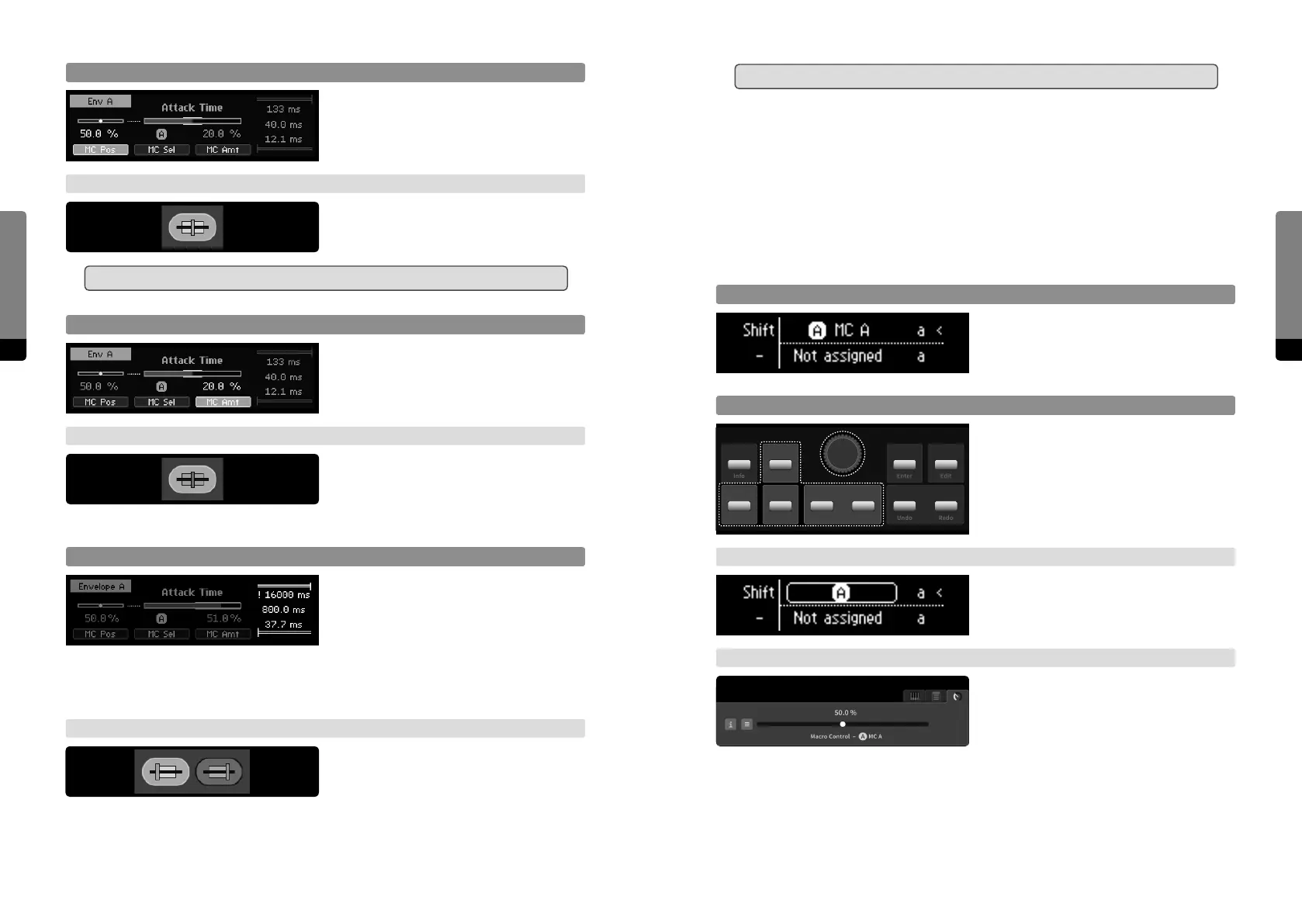
MC Position
Press So Button 1 in order to focus on MC
position and adjust it like a parameter.
→ Graphical UI
Click on the MC position icon in order to
focus on MC position and adjust it like a
parameter on the slider.
߱ This will cause a modulation and may aect other parameters as well.
MC Amount
Press So Button 3 in order to focus on
MC amount and adjust it like a parameter.
The modulation range will be indicated
separately, next to the slider.
→ Graphical UI
Click on MC amount icon in order to focus
on MC amount and adjust it like a parame-
ter on the slider. The modulation range will
be indicated separately, next to the slider and on the main area element.
Modulation Range Aspects
Pressing So Button 4 moves the focus to
the rightmost stack of modulation range
aspects and cycles it. The selected aspect
can be adjusted like a parameter. Provided
aspects are the modulation range upper limit, the (current) control position and the
modulation range lower limit. When either the upper or lower limit exceed the parameter
range, clipping is indicated by an exclamation mark.
→ Graphical UI
Click on MC Lower Limit or MC Upper Limit
icon in order to focus on modulation range
aspect and change it like adjusting a param-
eter. The control position is in focus when no aspect is selected. When either the upper or
lower limit exceed the parameter range, clipping is indicated by an exclamation mark.


 To Next Page