58 Chapter 6 Custom Call Routing
P0919416 03
Planning and designing a CCR Tree
To plan and design a CCR Tree you:
• determine the frequently-called departments and extensions that you can include in a CCR
Tree
• make a list of the goods and services you want to mention in Information messages
• create the mailboxes that you will add to a CCR Tree for callers to leave messages in
• determine destination types
• record the prompts and messages
By default, a caller can press · to hear prompts in an alternate language, or ‚ to reach an
operator. Tell callers about these options as part of the Home node prompt.
Components of a CCR Tree
The Home node
After the Company Greeting, a caller hears the Home node. The Home node is the “top” of the
CCR Tree. When a caller selects an option from the Home node, they can access a sub-menu, leave
a message, transfer to an extension or an external number, or play an Information Message. A
Home node can offer up to eight options. By default, 0 is reserved for reaching the Operator, and 9
offers the menu in the alternate language. A menu is a prompt that you record that presents a caller
with a list of up to eight options.
The Home node is on Level 0. As sub-menus are added to one another, the caller progresses
through the levels of the CCR Tree. You can create up to 11 levels (from 0 to 10).
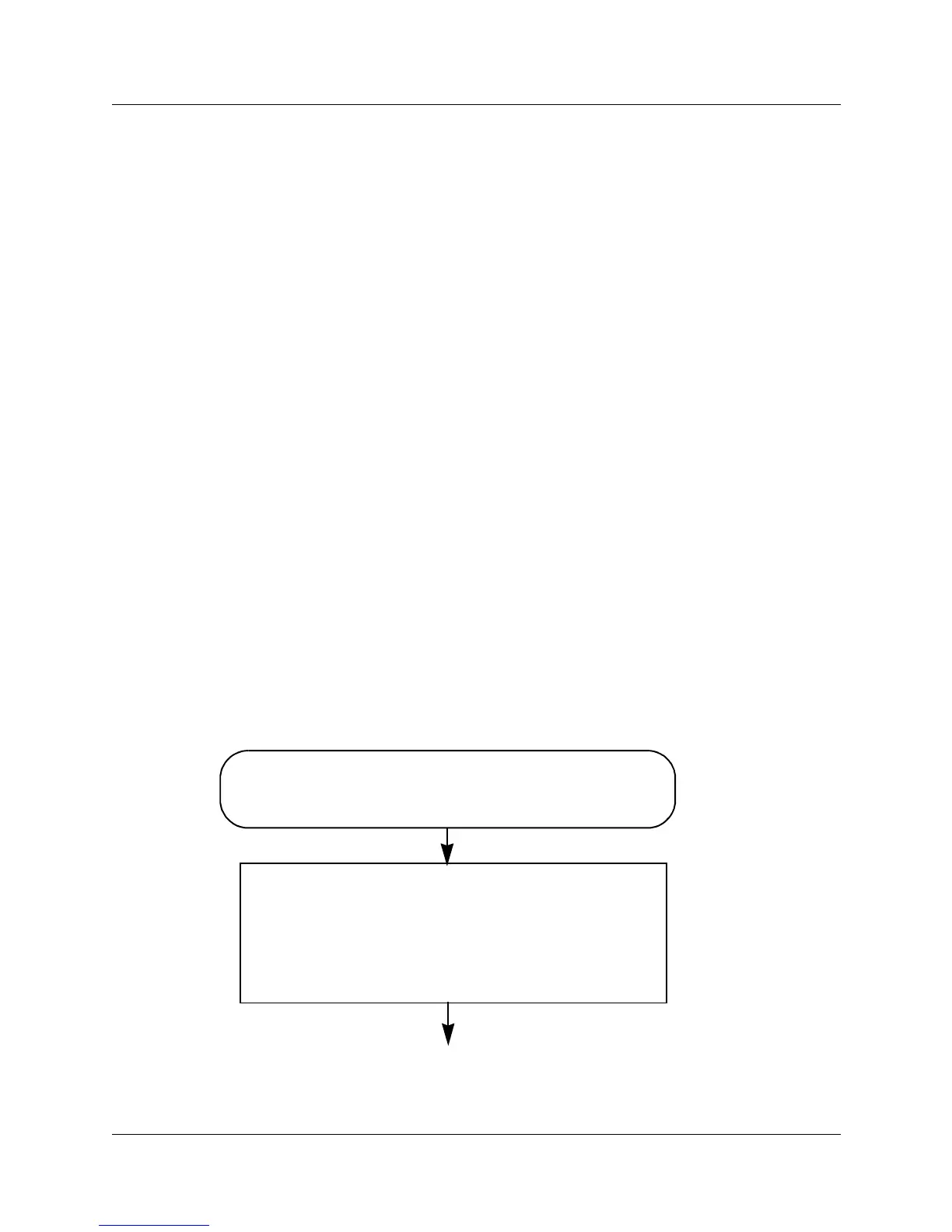
An example of a Home node
For an example of Paths through a CCR Tree, refer to “An example of a CCR Tree” on page 61.
Company Greeting
This is Ideal Office Machines. Our business hours are from
9:00 a.m. to 5:00 p.m. Monday to Friday.
The call is forwarded to the destination the caller chooses.
Home node
To place an order, press
⁄.
To add your name to our mailing list, press ¤.
To reach our Sales Department, press ‹.
To speak with our Support Office, press ›.
To speak with our receptionist, press ‚
.


 To Next Page