ECR User`s Manual ECR User`s Manual
2.7 Other Settings
In “Other Settings”, users can define whether the beep for button pressing is on or off and
whether the back ground light is always on or not.
======= =======
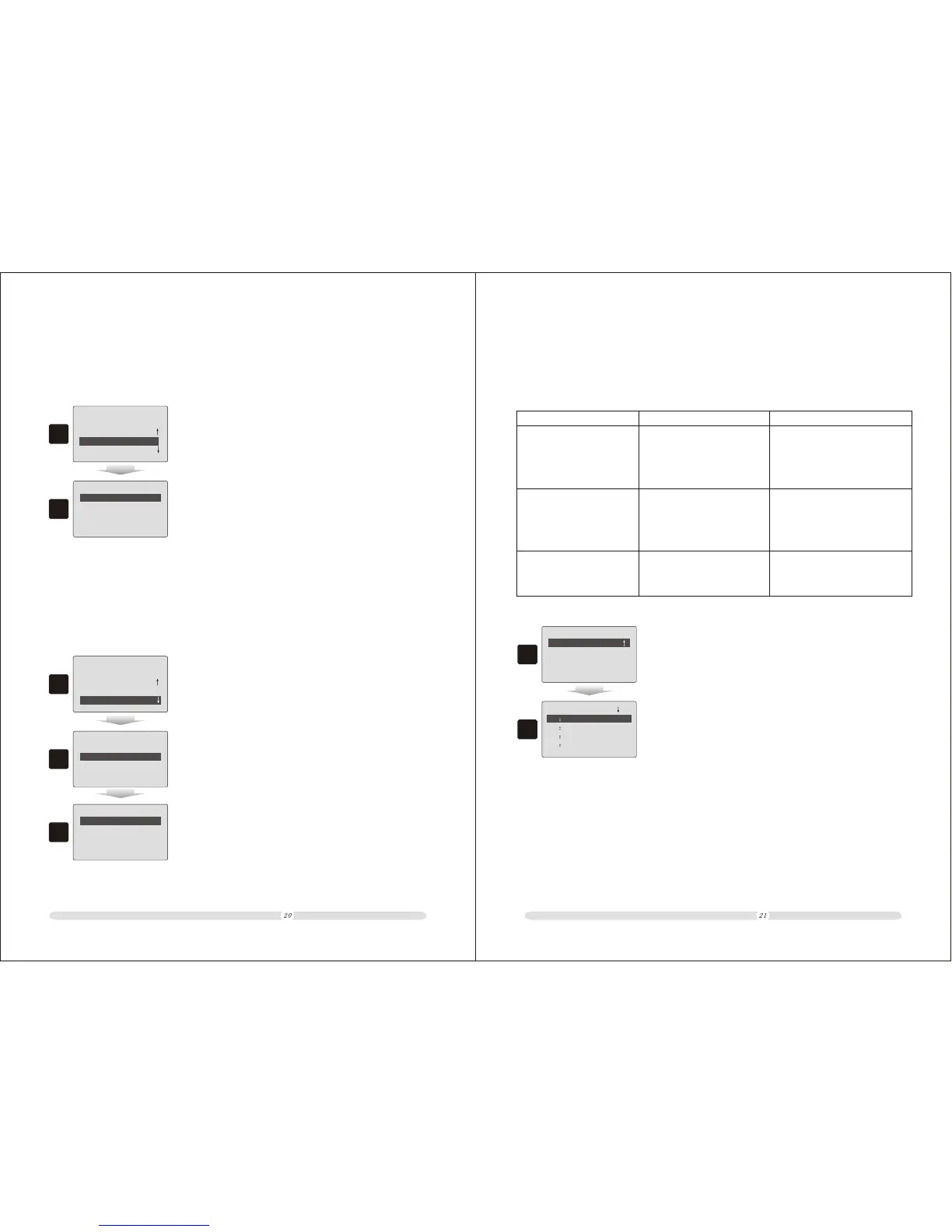
1. In “Settings” interface, select “Other Settings” option and
press “Enter”;
Pay Way Settings
Count Rules
Language Selection
Other Settings
Settings
1
==== ====
2. In “Other Settings” interface, move cursor to one option
and press “Enter” to select or deselect the option.
Button Beep On: X
Back Light Always: X
Other Settings
2
2.8 Language Selection
The cash register supports multi languages. They could be Simplified Chinese, English, Tieng
Viet, Farsi or Thai.
======= =======
1. In “Settings” interface, select “Language Selection” option
and press “Enter”;
Pay Way Settings
Count Rules
Other Settings
Language Selection
Settings
1
== ==
2. In “Language Selection” interface, move cursor to the
specific language and press “Enter” to confirm.
Chinese
Tieng Viet
Fersi
English
Language Selection
2
== ==
Thai
Language Selection
3
2.9 In-Store Code
The configuration for in-store code is a recognizing format for barcode created by electronic
scale or electronic balance. The in-store code is a 13 digits number.
20XXXXCPPPPPC
20~29: The code scanned by
reader with the first 2 digits
ranging from 20 to 29 will be
recognized as in-store code;
XXXX: the next 4 digits
which follow the first 2 digits
will be treated as PLU
recognizing code;
PPPPP: represents the total
price of the commodity.
20~29: The code scanned by
reader with the first 2 digits
ranging from 20 to 29 will be
recognized as in-store code;
XXXX: the next 4 digits
which follow the first 2 digits
will be treated as PLU
recognizing code;
WWWW: represents the total
weight of the commodity.
20~29: The code scanned by
reader with the first 2 digits
ranging from 20 to 29 will
be recognized as in-store code;
XXXX: the next 4 digits which
follow the first 2 digits will be
treated as PLU recognizing code;
WW.WW: represents the total
weight (in decimal) of
the commodity.
20XXXXCOWWWWC 20XXXXCWW.WWWC
======= =======
1. In “Settings” interface, move cursor to “In-Store Code”
option and press “Enter” to select it;
In-Store Code
Communication
Initial All Data
Settings
1
== ==
2. In “In-Store Code” interface, select one of the code set and
press “Enter” to shift among the code formats.
20. 20XXXXXXXXXXC
21. 21XXXXXXXXXXC
22. 22XXXXXXXXXXC
23. 23XXXXXXXXXXC
In-Store Code
2


 To Next Page