ECR User`s Manual ECR User`s Manual
3
Dept.:Drink
ABC /
ABC /123456789
CocaCo/1234567891002
Cestbo/1234567891019
11111
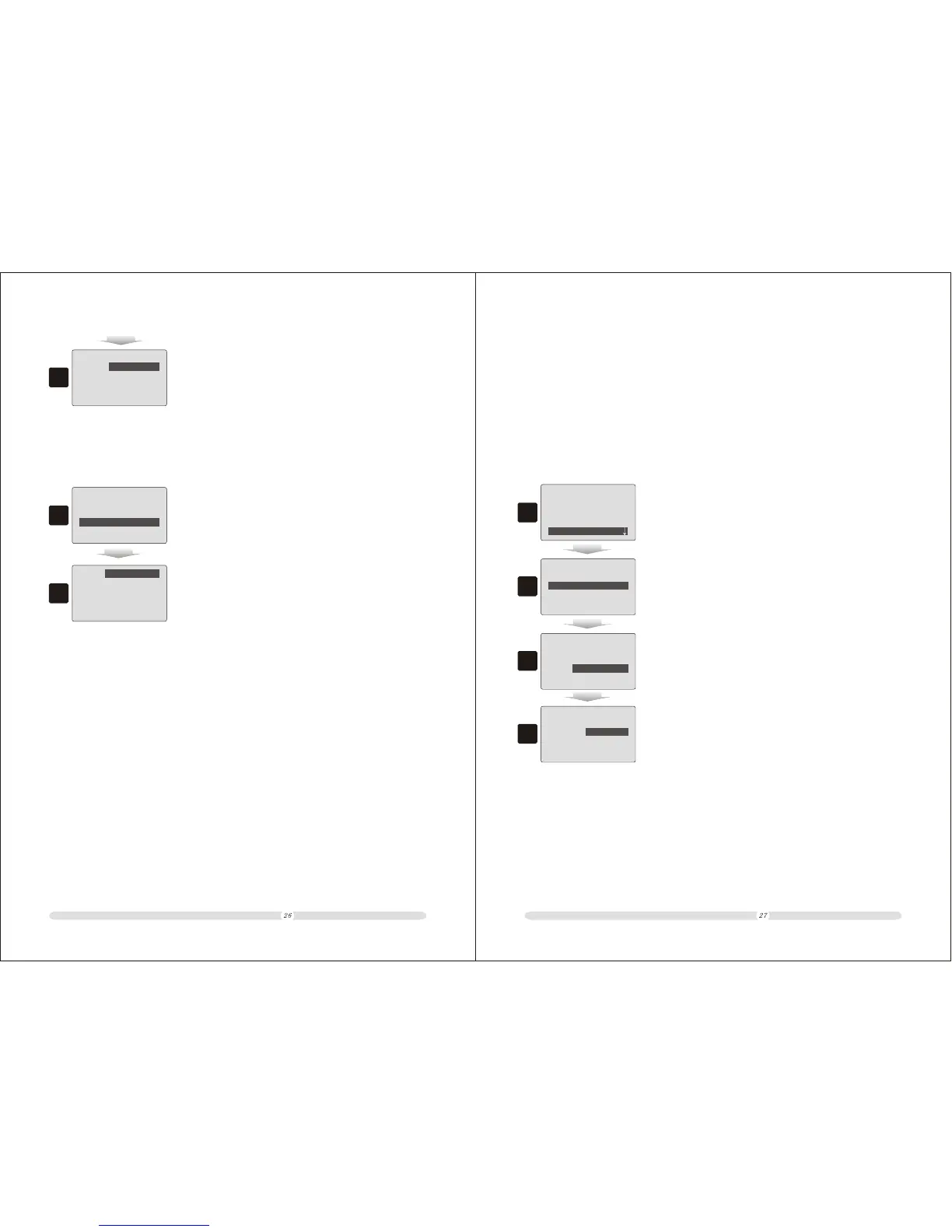
3. PLU under Department “Drink” as shown left.
3.3.3 Search by Character
1
=====
Search PLUS
=====
Search By Code
Search By Dept.
Search By Character
1. In “Search PLUS” page, select “Search By Character” and
press “Enter”;
2
abc..:
/
/
/
/
2. Key in characters in “abc..: ” and the system will
automatically match PLU for user.
3.4 Increase/Decrease Stock
Users may buy in stocks for best selling commodities and commodities which are about to be sold
out. Sometimes for chain stores, one store may be lack of some commodities and need others
to move out some of these commodities, then users need to decrease the stock for these commodities
manually. These will need the cash register has increase or decrease stock function. To perform
this function, follow below steps.
1
==
PLUS&Departments
==
Creat New PLU
Search PLU
Set Departments
In/Decrease Stock
1. In “PLUS&Departments” page, move cursor to “In/Decrease
Stock” and press “Enter” to select it;
2
Code:
Pertro/
ABC / 111111
20001
ABC / 123456789
White/ 20002
2. The system will prompt PLU selection. Key in the commodity
code and select the PLU which has new buy-in or move-out and
press “Enter”;
3
Stock: 99
Average: 1.00
Increase: 100
Cost:
Decrease: 0
100
3. In the page under the specific PLU, key in the quantity to be
increased or decreased and the unit cost; then press “Enter” to
confirm;
4
Stock: 199
Average: 50.74
Increase:
Cost:
0
Decrease: 0
0
4. After confirmed, the system will automatically calculate the
stock and average cost (unit price for total). This means stock
increased successfully.


 To Next Page