ECR User`s Manual ECR User`s Manual
1
=== NTS ===
P Settings
R Registration
X PLUS&Departments
Z Reports
2
=== NTS ===
M Member
R Restaurant
T TAX/VAT
3
=======
TAX/VAT
=======
4
TAX/VAT Settings
TAX/VAT Report
Select TAX VAT
Default Ra 0%
Printing: X
Save...
8.1 Set TAX/VAT/NONE
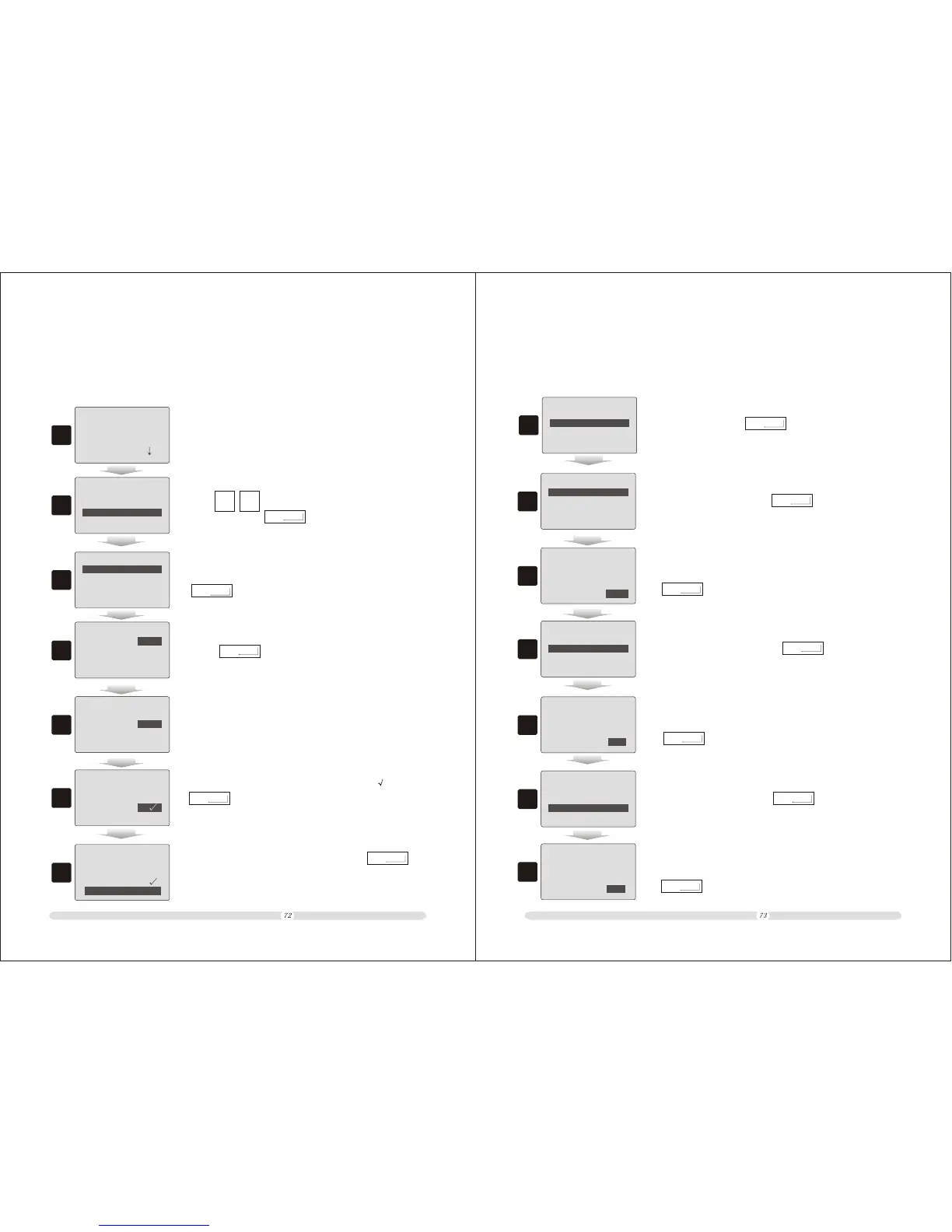
1. Go to the main menu page;
2. Press to direct the cursor block to “ TAX/VAT”
option, then press ;
Cash
Enter
3. Select “ TAX/VAT Settings” option in TAX/VAT page, then press
;
Cash
Enter
4. Direct the cursor block to “ Select TAX:VAT ” ,then
press to shift tax selection ways among
NONE/TAX/VAT /GST;
This register machine supports several tax ways: None, TAX, VAT and GST. It has powerful fiscal
report function. Users can check reports by daily, monthly or yearly statistics.
Chapter 8 TAX/VAT setting and report
RA/PGUP
RO/PGDN
Cash
Enter
5
5. Direct the cursor block to “ Select TAX/VAT:17% ” ,key in a
number to set the tax rate;
6
6. Direct the cursor block to “ Select TAX/VAT: ” ,press
to select whether print tax or not in the receipt;
Cash
Enter
===
TAX/VAT Settings
===
Select TAX VAT
Default Ra
Printing: X
Save...
17%
===
TAX/VAT Settings
===
===
TAX/VAT Settings
===
Select TAX VAT
Default Ra 17%
Printing:
Save...
7
7. Direct the cursor block to “ Save... ” ,press
to save the setting .
Cash
Enter
===
TAX/VAT Settings
===
Select TAX VAT
Default Ra 17%
Printing:
Save...
8.2 Tax report
The fiscal register module has powerful report functions. Users can check report at any
time period. Follow below steps to print out the report as users need.
1
=======
TAX/VAT
=======
TAX/VAT Settings
TAX/VAT Report
1. In “TAX/VAT ” page , direct the cursor block to “ TAX/VAT
Report ”,then press and enter into report selection
page;
Cash
Enter
2
D Daily Report
M Monthly Report
Y Yearly Report
3
4
===
TAX/VAT Report
===
DD/MM/YYYY
From
08- 05- 2009
To
09- 05- 2009
D Daily Report
Y Yearly Report
M Monthly Report
===
TAX/VAT Report
===
2. In report selection page,direct the cursor block to
“D Daily Report ”, press and enter into date
period selection page ;
Cash
Enter
3. Direct the cursor block to a date option,key in a number to
set the corresponding date , after all set properly , press
to print out the Daily Report;
Cash
Enter
4. In report selection page, direct the cursor block to
“M Monthly Report ”, press and enter into month
period selection page ;
Cash
Enter
5. Direct the cursor block to a year/month option,key in a number
to set the corresponding month , after all set properly , press
to print out the Monthly Report;
Cash
Enter
6. In report selection page, direct the cursor block to
“Y Yearly Report ”, press and enter into year
period selection page;
Cash
Enter
5
MM/YYYY
From
04
To
- 2009
05 - 2009
6
D Daily Report
M Monthly Report
Y Yearly Report
===
TAX/VAT Report
===
7. Direct the cursor block to a year option, key in a number
to set the corresponding year , after all set properly , press
to print out the yearly Report.
Cash
Enter
7
YYYY
From
To
2008
2009


 To Next Page