15
OneScreen
HL7
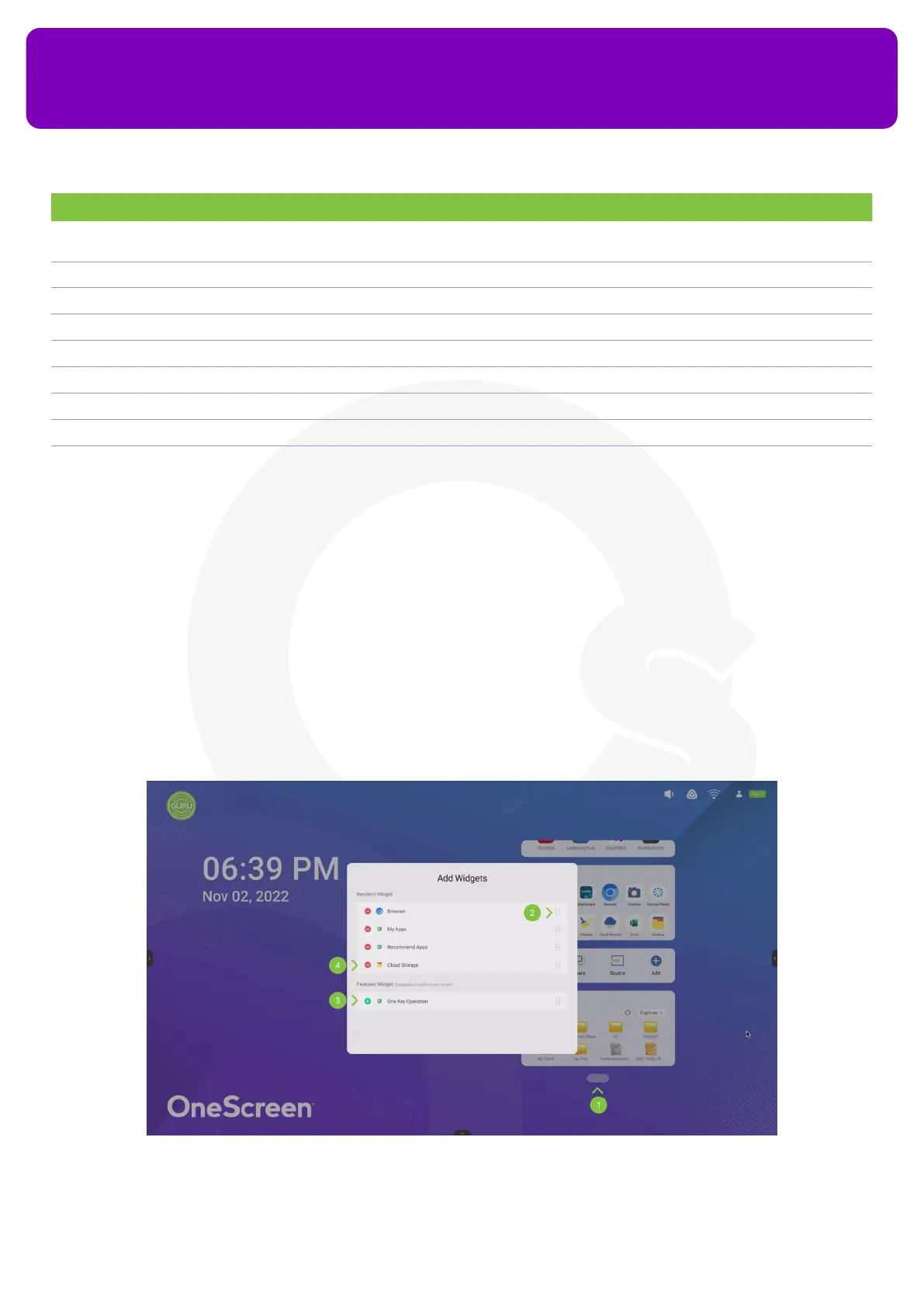
11.2 Editing the Widgets on your OneScreen Homepage
The user can swipe on the widgets to scroll through them on the Homepage. Once scrolled to the bottom, the
user can press “Edit” to add and remove widgets on the Home Page and change their order of appearance as
well.
No. Description Function
1 OneScreen Account Your personalized OneScreen prole containing all your data and les synced on the cloud that you can
access on any OneScreen panel by simply signing in
2 Guru Button Tap on it to reach out to the OneScreen GURU Team for live; instant support and training
3 Browser Your OneScreen’s browser for surng the web
4 Quick Access Quick Access
5 My Apps Your favorite apps according to your account settings
6 One Key Operation Shortcuts to privacy clear, switch to OPS, and shut down
7 Cloud Storage Integrate your Google Drive/Microsoft OneDrive storage
8 Data & Time Date and Time that can be set from your settings
9 Navigation Toolbar You can also click on the arrow buttons on the left/right side or the bottom to access the navigation
toolbar


 To Next Page