22
OneScreen
HL7
You may follow the steps below to connect your devices with OneScreen HL7 via the OneScreen Share
Application:
1. Download the OneScreen Share client application on device that you want to connect with OneScreen
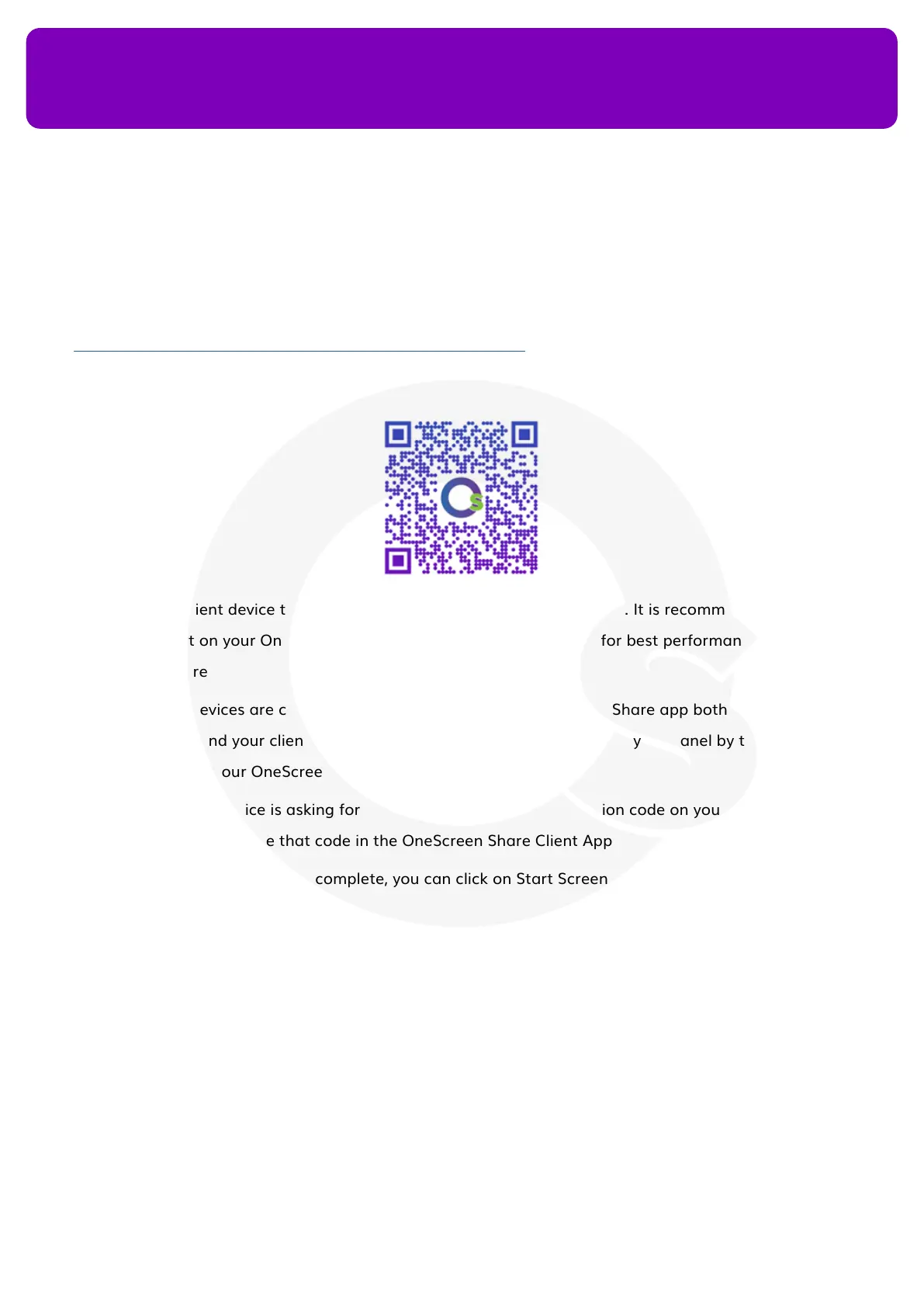
(Client Device). You can download it by using the link in the QR Code or the link below
https://www.onescreensolutions.com/en/downloads/share.
You may also nd it in the Google Play Store for Android Devices and App Store for your iOS devices
2. Connect your client device to the same network as your OneScreen Panel. It is recommended to create
a Wi-Fi Hotspot on your OneScreen HL7 and connect your device to it for best performance while using
OneScreen Share
3. Once both the devices are connected via network, open the OneScreen Share app both on your
OneScreen HL7 and your client device. You can open OneScreen Share on your panel by tapping on
‘Share’ Button on your OneScreen
4. In case your client device is asking for a code, note the 6-digit connection code on your OneScreen Share
App’s homepage and type that code in the OneScreen Share Client App on your client device
5. Once the connection process is complete, you can click on Start Screen Share to cast your client device’s
display onto OneScreen HL7
6. You can click on Start Desktop Sync to get a live feed of your panel on your client device. It also allows
you to control your OneScreen HL7 from your client device
12.4 OneScreen Account
OneScreen Account is your personal prole on OneScreen HL7. It allows you to personalize your OneScreen
experience. You can log into your OneScreen Account and set it up to personalize your display like setting up
a wallpaper or widgets, conguring the shortcuts that you want displayed on your home screen and binding


 To Next Page