28
OneScreen
HL7
12.8 OneScreen Guru
OneScreen Guru is your one-tap solution for all issues that you may face while using OneScreen Products.
Using the Guru App Customers can speak directly with a highly trained engineer, not just a typical customer
service agent. Gurus oer free, unlimited help and training on any OneScreen product, as well as for issues
like integration with devices from other manufacturers.
The Guru App comes pre-installed in your OneScreen HL7 and can be accessed via the Guru Button on the
top-left corner of your OneScreen HL7’s home screen or via opening the Guru app from the apps section of
your OneScreen. You may also use the Guru Desktop app on your laptop to ask for a Guru’s assistance from
your personal device.
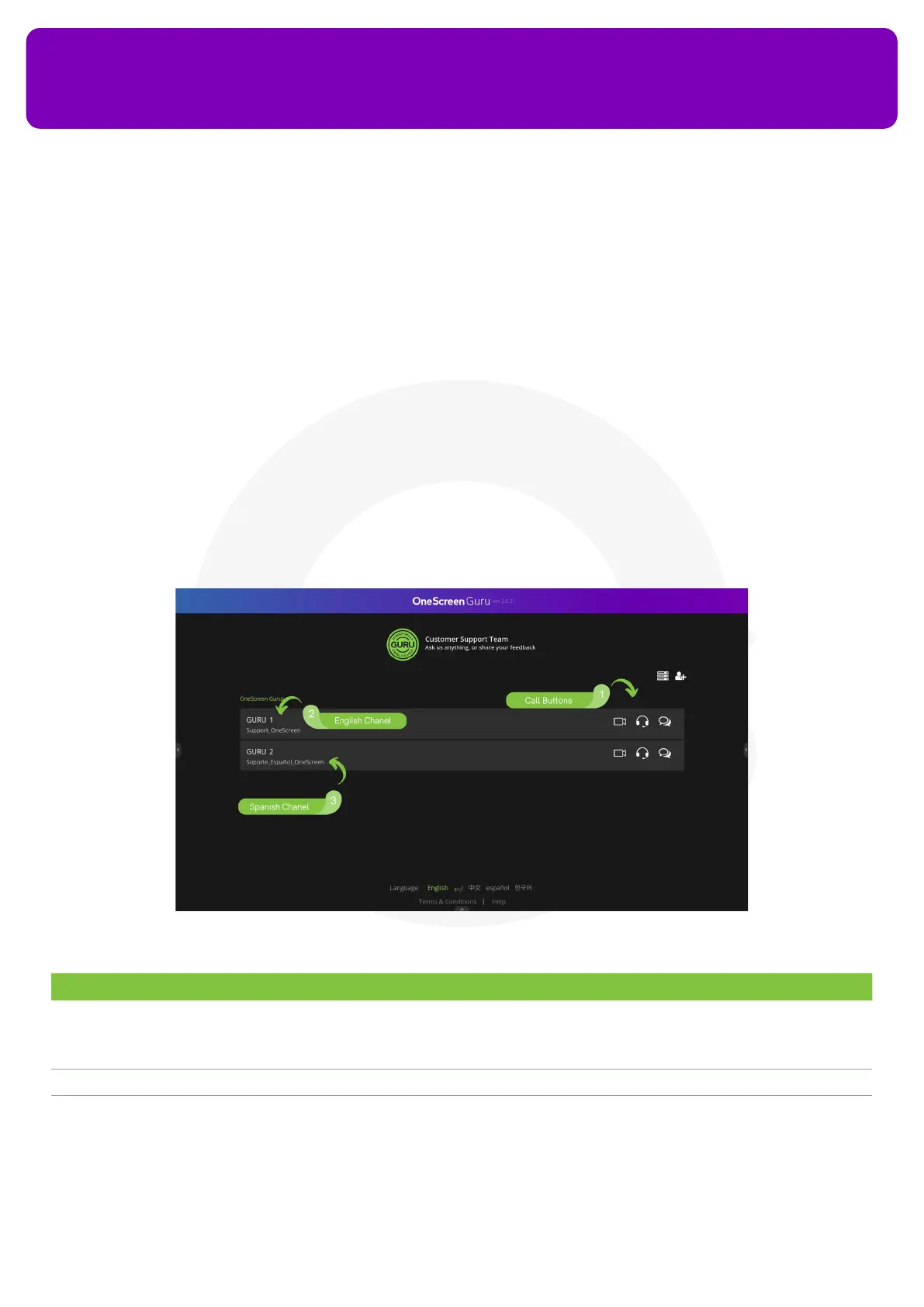
Once you open the Guru application on your OneScreen HL7, you get the page displayed below.
No. Description Function
1. Call Buttons You can use these buttons to make Video/Audio Calls to the OneScreen Customer Support. You may
leave a message as well by tapping on the chat icon right next to the Audio Call. While making a call,
make sure that you have a mic or camera attached with your device so you can be seen or heard over
the call.
2. English Channel You can use this support channel to give a call to our English Support Team
3. Spanish Channel You may also use the Spanish Support Channel to make a call to our Spanish Support Team
Note: OneScreen Guru app requires users to connect a microphone or a webcam device to their OneScreen HL7. Without
the microphone, users may have to dial in to the Guru team to get live support and assistance using a phone number and
meeting ID.


 To Next Page