27
OneScreen
HL7
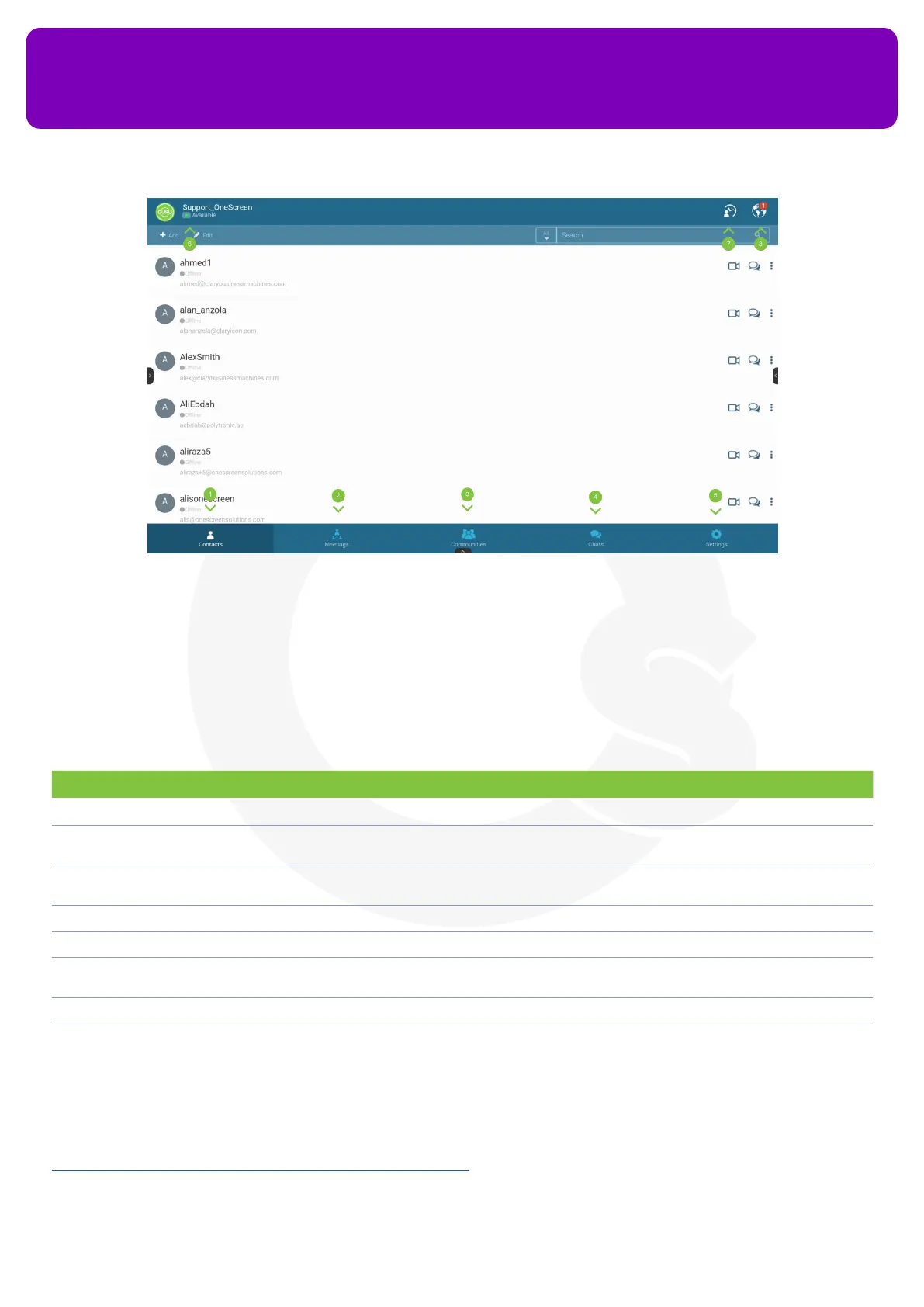
OneScreen Hype App comes pre-installed on your OneScreen HL7. You can open it up by navigating to the
apps section of your OneScreen in the bottom or side toolbars. The home page of your OneScreen Hype has
multiple icons each having the functionalities mentioned below.
No. Description Function
1 Contacts Shows you all the contacts saved in your OneScreen Hype Account
2 Meetings You can check all the meetings that have been scheduled with you using this tab. You can also start a
new instant meeting, schedule a meeting, or join a meeting from this tab
3 Communities Group your contacts into communities to have group calls at the press of a single button. You may also
use the communities chat feature to have a group chat with all the members of the community
4 Chats All your chats along with the history of the previous conversations appear in the chats tab
5 Settings Allows you to congure your Hype Account
6 Account Status You can change your availability from the account status button. This status is visible to everyone in your
contact list
7 Recent Meetings You can start instant meetings, join dedicated rooms, and start webcasts from this button
8 Notications Shows you notications for your missed calls, contact invites or reminders for scheduled meetings etc
For more details on OneScreen Hype, please visit the following link or contact our support team.
https://www.onescreensolutions.com/en/product/hype/


 To Next Page