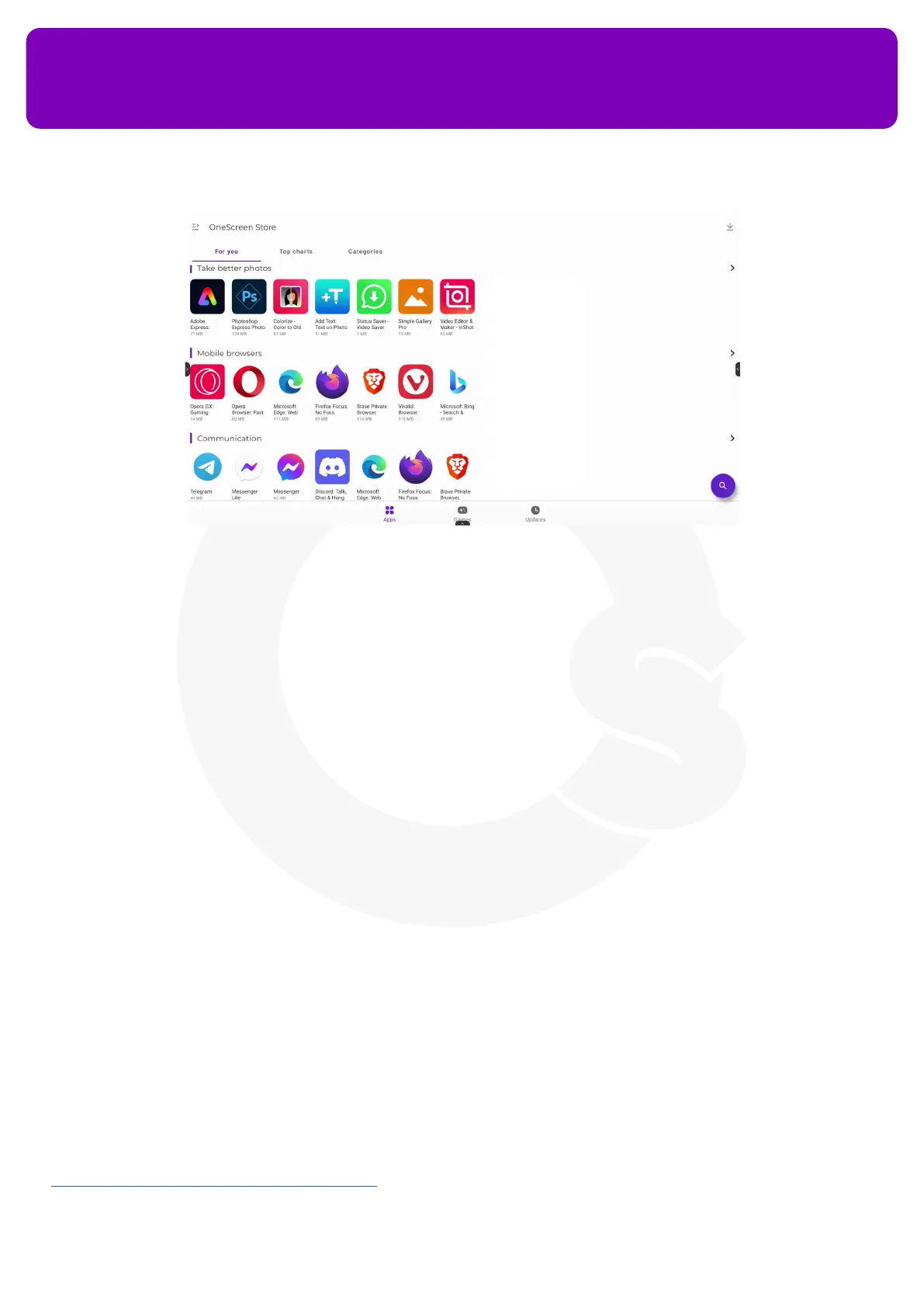
Follow the steps below to download your desired applications on your OneScreen HL7:
1. Open your OneScreen Store by going to the Apps section from the navigation bars on your OneScreen
2. Search for your desired app by tapping on the search icon on the bottom right corner of your OneScreen
Store’s home screen and typing the name of the desired application
3. Once the search is complete, select the app that you want to download
4. Once the application’s detailed window opens up, tap on the install bar at the bottom of the page to
download and install the application over your OneScreen HL7
12.6 OneScreen Central
OneScreen Central lets you monitor, manage and control all your school’s OneScreen devices from one
easy-to-use cloud-based platform. The straight-forward interface lets you complete complex congurations
with ease for countless devices. It allows you to perform functionalities such as installing applications,
changing settings, installing policies, allowing, or disallowing webpages or applications and sending les such
as pdf, word docs, power points, messages, alarms, and photos on a single or group of devices. You can also
access user activity reports such as analytics on the device’s power-on time and app usage etc.
You can create a OneScreen Central account by using the link below.
https://onescreen.visomdm.com/login.html
OneScreen
HL7
25


 To Next Page