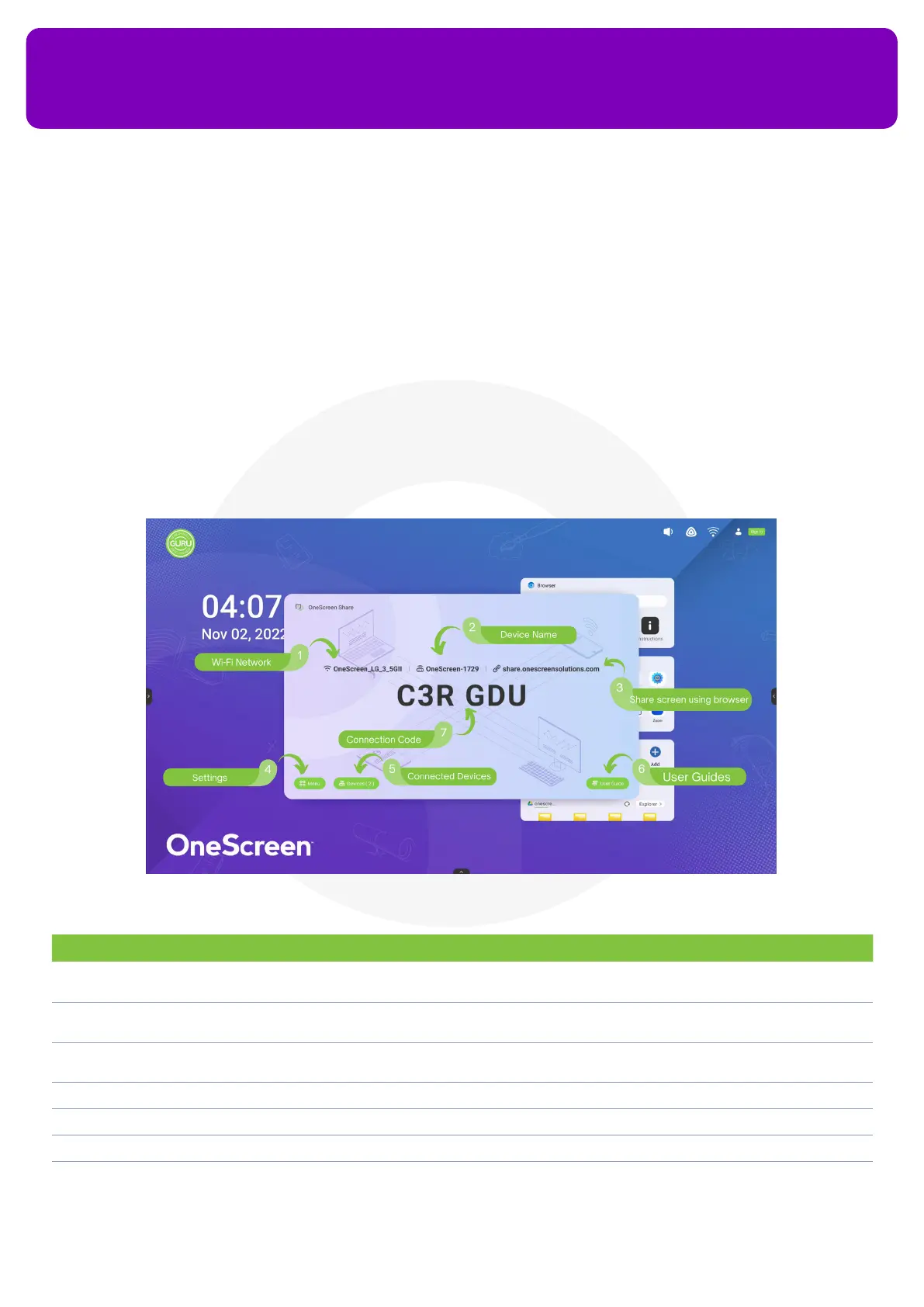
12.3 OneScreen Share
OneScreen Share is a multiscreen interaction application for smart phones, tablets, or personal computers to
interact with OneScreen. Using OneScreen Share you can cast your phone, tablet, and computer screen to the
OneScreen and vice versa. It also allows remote control of your OneScreen through your devices. OneScreen
Share allows up to 9 users to simultaneously project their screens on OneScreen and is an ideal choice when
it comes to mirroring/wireless screen sharing software. Follow the steps below to connect your device with
OneScreen HL7 using OneScreen Share. OneScreen Share is compatible with Windows, Mac, Chrome OS,
Android and iOS platforms.
OneScreen
HL7
21
No. Description Function
1 Wi-Fi Network Displays the name of the network you need to connect your device to establish a connection with
OneScreen HL7
2 Device Name Shows you your Device ID. This ID is unique for all OneScreen Panels, and you can use it to make a
connection with a particular device of your choice
3 OneScreen Share
using Web
Access this link on the client device to share your device screen with the OneScreen using the web
browser.
4 Settings You can congure the settings of your OneScreen Share Application from here
5 Connected Devices Shows you all the devices connected to your OneScreen HL7 using the Share app
6 User Guide A guide on how to connect multiple types of devices with your OneScreen HL7
7 Connection Code You can connect to other devices by typing this key on the client app of the device that you want to
connect with OneScreen


 To Next Page