32
OneScreen
HL7
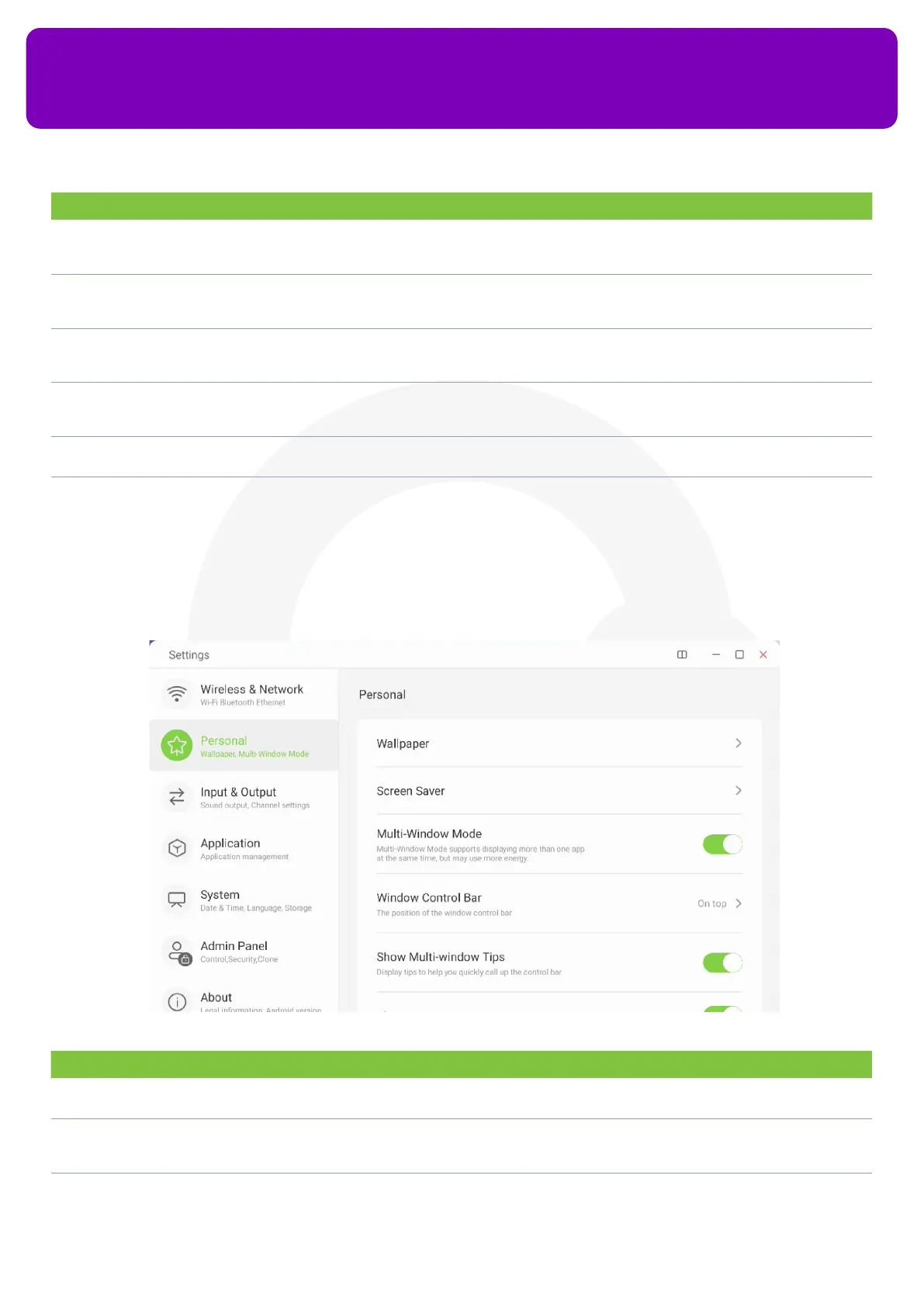
13.2 Personal Settings
You can congure your display and interface related settings from the Personal Settings.
No. Description Function
1 Wi-Fi Allows you to connect your OneScreen with a Wi-Fi Network press the Wi-Fi icon to open Wi-Fi settings,
then press the toggle button on the top right corner of the settings window to turn on your Wi-Fi, select
the network that you want to connect to and type in the Wi-Fi’s password to make a connection.
2 Ethernet It allows you to connect to a network via the ethernet cable. Tap on the ethernet option to toggle on/o
the connection via ethernet cable. If your ethernet is toggled o, you won’t be able to access network via
ethernet even if the cable is plugged in
3 Hotspot This allows you to create a Wi-Fi hotspot on your device. Tap on the Hotspot option in your OneScreen
and then toggle the Hotspot on. You can also congure your hotspot settings such as Hotspot Name,
Password and Security Protocol by tapping on the Hotspot name icon just below your toggle button
4 Bluetooth Allows you to connect your Bluetooth devices like headphones, keyboard, mouse etc. To enable
Bluetooth, tap on the Bluetooth option, hit the toggle button, and tap on the Device Id to pair your
devices
5 VPN VPN: You can congure a VPN connection using this option and route your network trac through a
certain IP address using the VPN
6 SAMBA Service Allows you to wirelessly access the storage of your OneScreen through your laptop
No. Description Function
1. Wallpaper Allows you to change the wallpaper of your OneScreen. You can select from a range of dierent
wallpaper options available. You can also choose between static and dynamic (live) wallpapers
2. Screen Saver You can turn on the screen saver on your OneScreen which allows you to put up a screen saver on your
device after a certain time of inactivity. You can choose between a clock, colors, and landscape pictures
as screen savers
3. Multi-window Model Toggling this on will allow you to open multiple windows on your OneScreen HL7 using the split screen
functionality


 To Next Page