38
OneScreen
HL7
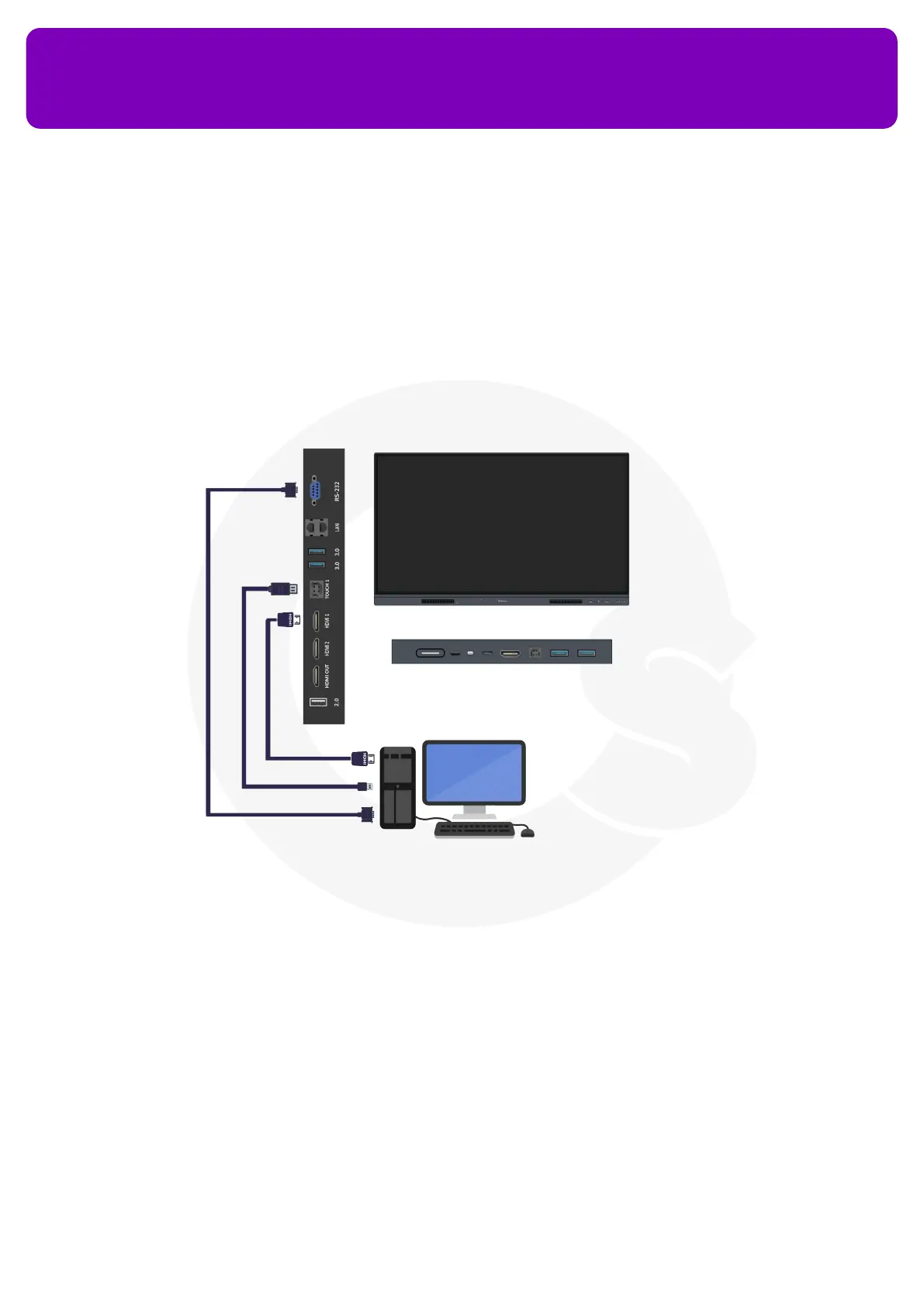
1. Connect your device and the OneScreen through either one of the HDMI, VGA, or USB-C cables
2. In case of an HDMI or VGA connection, additionally connect the USB touch (USB-A to USB-B) cable
between the two devices to have touch capability on the HL7
3. Once you have connected your device connected with the OneScreen, you will automatically get a preview
of your devices on the Home Screen of your OneScreen HL7
4. You can swipe left and right on source preview window to switch between multiple connected sources
14.2 Wireless Connectivity
To connect your OneScreen to any other device like Laptop/Desktop/Mobile phone/Tablet, you can use the
OneScreen Share app as explained in section 12.3.
15. Remote
To control your OneScreen HL7 with a remote, point it towards the front IR transceiver on the OneScreen
device. The power button will blink red once the device receives any command via remote controller. You will
get following buttons on the remote:


 To Next Page